Thursday, June 19, 2025

Wednesday, June 18, 2025
Cubase: Transpose Track Tricks
 Ready for that classic semitone ‘lift’ for the last chorus? The Transpose Track makes it easy.
Cubase’s audio transpose features open up some interesting creative possibilities.
The ability to transpose parts after they’ve been recorded can be useful for a number of reasons, and Cubase offers a number of tools that make this possible, for both MIDI and audio. In the article that follows, I’ll run through a few examples to help you get started.
All Change
Tucked away under the Add Track menu option alongside Cubase’s other track types is the Transpose Track. As a broad-brush tool for transposing your entire project or just a specific section of it, the Transpose Track is easy to use and very useful. Once added to your project, the Pencil tool lets you add transpose events (they look a bit like an empty MIDI clip). These extend from the insertion point to the end of your project or, if there is one, the next transpose event. Located bottom-left of each event is the transpose setting; hover the standard cursor over this value, and then click and drag up/down, and you can set the transpose value up/down in semi-tone steps.
An obvious possibility — something of a pop cliché — would be our old friend the key change: place a transpose event at the start of that final chorus and set its transposition value to 1. On playback, every track, whether MIDI or audio, would be transposed up by a half-step. And, providing you don’t have too many sustained notes that span the transition, this kind of modest pitch change will be handled very gracefully, with few unwanted sonic artifacts.
There are a couple of additional things to note, though. First, before you start adding transpose events, it’s a good idea to set the global key for the project. (Do this in the Project window’s Tool Strip, and if the option is not displayed, you can switch it on via the Tool Strip’s Setup dialogue). This ensures the correct handling of any commercial loops you’ve used that have their original key information embedded (you can check whether they have in the Pool).
Second, you’ll probably want to exclude any drum, percussion or sound-effects tracks from the transpose process. This is easily done via the Global Transpose setting in the Info line at the top of the Project window. For each audio or MIDI clip, this can be toggled between Follow (the default) and Independent values. If you select all of the MIDI and audio clips that you want to ignore the Transpose Track, you can toggle them to the Independent setting with a single click.
 The rhythmic feel might be OK, but eight bars of Cmaj7 is perhaps not the most interesting dance chord sequence ever created!
The Key To Great Vocals
Another common application for the Transpose track is more corrective than creative; finding the right key for your singer. There are lots of producers who create musical beds and then hire in a singer to add the top line. A single transpose event at the start of the Transpose track can be a great help in finding the ideal key for the singer’s range. If this requires more than a few semi-tone steps in either direction, some re-recording of the backing tracks (particularly audio tracks) is advisable, but at least you have an easy way to find your singer’s comfort zone.
Another practical role for this technology is helping a vocalist hit the high notes: if the key is just a step or two too high for the singer to get the top-most notes, you can drop the whole arrangement down by the step(s) required while tracking the vocals, before simply returning the project to the original key: the vocals will be pitched up accordingly.
Let’s Dance
 The colour-coding of notes on the piano roll doesn’t have to relate to velocity — it can also display key/scale/chord information relating to the Chord Track.Not all of us are blessed with great keyboard skills, and while Cubase offers all sorts of ways to assist you in creating MIDI-based chord sequences (for an example, see SOS May 2015: http://sosm.ag/cubase-0515), the transpose features can be a handy alternative — I’ll use the creation of an EDM-style chord sequence to illustrate this. The screenshot shows an eight-bar sequence ‘starting point’, where the rhythmic nature of the part is defined but the part currently comprises just a single chord. If you lack the keyboard skills to spice this up, or an understanding of what chords might work alongside your starting chord, a combination of setting the project’s key/scale (done via the Chord Track) and the MIDI Transpose Setup dialogue can help.
First, insert a Chord Track into your project and, in the Inspector, switch off the Automatic Scales option. Then, in the track’s Track Control panel, set Show Scales to On. An additional lane will appear in the Chord Track, into which you can add events that define the key/scale combination from that point onwards.
Next, with your MIDI clip displayed in the piano roll editor, select Chord Track in the Event Colours drop-down. Instead of the notes being colour-coded according to velocity (the default), the colours indicate whether the notes fit into the current key/scale — red notes lie outside the current key/scale.
If you don’t know what key/scale combination your initial chord belongs to, you can experiment with the key/scale dialogue in the Chord Track until your initial chord contains just pale blue notes (indicating that they all lie within the current key/scale combination). There may be several acceptable combinations, though, so some trial and error will probably be required.
 The Transpose Dialogue can help you find new chords, keeping notes in the appropriate scale.Now to get experimental with the chord sequence. Imagine we want to find a different chord for the third and fourth bars of the sequence. After selecting just those notes, the Transpose Setup dialogue (from the MIDI menu) can apply a bit of scale-sensitive assistance. For example, the settings shown in the screenshot will transpose the selected notes by a semitone, but because Scale Correction is selected and both the current and new scale are set to the project’s scale (C-major in this example), any note movements created by the dialogue will remain ‘in scale’ (so some may move by more than one semitone). To ensure that transposition doesn’t take any notes too far from their original register, the Use Range parameter can constrain the range of allowable notes.
Clicking OK applies the settings in the dialogue to the selected notes, so just repeat the process until you hear something you like. Whatever you do, you can be sure that all the notes in your new ‘chords’ will be in key/scale. While that doesn’t guarantee a musical miracle, it really doesn’t take long to create a good, dance-friendly sequence.
The downside is that the Transpose Setup dialogue closes every time you hit the OK button — a quick visit to the Key Commands dialogue will allow you to configure shortcuts to open the Transpose Setup dialogue, and to repeatedly execute the current Transpose Dialogue settings without actually opening the dialogue itself.
Colour Me Bad
Of course, you don’t have to use the Transpose Setup approach. Having set the Chord Track key/scale and the Chord Track colour-coding in the piano-roll editor, you can move notes around in the piano-roll editor manually. As you shift all the notes of your chords up/down, if any red notes appear you can simply select these and experiment with shifting just those notes an additional step or two to see what new ‘chord creations’ manifest themselves. Yes, it’s still a case of trial and error, but at least some of the errors are being pointed out to you, and you can let your ears judge whether the occasional ‘out of scale’ note is musically acceptable or requires further tweaking.
 If transposing notes by hand, Chord Track-based colour-coding can help you avoid errors.
Note that while this ‘dance chords’ example has focused on MIDI tracks, the same Chord Track colour-coding is available when editing monophonic audio tracks in VariAudio. If you want to experiment with transposing/re-writing your vocal melodies, for example, Cubase can give you some useful guidance.
Any Other Business
Once you’ve used these transpose tricks to create a killer dance chord vamp, you may be interested to know what the actual chords being played are, and perhaps want other MIDI tracks to follow those chords. Simply right-click the MIDI clip containing your new chord sequence and choose Chord Track/Create Chord Symbols. Based on the settings you choose, this dialogue will place the relevant chord labels on the Chord Track.
Finally, while VariAudio colour-coding support is helpful, wouldn’t it be cool if VariAudio added key/scale-based snapping when moving note segments? Let’s hope that this is on Steinberg’s to-do list!
Tuesday, June 17, 2025
Monday, June 16, 2025
Cubase: MixConsole Workflow Wins
 Efficient channel handling and navigation around the MixConsole will speed up your mixing workflow.
Cubase’s MixConsole has all sorts of handy features to help you establish an efficient mix workflow.
I recently reviewed Harrison’s MixBus 4, which offers a very efficient workflow for mixing. While I’m not about to jump ship, the experience got me thinking about how to take advantage of the many features Steinberg have packed into the MixConsole over the years, in an attempt to fine-tune my mixing workflow.
Cubase provides ways to access and manage your plug-ins from within the MixConsole, and unless you have unlimited screen real-estate (especially if you are working on a laptop screen), you can save time and effort by considering how to show/hide different tracks and navigate them. In this month’s column, I’ll focus on the latter; we’ll consider ways to streamline plug-in use and routing in the MixConsole another time.
To get about the MixConsole efficiently, essentially, you need to be able to zoom in/out to see the desired level of detail for the current task, to customise the channels being displayed at different times, and to figure out the most efficient way of navigating the displayed channels. I’ll consider each point in turn.
Now You See It...
The ability to zoom (to see lots of channels at the same time, or a more detailed view of just a few channels) quickly is a clear advantage of software over hardware consoles, but some of Cubase’s most useful commands for this are rather tucked away. So a good first step is reveal them. Open the Setup Toolbar (top-right of the MixConsole), you can toggle on the display of the Zoom Palette. This gives you buttons for zooming in/out horizontally (changing the width of each channel) and zooming in/out vertically. The latter adjusts the zoom of the upper Rack in the MixConsole, but you can change the height of the channel faders too, by adjusting the position of the divider bar between the fader and Rack sections.
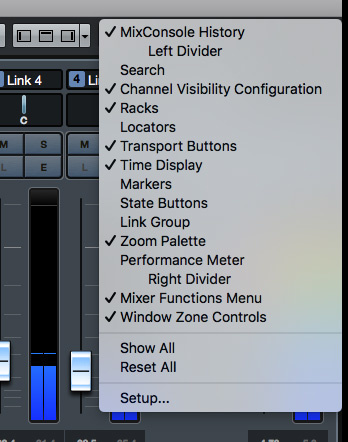 Enabling the Channel Visibility Configuration, Transport Buttons and Zoom Palette in the MixConsole toolbar gives you instant access to some useful options.A faster approach is to use key commands. Commands exist (check the Mixer section of the Key Commands list) for all of the Zoom Palette functions, and you can assign new shortcuts to those that lack default commands. Weaning yourself off the mouse can be difficult at first, but it soon becomes second nature, and the improvement in efficiency is, in my experience, more than worth it.
While you have the Setup Toolbar open, if it’s not already visible, turn on the Transport Buttons display in the MixConsole toolbar. If you use key commands or a control surface for transport duties, this isn’t such a big deal, but it takes up little space and can save some switching between the two main windows. Alternatively, hard-wire the F2 command into your brain: this shows/hides the floating Transport panel, which can display more information, and will save screen real-estate when it’s not required.
Now You Don’t
If you accumulate more channels than can be accommodated on screen, you can obviously free up space by hiding other features. But I find a better strategy is to toggle on/off the visibility of certain tracks or track types, displaying only those you need at any given time. To do this, turn on the MixConsole’s Left Zone — the Visibility tab lists all the tracks in your project. This tab is useful for a couple of reasons. First, click on any channel in the list and the MixConsole will scroll left/right, bringing it into view and selecting it. And if you Shift-click or Cmd-click (Win-click in Windows) in the list, you can view/select multiple channels in the same way. Second, the buttons to the right of each track toggle its presence in the MixConsole on/off, so you can hide tracks you don’t need to see. This is particularly helpful if you make use of Folder Tracks to store your key instrument groups, as you can toggle the visibility of a folder and all its content with a single click.
 For navigation and channel selection, the Visibility tab more than earns its keep.The adjacent Zones tab is also worth a mention; it allows you to ‘lock’ any channel to the left or right ends (somewhat confusingly also known as Zones) of the MixConsole. If the track’s visibility is switched on in the Visibility tab, these channels will always be visible on screen, no matter where your scrolling of the other channels takes you. The obvious candidates are your Master Output (on the right) and Input Channels for your tracking phase (on the left), but you might also choose to ‘pin’, say, your Group busses or effects tracks in this way.
Spec Savers
The Channel Configuration Visibility panel on the MixConsole’s toolbar provides further options for toggling the display of certain channels. On the left, the Filter Channel Types drop-down menu lets you toggle channels on/off by track type (Audio, MIDI, Instrument, Group, VCA and so forth), while on the right, the Channel Visibility Agents menu provides a few useful pre-defined options.
For a big project, though, I consider the Channel Visibility Configurations to be the star of the show. The concept is a bit like the global Workspaces feature, but rather than allow you to flip between different user-defined window layouts, it enables you to set up, save and recall specific combinations of channel visibility. For instance, you might have a configuration that shows only your guitar tracks, another for lead and backing vocals, a third for drums, more still for Group tracks and VCA Faders, and a final one to ‘restore’ all channels.
 Channel Visibility Configuration presets make it easy to switch between different channel layouts.Once created and saved, you can instantly recall that visibility configuration; it’s very neat. Unlike Workspaces, Channel Visibility Configurations are project-specific, but they take seconds to set up and easily repay the time spent, particularly if you create key commands to move between (up to eight of) them.
Quick Tips
I’ll round off with a couple of tips to get you shooting around the MixConsole in double-quick time.
First, the Channel Setup panel (far-right of the MixConsole toolbar) has three buttons to toggle on/off the MixConsole’s Left Zone, the upper Rack section (so you can use the space for longer faders; it’s just a shame that the fader section doesn’t expand to fill the space automatically when the Racks disappear) and the Right Zone (with the master output meter and Control Room tabs).
 There are plenty of navigation, screen-layout and channel visibility options available as Key Commands, including the Channel Visibility Configuration presets shown here.Second, remember that you can use the left and right arrow buttons to scroll left/right across the MixConsole, and to combine them with the Shift key to make channel selections; sometimes it pays to keep things simple!
Irksome Quirks?
There are two very minor quirks that I’d love Steinberg to attend to. First, you should really be able to toggle on/off the Left Zone, Racks and Right Zone using key commands; the allocated Key Commands seem to be associated with the same zones in the Project window and it’s a shame they’re not context sensitive, controlling whichever window is in focus. Second, if you have tracks ‘locked’ on the left or right ends of the MixConsole, scrolling with the arrow keys isn’t very elegant: if you use the right arrow to scroll through the displayed tracks, when you reach the last channel currently displayed before the right zone, a further press of the right arrow jumps you into the right zone itself rather than scrolling through, and revealing, the ‘off-screen’ tracks. It would be nice if this alternative action were available as an option because, in other respects, the left/right key commands are great for speedy channel-hopping!
Saturday, June 14, 2025
Friday, June 13, 2025
 Even with just a few elements open, the MixConsole Rack can become a very busy place!Last month, inspired by my adventures with Harrison MixBus, I looked at ways to improve your mixing workflow in Cubase’s MixConsole, using various channel display and navigation options. This time, still with the aim of making our mixing process as lean and mean as we can, I’ll focus on using the MixConsole’s Rack.
With multiple Rack sections, and lots of controls available in each, you can easily waste precious time scrolling around the MixConsole — but, thankfully, the Rack is highly customisable. A good first step is to use the Select Rack Types tool to switch off the display of any of the Racks you don’t routinely need to see. I tend to leave the Inserts, EQ, Strip and Sends sections visible, and show/hide others as required — assigning a key command to toggle the state of each section is a good idea.
A next useful step is to enable two options in the Rack Settings drop-down menu. Exclusive Expanded Rack will automatically close an open Rack element whenever you open another, and this can reduce the amount of time you spend scrolling vertically. And if you enable the Link Racks To Configurations option, your Rack layouts will be stored with any MixConsole Configurations you create (see last month), including which Racks are visible and their open/closed status. If you find yourself switching between a few Rack layouts during a typical mix, then creating Configuration presets is a massive time saver.
Exceptional View
 While mixing, hiding any Rack elements you don’t need constant access to can help you focus.As MixBus provided the inspiration for this column, how about hiding all the Rack elements other than the Channel Strip? This is a great setup with which to start your routine dynamics and EQ moves, even if you eventually turn to other options for certain channels/tracks. You can keep things particularly compact by enabling ‘Show One Channel Strip Type’ (via the Rack Settings drop-down menu when the Channel Strip Rack is open); only one Channel Strip section will be expanded at a time. Another space-saving option in this menu is Show All Channel Strip Controls. This gives you a more comprehensive control set for each element of the Channel Strip, and you can toggle this setting off to leave you with just the most commonly tweaked controls.
 The Racks Settings drop-down menu can help you keep the Rack display under control.Before we move on, do you remember all the MixConsole zoom options from last month? Provided your eyesight is up to it, the vertical zoom allows you to get more Channel Strip (or, indeed, other Rack) elements onto the screen, and can reduce the time spent on vertical scrolling.
In The Q‑Link
Something I didn’t manage to explore last month was channel linking. In Cubase Pro you can configure sets of channels as permanently Linked Groups (and, if you wish, assign a VCA Fader to them). For Link Groups, as shown in the screenshot, there’s also a dialogue box via which you can specify which parameters are linked. It’s powerful stuff and perhaps deserves a tutorial all of its own, but there’s also a temporary ‘Quick Link’ facility, for Pro and non-Pro users alike. To start work with either system, make sure you have the Link Group section of the MixConsole Toolbar visible — you can set this via the Set Up Toolbar drop-down menu.
 Cubase Pro’s Link Group features are very powerful, but the Q‑Link system that’s in all versions of Cubase can be very handy too.Select a number of MixConsole channels and click the Q‑Link button, and these channels will be linked until you toggle Q‑Link off via the same button. If you can perform a task on one channel it will be applied to all the linked channels. For example, enable the Tube Compressor in the Channel Strip’s Comp section and it will be added to all linked channels. Adjust the Tube Compressor’s controls, and the same settings are applied to the corresponding compressor on the other channels. When configuring initial processing settings on, for example, all your drum channels, this can be a big time saver.
The same linking functions work in other Racks. For example, having selected your channels and enabled Q‑Link, you could quickly add an Insert effect to all the linked channels, and tweak some of the plug-in’s parameters. The same is true of adjustments made in the EQ Rack.
A really useful application of Q‑Link is the quick comparison of plug-ins. For example, you might try two different compressor plug-ins in the Insert Rack across a set of drum channels. Having placed both plug-ins in different slots on each of the Q‑Linked channels, toggling bypass on one compressor will bypass the corresponding compressor on the other channels (you don’t need Q‑Link to be active when inserting the plug-in on the different channels, but they must be in the same number insert slot for Q‑Linking tweaks to apply). This makes it very easy to flip between the two compressor types on multiple tracks to A/B their different sonic results.
 Four Q‑Linked channels (note the light grey shading): changes made in the Rack of one channel are applied to linked channels.It’s also worth noting that the Rack bypass buttons of Q‑Linked channels are linked. You can, for example, toggle the EQ Rack’s bypass on for a selection of channels (globally if you select all channels). In fact, it works across all the Rack sections, including sends and the Routing Rack, where it’s useful for configuring things such as bus routing for channel groups. It’s well worth assigning a keyboard shortcut for toggling Q‑Link on/off!
Rack ‘Em Up
For some reason, when loading a preset into one of the MixConsole Rack sections this isn’t applied across Q‑Linked channels, but there’s a quick way to copy all the settings in a Rack section between channels, without resorting to a Track or Rack section preset. For example, to copy the Channel Strip settings from one channel to another, hover the mouse over the Rack section header (where it says ‘Strip’) on the channel you wish to copy, hold down Cmd (MacOS) or Ctrl (Windows), and click and drag to the destination channel. Any existing settings in the destination channel will be overwritten with the settings from the source channel. The same trick works just as well in the Insert or EQ racks; it’s great if you have settings or plug-in chains you wish to duplicate to other channels.
Now You See Me...
I’ll finish with three handy shortcuts that can speed up your work in the Rack. First, once into the detailed work of mixing, I find myself constantly opening and closing Insert plug-in windows. If you hold down Shift+Alt while clicking on the E channel editor button (just beneath the Solo button), the windows for all Insert plug-ins on the channel will open; you can close them all just as quickly by holding Shift and clicking the E. (Incidentally, this shortcut also works in the Project window’s Inspector.) Second, the Windows: Close All Plugins key command is set to Ctrl-Q by default. If, like me, you eventually end up with a screen full of open plug-ins, this is a very helpful, quick way to declutter!
Finally, if you decide your various Inserts, Sends, EQ and Channel Strip settings are getting you nowhere with your mix, and you wish to wipe the slate clean, select Reset All Channels from the MixConsole’s drop-down Function menu. This strips out all Insert effects, clears all the settings in the Channel Strip, and offers the choice of resetting all channels or those currently selected — so you can reset, say, just your drum channels or you can ‘blank’ your mixer completely, which could be really useful if you often ‘inherit’ mixes from someone else! It’s powerful stuff but it goes without saying that it’s also something to use with care!