Saturday, April 19, 2025

Friday, April 18, 2025
Cubase Distroyer Plug-in
Cubase boasts several impressive distortion tools and whether you want saturation, overdrive, fuzz or lo-fi effects, there's something for the job. But Cubase 10 brought Pro and Artist users a new toy called Distroyer, so let's see (and hear — you'll find audio examples at www.soundonsound.com/cubase-distroyer-plugin-audio-examples) what it can do.

Scene Of Destruction
 Distroyer's somewhat unconventional Mix control presents some interesting creative options — but note that you'll need to use the plug-in as a send effect if you want to do true parallel processing.While users of Cubase's older Distortion will instantly recognise Distroyer's heritage, Distroyer offers more controls and, like Quadrafuzz 2, makes it possible to aim the processing at a specific frequency range. Distroyer also has some design quirks, most notably in terms of the Mix control as I'll discuss below, but these also give this tool a distinct character and feel.
The first screen shows the settings required to 'zero' Distroyer's controls, so the audio sounds the same as when the plug-in is bypassed. This is a useful starting point, especially if you intend a fairly subtle effect. As explained in Cubase 10's Plug-in Reference PDF, some of the controls apply to the 'wet' signal only, and the wet/dry balance is adjusted via the Mix knob. These include the Lo/Hi Filters, which allow you to restrict the distortion effect to a specific frequency range. Incidentally, once set, if you click and hold in the blue zone that defines the frequency range, you can drag the whole range left/right to find the sweet spot. Drive adjusts the distortion character, going from a gentle overdrive to something more full-on, while the Offset control, which you can adjust via the graphic or the slider display, can tweak that character further. The Spatial control changes the left/right characteristics of the distortion and can generate some very cool stereo effects when applied to individual instruments.
Interestingly, the Boost, Shelf Freq, Shelf Gain and Tone controls operate on both the wet and the dry signals. Boost acts as a distortion gain control, while you can also adjust the frequency and gain of a high-shelf filter. Tone is actually a low-pass filter and, of course, Output sets the overall output level. As these controls come after the Mix knob, they can influence the overall sound regardless of the Mix knob setting. This somewhat unusual configuration makes for some very interesting creative options when Distroyer is used as an insert processor; if you want more conventional 'wet/dry' parallel processing, simply deploy the Distroyer as a send effect.
Kick It
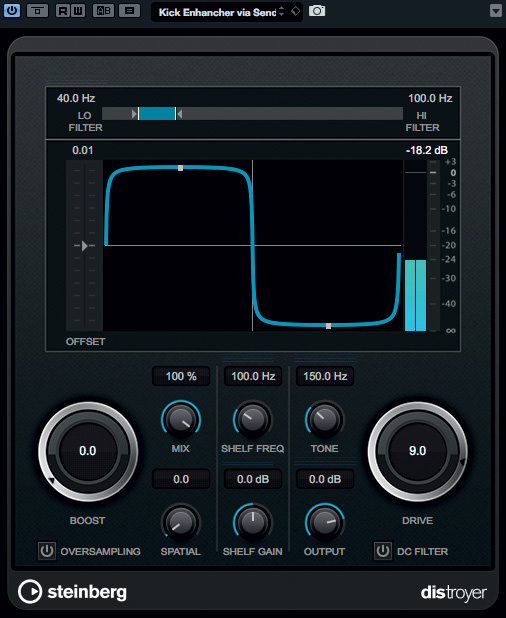 With filter settings like these, Distroyer can really add some punch to your kick's low end, even when working with a pre-mixed drum loop.Because you are able to restrict the frequency range to which distortion is applied, Distroyer is a particularly useful tool for manipulating kick drum sounds, whether of the acoustic or electronic variety. It's particularly helpful if you're working with pre-mixed loops and finding the kick in need of a little 'something extra' to get it to punch through in your mix. While some focused EQ might also do the trick on occasion, adding new harmonic content with distortion can often be more effective — and in this role, Distroyer is a powerful tool.
The second screen shows some suitable settings to get you started: the Lo/Hi Filter is set to span just the 40 to 100 Hz range, and the Offset is set to neutral but the Drive to 9, to give quite a strong distortion effect. While Mix is set to 100 percent (so the full drum loop is subject to processing), the Tone (low pass) filter is set at 150Hz so that the bulk of the high-frequency content (eg. snare and cymbals) doesn't actually reach the output. Leaving Boost at zero also means that Distroyer won't colour the sound outside the frequency range bracketed by the Lo/Hi filters. And with the Shelf Gain set to zero, the high-shelf filter is also essentially bypassed.
I've used Distroyer as a send effect, so the balance between the unprocessed drum loop and this 'kick enhancement' is dictated by the send level from the drum loop's track. Distroyer's various filters mean that any distortion applied to the higher-frequency elements doesn't reach the plug-in's output, but if you want to get even more aggressive with your kick you can gradually roll up the Boost and experiment with the Offset.
If, instead of using a mixed loop, your kick has its own dedicated channel in Cubase's MixConsole, you can push Distroyer harder — and turn even an underwhelming kick into a cone-ripping monster in a way no amount of EQ could achieve alone. If it's thump enhancement you want, the settings described above will again serve as a starting point — just tweak the Boost, Offset and Drive controls to take things from subtle saturation to more daring decimation.
 Distroyer is also great at enhancing the attack/beater/click element of your kick sound.As your dedicated kick channel means you don't have to worry about Distroyer destroying other drum elements, the Lo/Hi Filter settings can be used more creatively here to target the effect exactly where you want it in the frequency spectrum; this can be a great help if you need to give the kick its own dominant frequency relative to any bass sounds used in the mix.
Of course, the Lo/Hi Filter can also be used to focus Distroyer's processing on the click (beater) element of your kick too — to bring out more of its percussive attack. The third screen shows a possible send-return effect starting point for this application. The click of the beater is generally found in the 2-4 kHz range so I set the Lo/Hi Filter accordingly, dialled in plenty of Drive and Boost, and gradually increased the Mix from zero until I started to hear the effect. After that, the fine-tuning is a matter of taste.
Bass Enhancer
In SOS May 2018's Cubase workshop, I discussed band-splitting your bass sounds to apply different processing to the low, mid and high-mid frequency ranges, and one option is to distort to the mid/high-mid components — with the aim of improving the definition of the bass in the mix. I used Cubase's VST Bass Amp plug-in in that earlier workshop and Quadrafuzz 2 could also be used, but the principle works just as well with Distroyer. And Distroyer's control set offers some different and potentially useful options.
 With two Distroyer instances configured as send effects, you can target processing on your bass track's low end to add girth, while treating the low/hi mids differently, to help the part cut through.The basic setup involves two sends from your bass track to separate effects channels, each with an instance of Distroyer inserted. The final screen shows some example settings. The amounts of Drive and Boost can be set to taste, but the most crucial parameters are the Hi/Lo Filter values. One instance is set to add processing only to the sound below 200Hz, essentially providing a bit of overdrive to the fundamental frequencies of the part. The other, however, is configured to operate in the 200-5000 Hz range and, depending on the Boost, Drive and Offset controls, this can add some nice sizzle to the harmonics above the fundamental frequencies, which can help the bass cut through more clearly. Then, simply balance the wet/dry mix, and the degree of low and/or low-mid/high-mid distortion, by varying the two send levels. As in the May 2018 article, you could also add an instance of Studio EQ to each effects channel prior to Distroyer, to provide even finer control over the frequencies that each instance is processing.
Don't Stop Me Now
Of course, it doesn't have to be just kicks and basses! The principles are the same for other applications — just restrict the frequency range you want to focus the processing on and set the distortion to be as subtle or as brazen as you want — but the somewhat unconventional control set always seems to help make Distroyer an interesting creative tool. While I've just about filled my allotted space for this month, I've included in the audio examples on the SOS website a couple of other potential applications for Distroyer: vocal processing and master-bus processing.
Finally, it's perhaps worth me repeating that Quadrafuzz 2 also offers frequency-specific distortion options — so it could just as easily be used as Distroyer in the above examples. I'd suggest that you experiment and see what works best for you, but whatever your thoughts, I reckon Distroyer is a very worthwhile creative addition to Cubase's plug-in suite.
Thursday, April 17, 2025
Wednesday, April 16, 2025
Steinberg Cubase Pro 10.5
 Cubase Pro 10.5 in all its glory. Note the new MultiTap Delay effect included with the Pro and Artist editions, and the coloured channel strips in the mixer.
There's something for everyone in the latest version of Steinberg's flagship music production package.
Christmas was coming, the goose was becoming rather overweight due to a lack of dietary restrictions, and Steinberg released what has become the now-traditional end-of-year update to Cubase. Given that the last release of the company's Advanced Music Production System was version 10, launched on November 14th 2018, Steinberg's past roadmap strongly suggested 2019 would be an x.5 year. And indeed, the company didn't disappoint, unveiling Cubase 10.5 almost a year to the day on November 13th with no shortage of new features and improvements.
Available in the usual Pro, Artist, and Elements editions, this review focuses primarily on Cubase Pro 10.5 — the inclusion (or lack thereof) of certain new functionality in other editions will be mentioned as necessary.
Exporting Video, Ten-Point-Fivenally!
One of the most requested features in Cubase has been the ability to export a video file containing both the audio mixdown and accompanying video from a Project. Long-time Cubase users might remember the Replace Audio in Video command, which allowed you to replace the audio within an existing video file, and which was dropped when Steinberg introduced a brand-new video engine in Cubase 9.0.30.
Despite some consternation, this new video engine was necessary — and arguably overdue — because Steinberg's previous cross-platform video engine utilised Apple's QuickTime technology. The Windows version of this had been withering on the vine for years, and was finally put out of its misery in 2016. The new engine was a huge step forward in terms of supporting modern containers and codecs for playback, but the capability to export video was, to paraphrase a Steinberg support article, pushed back as a planned development for future updates. It was promised for Nuendo 10, released in April 2019, but missed the initial 10.0 release, and eventually showed up in Nuendo 10.2 around six months later. Finally, it's now available to Cubase users too.
Unlike the original Replace Audio in Video command, which added audio to an existing video file, the new Export Video command offers much more flexibility by creating new video files based on the position of the locators. To export a video, simply set the required range using the left and right locators and select Video from the File / Export submenu. In the Export Video window, set a name and path for the video file to be created, choose the stereo output to use for the audio to be included in the video (and whether that audio should be rendered in real time or not) and click the Export Video button. Et voilà!
A new video file will be created in an MP4 container, using the H.264 codec to render HD (1920x1080) video (upscaling or downscaling the resolution as necessary from the source resolution) at the same frame rate as the imported video. For audio, the AAC codec is employed to compress audio at a 16-bit resolution using the Project's sample rate, although only 44.1 and 48 kHz sample rates are supported.
 The new Export Video window makes it easy to create a new video file with audio from the active Project.
I tested the Video Export command by importing a MOV file into a Project. The video was encoded with Apple ProRes 422 SD (1280x720) at a 23.976 frame rate, and the feature worked as advertised, which was great. However, I couldn't help but think I'd like to see more options for choosing additional containers and both video and audio codecs, with support for 24-bit resolutions and other sample rates. The lack of options on offer at export stands in sharp contrast to the wide array of video formats supported for import and playback. Perhaps we'll see more choice in future versions, although maybe I'm being picky: even in professional contexts, sending a file created using the current Export Video offering gives you something that can be played back by almost any system and will be more than acceptable to almost any client.
One additional thing that an be optionally included in a video exported from Cubase is a timecode burn-in based on the current Project time. This could be useful for reference, or if the source video doesn't include such a burn-in already, although there aren't too many options to define how the timecode appears on the video. Based on the Video Player settings in the Studio Setup window, you can set how the timecode is horizontally aligned, resulting in white numbers in a black box being displayed. Again, more options would be nice: since you can add burn-in to the video, why not offer size, font, colour, and vertical alignment options as well? Or take it a stage further and allow dates to be added, plus the source video file name and custom text if required?
For such a useful and advanced feature, it's perhaps surprising Steinberg decided to include Export Video not in just Cubase Pro, but Artist and Elements as well — although given the number of users who add audio to video clips these days, it probably makes sense, giving Cubase Elements even more allure for those looking for powerful features at a cheaper price point.
In Retrospect...
The seemingly innocuous Retrospective MIDI Record command has been both renamed and enhanced in Cubase 10.5. Previously, this relatively straightforward feature captured any incoming MIDI data while the sequencer's transport was either stationary or playing back, maintaining the timing data in both states. If you happened to play something unbelievably brilliant, rather than kick yourself for not being in record, you could simply select Retrospective MIDI Record, and a new MIDI part containing the captured sequence of Events would be created on the selected MIDI or instrument track. Easy. In fact, many people I know prefer to use this command rather than putting the sequencer into record, although I find myself being more old-fashioned in this respect.
MIDI Retrospective Record functionality is now accessed through several different commands, which are available in a few different places, starting with the Transport menu. There's now a MIDI Retrospective Record submenu, and the closest command to the original is called Insert from All MIDI Inputs, which is assigned the same default key command (Shift and the * key on the numeric keyboard) as before. This results in the captured Events being inserted on the selected track; but, where previously the command could only be used once, this is no longer the case. Now you can select the command as many times as you like, inserting the Events on the same track or different tracks, with the buffer only being reset if Cubase either begins receiving new Events or you select Empty All Buffers from the submenu.
 The new MIDI Retrospective Record commands can be accessed from a Transport submenu, or a new menu from the Basic Settings section in the inspector.
You'll notice the command is named Empty All Buffers and not Empty Buffer, and this is because — in addition to there being one overall buffer, as before — each MIDI and instrument track now has its own, independent buffer for retrospective recording. Using the new Insert as Linear Recording command you can insert Events played on the track selected at the time of capture, which is similar to Insert from All MIDI Inputs except that Events can only be inserted on the track that was selected when they were captured: if a different track is selected, Insert as Linear Recording is unavailable.
 To make this a bit more obvious without having to access the Transport menu, the Inspector's Basic Track Settings section now features a new Retrospective Recording pop-up menu at the bottom that provides access to the appropriate commands (sans Insert from All MIDI Inputs) for that track. This pop-up will be greyed out and inaccessible if there are no Events to specifically insert on that track. And, in addition to being able to insert a linear recording, if you were playing back a project in Cycle mode, MIDI Retrospective Recording can also insert the captured Events as a cycle recording, which is rather neat.
Overall, I think it's fair to say that if you use MIDI Retrospective Recording, Cubase 10.5 has got you covered — and, if you don't, this release might convert you.
Tuesday, April 15, 2025
Monday, April 14, 2025
Cubase 10: Channel Settings Workflow
By John Walden
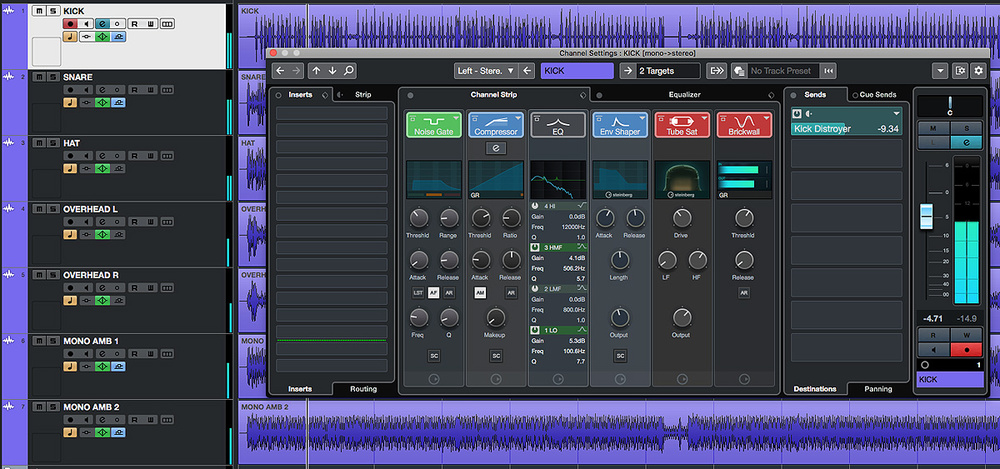 The Channel Settings window provides a flexible and efficient environment for many basic mix processing tasks.
Could Cubase 10's Channel Settings window become your go-to mixing tool?
Cubase's Channel Strip has the potential to make mixing much more efficient. Indeed, the same concept has translated fairly well from its hardware origins into most modern DAWs now. But when screen space is at a premium some implementations can require considerable screen real-estate — and while the collapsible Rack system in Cubase's MixConsole is brilliant in so many respects, accessing all the controls for each channel can entail a lot of opening/closing of Racks or scrolling up/down.
A small-screen-friendly alternative is to build your workflow around the Channel Settings window. Sure, you can only display controls for one channel at once, but this window makes the complete Channel Strip's controls available in a very easy-to-use format. And with the useful refinements Steinberg made to the operation of the Channel Settings window in Cubase 10, you really should consider putting it at the heart of your mixing workflow.
Channel Guide
The Channel Settings window can be opened for the currently selected track/channel by clicking on the 'e' button in the Project window's Track List or in the MixConsole, and it gives you access to the full control set that's found in the MixConsole — but in a larger, easier to use GUI.
As in previous versions, the contents of the MixConsole's EQ and Channel Strip Racks dominate the central portion of the display, but in v10 Steinberg made some worthwhile tweaks to what's possible here. For example, the UI was improved to offer better access to the core controls of each module, the visual feedback/metering was revamped and, while the EQ section could already be viewed in an expanded form via the Equalizer tab, you can now do that for the Compression section too (via a further 'e' button). The Channel Strip tab now includes a compact version of the EQ section in situ, and you can drag and drop to change the order of the various modules in the signal flow, which makes it much easier to see and configure your preferred processing chain.
The Sound Of Beating Drums
When considering what the Channel Settings approach might offer you, there are two key questions to ask. First, are the tools provided up to the job? Second, how can they facilitate a more efficient workflow? The first is a huge question, but by way of example let's briefly consider a common mixing task: submixing a multitrack drum recording. In the example shown in the first screen there are seven mic channels, with single kick, snare and hi-hat mics joined by pairs of overheads and room (ambience) mics. For all the shiny appeal of your third-party plug-ins, the stock Cubase plug-ins in the Channel Strip and EQ sections are more than capable enough for routine mix-processing tasks like this, so the bulk of your work can easily be done in the expanded Channel Strip display.
The exact settings required for each module across the various drum channels will obviously be project-specific, but it's worth exploring some cool features in the Channel Strip plug-ins. For example, the Noise Gate features a very useful input filter, and you can activate this via the AF button. You can then engage the LST (listen) function while you adjust the Freq and Q settings of the filter to focus the action of the gate within the dominant frequency of each sound source. In this drum mix, I used this on the kick, snare and hi-hat mics, and it allowed me to maximise the spill rejection from other drums into those mics.
 You can now access the full control set for your selected compressor within the Channel Settings window.It's also worth noting that all three compressor options (Standard, Tube or Vintage), which offer different characters of compression, also include Mix controls — making it possible to experiment with parallel compression on individual drum mics without leaving this window. And that, alongside the expected four-band EQ controls and an expanded display of the EQ curve, the Equalizer tab grants you access to controls from the MixConsole's Pre section. Most usefully, this includes a variable-slope low-cut filter for routine high-pass processing, and the Phase button (a polarity inverter), which is useful to optimise the phase relationships of multiple mics used on a single source. In this drum mix I used the low-cut filter to remove unwanted rumble to varying degrees on all the tracks (yes, even the kick), and set it higher for the two room mics, to prevent the kick being too ambient.
 The EQ tab includes full access to the four-band EQ but also the very useful high-cut and low-cut filters from the Pre Rack section.The Tools section offers a choice of the DeEsser (useful for vocal tracks, obviously, but drums too on occasion) and EnvelopeShaper. The latter is very useful for drums and a doddle to use. In this mix I use it to enhance the attack of the kick and snare, to help them punch through more clearly. Finally, I applied a subtle amount of saturation to all the channels (you can choose between Magneto II, Tape or Tube options) and limiting (Standard Limiter, Brickwall or Maximizer) just to control any really hot peaks.
I've provided a couple of audio examples, in which I compare my raw drum tracks to the drum 'mix', with processing configured solely in the Channel Settings window on each track. To my ears, the end result is clearer and has more punch — I achieved what I set out to achieve using only these tools. So whether or not you have access to third-party, channel strip-style plug-ins, I'd say the Cubase Channel Settings toolset could take you a long way along your mixing journey. For routine mix tasks, at least, I'd answer our first question with an emphatic 'yes'.
Command & Conquer
What about ease of use? Well, like the channel strips on a hardware console, a good dollop of that ease of use comes from the consistency of the control set for every channel. As you build up experience with the common control set, your familiarity will translate to much faster operation. But the other element that contributes to workflow efficiency is how quickly you can navigate the controls within the Channel Settings window itself. If you're fortunate enough to own Steinberg's CC121 hardware controller, that navigation will be very slick. But even for the rest of us, there are options and shortcuts that can speed things up.
As a starting point, for frequent use, I'd define a keyboard shortcut for the Edit Channel Settings option (you can create/edit shortcuts in the Edit section of the Key Commands dialogue) so you can quickly open and close the Channel Settings window; I've assigned the 'E' key to this, as it matches the on-screen button.
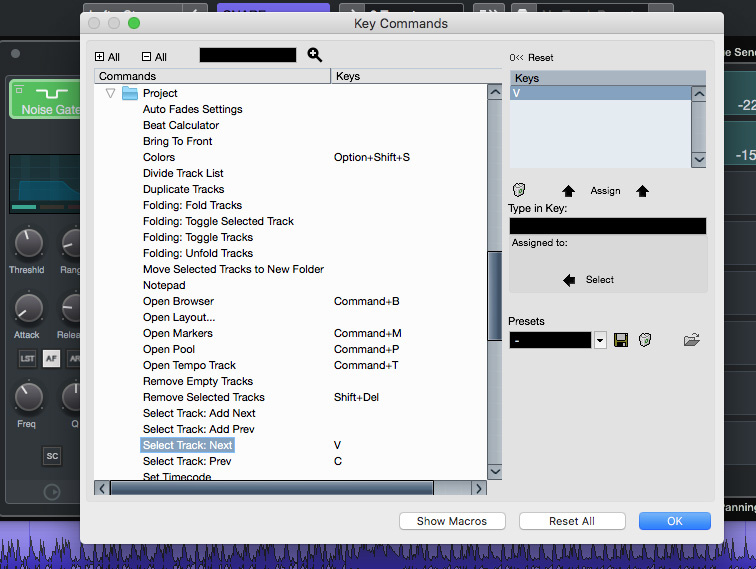 To get the most from the Channel Settings window, defining a few key commands will greatly enhance the workflow, including the ability to swiftly move between different tracks and channels.For the fastest workflow, two further options are worth enabling, and both are accessible from the pop-up menus in the top-right of the Channel Settings window. First, from the Toolbar menu, enable 'Always On Top'. This prevents the Channel Settings window from disappearing behind other windows as you work (once open, it's always accessible). Second, from the Function menu, enable 'Follow 'e' buttons or selection changes', so that when you select a different track/channel in the Project window or MixConsole, the Channel Settings window will update to display the newly selected track/channel's settings.
Given that the Channel Settings window only displays settings for the currently selected channel/track, the other thing we must be able to do is move efficiently between tracks. There are buttons for this in the Channel Settings window itself but key commands can speed up navigation, and it's well worth defining keys for the 'Select Track: Next' and 'Select Track: Prev' commands (which are found in the Key Commands window's Project section). As you navigate with these keys, the Channel Settings window will automatically refresh to reflect the selected track/channel. It's very slick and well worth a tick in the 'ease of use' box.
For Better Or Worse
To finish, one further Channel Strip/EQ workflow tip is worth mentioning. When editing multiple channels, such as the drum kit recording in the example, I often find it useful to toggle all my Channel Strip and EQ settings off, for an A/B reality check as to whether my processing is actually making things better or worse! In practice, this can be a bit of a pain, as in the MixConsole you have to bypass both the Channel Strip and EQ Racks individually for every channel involved to do this. Now you could, I suppose, go to town and design a macro to solve that... but a simpler approach is to quickly select multiple channels and then press and hold Alt+Shift to temporarily 'Quick Link' them. Then, when you click on the bypass buttons on any of the selected EQ or Channel Strip sections, those Rack sections will be bypassed for all selected channels simultaneously.
Audio Examples
cubase_0220_audio01.mp3
This audio example is based around a seven-microphone acoustic drum recording, featuring kick, snare and hi-hat mics alongside a pair of overheads and pair of room (ambience) mics. In this clip you hear a short section the unprocessed recording presented in three sections as follows; (1) just the kick, snare and hi-hat mics, (2) just the overhead and room mics and (3) all mics with a basic level adjustment to balance the overall sound of the kit.
cubase_0220_audio02.mp3
This second example presents the same three sections of the drum recordings but after basic processing options have been configured for each microphone channel via the Channel Settings window, as described in the main text of the workshop. On each channel, the processing involves frequency targeting use of the noise gate, high/low cut filters applied, modest amounts of compression (3-4 dB maximum) using a medium attack time, some more targeted EQ to shape the sound of individual mics as required, application of the EnvelopeShaper on the kick and snare mics to enhance the attack of both drums, subtle application of saturation, and limiting applied to catch any stray peaks. The Distroyer plug-in was applied as a send effect on both the kick and snare channels (as described in the December 2019 workshop) for a little extra edge. Finally, a further 2-3 dB of compression was applied on the drum bus.
The differences between the unprocessed and processed versions of the drum mix are relatively modest but do result in a somewhat punchier sound suitable for the project (a garage rock track) they are part of. However, what’s key in the context of the article is that (a) all processing was done using stock Cubase plug-ins and (b) all the processing options were applied via the Channel Settings window, with the task taking no more than 10 minutes in total. Further processing might be required as the full mix evolves, but the Channel Settings window provides a powerful and efficient means by which this kind of basic task can be performed across multiple channels/tracks.