Thursday, March 21, 2024

Wednesday, March 20, 2024
Steinberg Cubase Pro 10.5
 Cubase Pro 10.5 in all its glory. Note the new MultiTap Delay effect included with the Pro and Artist editions, and the coloured channel strips in the mixer.
There's something for everyone in the latest version of Steinberg's flagship music production package.
Christmas was coming, the goose was becoming rather overweight due to a lack of dietary restrictions, and Steinberg released what has become the now-traditional end-of-year update to Cubase. Given that the last release of the company's Advanced Music Production System was version 10, launched on November 14th 2018, Steinberg's past roadmap strongly suggested 2019 would be an x.5 year. And indeed, the company didn't disappoint, unveiling Cubase 10.5 almost a year to the day on November 13th with no shortage of new features and improvements.
Available in the usual Pro, Artist, and Elements editions, this review focuses primarily on Cubase Pro 10.5 — the inclusion (or lack thereof) of certain new functionality in other editions will be mentioned as necessary.
Exporting Video, Ten-Point-Fivenally!
One of the most requested features in Cubase has been the ability to export a video file containing both the audio mixdown and accompanying video from a Project. Long-time Cubase users might remember the Replace Audio in Video command, which allowed you to replace the audio within an existing video file, and which was dropped when Steinberg introduced a brand-new video engine in Cubase 9.0.30.
Despite some consternation, this new video engine was necessary — and arguably overdue — because Steinberg's previous cross-platform video engine utilised Apple's QuickTime technology. The Windows version of this had been withering on the vine for years, and was finally put out of its misery in 2016. The new engine was a huge step forward in terms of supporting modern containers and codecs for playback, but the capability to export video was, to paraphrase a Steinberg support article, pushed back as a planned development for future updates. It was promised for Nuendo 10, released in April 2019, but missed the initial 10.0 release, and eventually showed up in Nuendo 10.2 around six months later. Finally, it's now available to Cubase users too.
Unlike the original Replace Audio in Video command, which added audio to an existing video file, the new Export Video command offers much more flexibility by creating new video files based on the position of the locators. To export a video, simply set the required range using the left and right locators and select Video from the File / Export submenu. In the Export Video window, set a name and path for the video file to be created, choose the stereo output to use for the audio to be included in the video (and whether that audio should be rendered in real time or not) and click the Export Video button. Et voilà!
A new video file will be created in an MP4 container, using the H.264 codec to render HD (1920x1080) video (upscaling or downscaling the resolution as necessary from the source resolution) at the same frame rate as the imported video. For audio, the AAC codec is employed to compress audio at a 16-bit resolution using the Project's sample rate, although only 44.1 and 48 kHz sample rates are supported.
 The new Export Video window makes it easy to create a new video file with audio from the active Project.
I tested the Video Export command by importing a MOV file into a Project. The video was encoded with Apple ProRes 422 SD (1280x720) at a 23.976 frame rate, and the feature worked as advertised, which was great. However, I couldn't help but think I'd like to see more options for choosing additional containers and both video and audio codecs, with support for 24-bit resolutions and other sample rates. The lack of options on offer at export stands in sharp contrast to the wide array of video formats supported for import and playback. Perhaps we'll see more choice in future versions, although maybe I'm being picky: even in professional contexts, sending a file created using the current Export Video offering gives you something that can be played back by almost any system and will be more than acceptable to almost any client.
One additional thing that an be optionally included in a video exported from Cubase is a timecode burn-in based on the current Project time. This could be useful for reference, or if the source video doesn't include such a burn-in already, although there aren't too many options to define how the timecode appears on the video. Based on the Video Player settings in the Studio Setup window, you can set how the timecode is horizontally aligned, resulting in white numbers in a black box being displayed. Again, more options would be nice: since you can add burn-in to the video, why not offer size, font, colour, and vertical alignment options as well? Or take it a stage further and allow dates to be added, plus the source video file name and custom text if required?
For such a useful and advanced feature, it's perhaps surprising Steinberg decided to include Export Video not in just Cubase Pro, but Artist and Elements as well — although given the number of users who add audio to video clips these days, it probably makes sense, giving Cubase Elements even more allure for those looking for powerful features at a cheaper price point.
In Retrospect...
The seemingly innocuous Retrospective MIDI Record command has been both renamed and enhanced in Cubase 10.5. Previously, this relatively straightforward feature captured any incoming MIDI data while the sequencer's transport was either stationary or playing back, maintaining the timing data in both states. If you happened to play something unbelievably brilliant, rather than kick yourself for not being in record, you could simply select Retrospective MIDI Record, and a new MIDI part containing the captured sequence of Events would be created on the selected MIDI or instrument track. Easy. In fact, many people I know prefer to use this command rather than putting the sequencer into record, although I find myself being more old-fashioned in this respect.
MIDI Retrospective Record functionality is now accessed through several different commands, which are available in a few different places, starting with the Transport menu. There's now a MIDI Retrospective Record submenu, and the closest command to the original is called Insert from All MIDI Inputs, which is assigned the same default key command (Shift and the * key on the numeric keyboard) as before. This results in the captured Events being inserted on the selected track; but, where previously the command could only be used once, this is no longer the case. Now you can select the command as many times as you like, inserting the Events on the same track or different tracks, with the buffer only being reset if Cubase either begins receiving new Events or you select Empty All Buffers from the submenu.
 The new MIDI Retrospective Record commands can be accessed from a Transport submenu, or a new menu from the Basic Settings section in the inspector.
You'll notice the command is named Empty All Buffers and not Empty Buffer, and this is because — in addition to there being one overall buffer, as before — each MIDI and instrument track now has its own, independent buffer for retrospective recording. Using the new Insert as Linear Recording command you can insert Events played on the track selected at the time of capture, which is similar to Insert from All MIDI Inputs except that Events can only be inserted on the track that was selected when they were captured: if a different track is selected, Insert as Linear Recording is unavailable.
 To make this a bit more obvious without having to access the Transport menu, the Inspector's Basic Track Settings section now features a new Retrospective Recording pop-up menu at the bottom that provides access to the appropriate commands (sans Insert from All MIDI Inputs) for that track. This pop-up will be greyed out and inaccessible if there are no Events to specifically insert on that track. And, in addition to being able to insert a linear recording, if you were playing back a project in Cycle mode, MIDI Retrospective Recording can also insert the captured Events as a cycle recording, which is rather neat.
Overall, I think it's fair to say that if you use MIDI Retrospective Recording, Cubase 10.5 has got you covered — and, if you don't, this release might convert you.
Tuesday, March 19, 2024
Monday, March 18, 2024
Cubase 10: Channel Settings Workflow
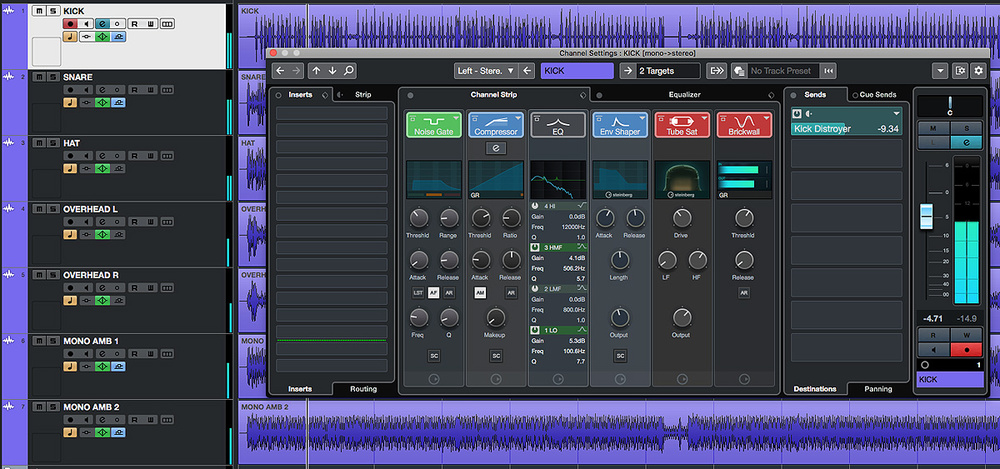 The Channel Settings window provides a flexible and efficient environment for many basic mix processing tasks.
Could Cubase 10's Channel Settings window become your go-to mixing tool?
Cubase's Channel Strip has the potential to make mixing much more efficient. Indeed, the same concept has translated fairly well from its hardware origins into most modern DAWs now. But when screen space is at a premium some implementations can require considerable screen real-estate — and while the collapsible Rack system in Cubase's MixConsole is brilliant in so many respects, accessing all the controls for each channel can entail a lot of opening/closing of Racks or scrolling up/down.
A small-screen-friendly alternative is to build your workflow around the Channel Settings window. Sure, you can only display controls for one channel at once, but this window makes the complete Channel Strip's controls available in a very easy-to-use format. And with the useful refinements Steinberg made to the operation of the Channel Settings window in Cubase 10, you really should consider putting it at the heart of your mixing workflow.
Channel Guide
The Channel Settings window can be opened for the currently selected track/channel by clicking on the 'e' button in the Project window's Track List or in the MixConsole, and it gives you access to the full control set that's found in the MixConsole — but in a larger, easier to use GUI.
As in previous versions, the contents of the MixConsole's EQ and Channel Strip Racks dominate the central portion of the display, but in v10 Steinberg made some worthwhile tweaks to what's possible here. For example, the UI was improved to offer better access to the core controls of each module, the visual feedback/metering was revamped and, while the EQ section could already be viewed in an expanded form via the Equalizer tab, you can now do that for the Compression section too (via a further 'e' button). The Channel Strip tab now includes a compact version of the EQ section in situ, and you can drag and drop to change the order of the various modules in the signal flow, which makes it much easier to see and configure your preferred processing chain.
The Sound Of Beating Drums
When considering what the Channel Settings approach might offer you, there are two key questions to ask. First, are the tools provided up to the job? Second, how can they facilitate a more efficient workflow? The first is a huge question, but by way of example let's briefly consider a common mixing task: submixing a multitrack drum recording. In the example shown in the first screen there are seven mic channels, with single kick, snare and hi-hat mics joined by pairs of overheads and room (ambience) mics. For all the shiny appeal of your third-party plug-ins, the stock Cubase plug-ins in the Channel Strip and EQ sections are more than capable enough for routine mix-processing tasks like this, so the bulk of your work can easily be done in the expanded Channel Strip display.
The exact settings required for each module across the various drum channels will obviously be project-specific, but it's worth exploring some cool features in the Channel Strip plug-ins. For example, the Noise Gate features a very useful input filter, and you can activate this via the AF button. You can then engage the LST (listen) function while you adjust the Freq and Q settings of the filter to focus the action of the gate within the dominant frequency of each sound source. In this drum mix, I used this on the kick, snare and hi-hat mics, and it allowed me to maximise the spill rejection from other drums into those mics.
 You can now access the full control set for your selected compressor within the Channel Settings window.It's also worth noting that all three compressor options (Standard, Tube or Vintage), which offer different characters of compression, also include Mix controls — making it possible to experiment with parallel compression on individual drum mics without leaving this window. And that, alongside the expected four-band EQ controls and an expanded display of the EQ curve, the Equalizer tab grants you access to controls from the MixConsole's Pre section. Most usefully, this includes a variable-slope low-cut filter for routine high-pass processing, and the Phase button (a polarity inverter), which is useful to optimise the phase relationships of multiple mics used on a single source. In this drum mix I used the low-cut filter to remove unwanted rumble to varying degrees on all the tracks (yes, even the kick), and set it higher for the two room mics, to prevent the kick being too ambient.
 The EQ tab includes full access to the four-band EQ but also the very useful high-cut and low-cut filters from the Pre Rack section.The Tools section offers a choice of the DeEsser (useful for vocal tracks, obviously, but drums too on occasion) and EnvelopeShaper. The latter is very useful for drums and a doddle to use. In this mix I use it to enhance the attack of the kick and snare, to help them punch through more clearly. Finally, I applied a subtle amount of saturation to all the channels (you can choose between Magneto II, Tape or Tube options) and limiting (Standard Limiter, Brickwall or Maximizer) just to control any really hot peaks.
I've provided a couple of audio examples, in which I compare my raw drum tracks to the drum 'mix', with processing configured solely in the Channel Settings window on each track. To my ears, the end result is clearer and has more punch — I achieved what I set out to achieve using only these tools. So whether or not you have access to third-party, channel strip-style plug-ins, I'd say the Cubase Channel Settings toolset could take you a long way along your mixing journey. For routine mix tasks, at least, I'd answer our first question with an emphatic 'yes'.
Command & Conquer
What about ease of use? Well, like the channel strips on a hardware console, a good dollop of that ease of use comes from the consistency of the control set for every channel. As you build up experience with the common control set, your familiarity will translate to much faster operation. But the other element that contributes to workflow efficiency is how quickly you can navigate the controls within the Channel Settings window itself. If you're fortunate enough to own Steinberg's CC121 hardware controller, that navigation will be very slick. But even for the rest of us, there are options and shortcuts that can speed things up.
As a starting point, for frequent use, I'd define a keyboard shortcut for the Edit Channel Settings option (you can create/edit shortcuts in the Edit section of the Key Commands dialogue) so you can quickly open and close the Channel Settings window; I've assigned the 'E' key to this, as it matches the on-screen button.
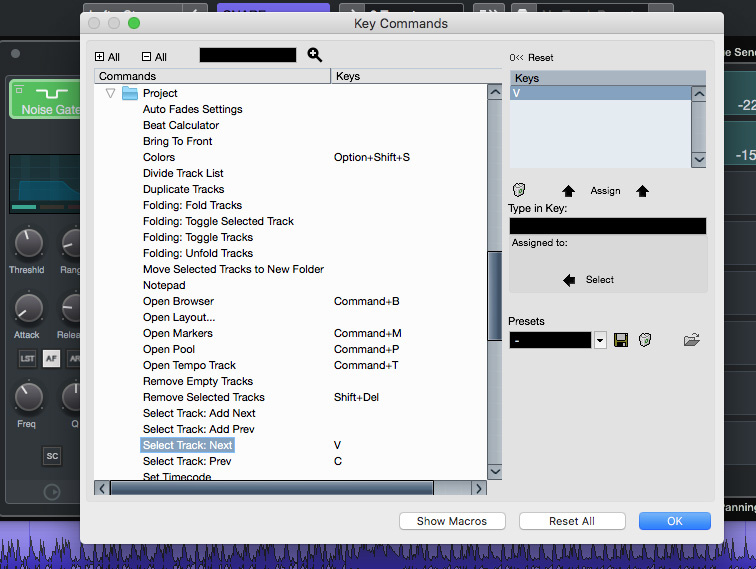 To get the most from the Channel Settings window, defining a few key commands will greatly enhance the workflow, including the ability to swiftly move between different tracks and channels.For the fastest workflow, two further options are worth enabling, and both are accessible from the pop-up menus in the top-right of the Channel Settings window. First, from the Toolbar menu, enable 'Always On Top'. This prevents the Channel Settings window from disappearing behind other windows as you work (once open, it's always accessible). Second, from the Function menu, enable 'Follow 'e' buttons or selection changes', so that when you select a different track/channel in the Project window or MixConsole, the Channel Settings window will update to display the newly selected track/channel's settings.
Given that the Channel Settings window only displays settings for the currently selected channel/track, the other thing we must be able to do is move efficiently between tracks. There are buttons for this in the Channel Settings window itself but key commands can speed up navigation, and it's well worth defining keys for the 'Select Track: Next' and 'Select Track: Prev' commands (which are found in the Key Commands window's Project section). As you navigate with these keys, the Channel Settings window will automatically refresh to reflect the selected track/channel. It's very slick and well worth a tick in the 'ease of use' box.
For Better Or Worse
To finish, one further Channel Strip/EQ workflow tip is worth mentioning. When editing multiple channels, such as the drum kit recording in the example, I often find it useful to toggle all my Channel Strip and EQ settings off, for an A/B reality check as to whether my processing is actually making things better or worse! In practice, this can be a bit of a pain, as in the MixConsole you have to bypass both the Channel Strip and EQ Racks individually for every channel involved to do this. Now you could, I suppose, go to town and design a macro to solve that... but a simpler approach is to quickly select multiple channels and then press and hold Alt+Shift to temporarily 'Quick Link' them. Then, when you click on the bypass buttons on any of the selected EQ or Channel Strip sections, those Rack sections will be bypassed for all selected channels simultaneously.
Audio Examples
cubase_0220_audio01.mp3
This audio example is based around a seven-microphone acoustic drum recording, featuring kick, snare and hi-hat mics alongside a pair of overheads and pair of room (ambience) mics. In this clip you hear a short section the unprocessed recording presented in three sections as follows; (1) just the kick, snare and hi-hat mics, (2) just the overhead and room mics and (3) all mics with a basic level adjustment to balance the overall sound of the kit.
cubase_0220_audio02.mp3
This second example presents the same three sections of the drum recordings but after basic processing options have been configured for each microphone channel via the Channel Settings window, as described in the main text of the workshop. On each channel, the processing involves frequency targeting use of the noise gate, high/low cut filters applied, modest amounts of compression (3-4 dB maximum) using a medium attack time, some more targeted EQ to shape the sound of individual mics as required, application of the EnvelopeShaper on the kick and snare mics to enhance the attack of both drums, subtle application of saturation, and limiting applied to catch any stray peaks. The Distroyer plug-in was applied as a send effect on both the kick and snare channels (as described in the December 2019 workshop) for a little extra edge. Finally, a further 2-3 dB of compression was applied on the drum bus.
The differences between the unprocessed and processed versions of the drum mix are relatively modest but do result in a somewhat punchier sound suitable for the project (a garage rock track) they are part of. However, what’s key in the context of the article is that (a) all processing was done using stock Cubase plug-ins and (b) all the processing options were applied via the Channel Settings window, with the task taking no more than 10 minutes in total. Further processing might be required as the full mix evolves, but the Channel Settings window provides a powerful and efficient means by which this kind of basic task can be performed across multiple channels/tracks.
Saturday, March 16, 2024
Friday, March 15, 2024
Steinberg Cubasis 3
 While the Cubasis UI remains familiar, there's a whole raft of improvements in version 3.
For those who want an iOS workflow that closely follows established desktop conventions, Steinberg's Cubasis is probably the most popular DAW/sequencer app currently available. Naturally, the feature set is scaled down from Steinberg's flagship Cubase Pro, but Cubasis has always struck an excellent balance between a well-chosen set of core features, a slick UI that works well on the iPad's relatively compact touchscreen, and a price that makes it accessible to almost anyone with a serious mobile music-making habit.
The latest update, to Cubasis 3, is a significant one. Indeed, it's so significant that Steinberg are presenting this as a new app rather than a free upgrade for current Cubasis users; Cubasis 2 will remain available via the App Store at a reduced price. Some may grumble at this — and it would be helpful all round if the App Store made a system for 'upgrades' more straightforward for developers — but it's worth noting that any in-app purchases made in Cubasis 2 can be activated in Cubasis 3 at no additional cost. As Steinberg have already provided Cubasis users with over 30 free updates since it first went on sale, I think they should be cut considerable slack. After all, it's important for all users that the Cubasis project remains financially viable.
 The new UI is more easily customisable. For example, you can set the Mixer view to one of three diferent zoom presets.So, what's new in Cubasis 3? Well, lots actually — it has pretty much been rewritten from scratch. This has enabled Steinberg to take full advantage of more recent developments in iOS and in Apple's hardware, and of particular note is that it also means we now have universal app status; for the first time, Cubasis can run on your iPhone as well as your iPad. (iOS13.0 or later is required, so you'll need a device that supports that — an iPhone 6S, or iPad fifth-generation or later, for example).
As you'd expect, Cubasis 3 on an iPhone demands more scrolling, good finger dexterity and decent eyesight, but having undertaken a quick tour on my (now aging) iPhone 6S I'm left impressed at just how well Steinberg have translated the workflow to the smaller screen. While working is undoubtedly faster on a larger iPad screen (the new version ran very smoothly on my first-generation iPad Pro), having the option to carry Cubasis 3 around in my pocket is very welcome!
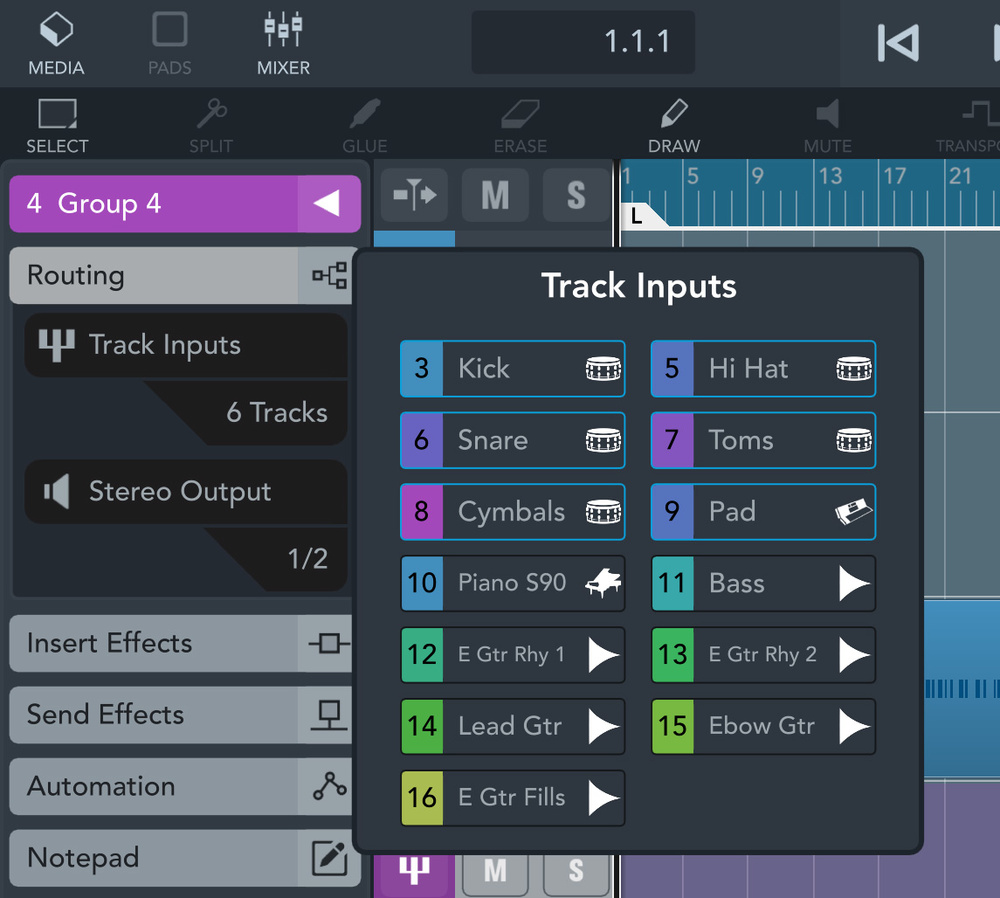 Group tracks are a major new feature, and allow easy configuration of the tracks within a Group.While Cubasis 3 will seem very familiar to users of previous versions, Steinberg have made a huge number of refinements to improve both the workflow and visual experience. For instance, editing of audio, MIDI and automation has been improved substantially, while the bundled effects and instruments have been visual revamped.
Perhaps even more useful (particularly given the iPhone support) are the new UI scaling options. You can zoom in/out on various views, as before, but you now also get some UI presets that allow you to change the display quickly. This includes the Mixer, for which a combination of full-screen mode and three channel-zoom levels make for much easier operation.
Of the other highlights, top of my personal list is the addition of Group tracks. If you're familiar with Cubase, you'll know this is Steinberg's take on creating subgroup buses — so you can route several tracks (for example, a set of individual drum tracks) to a Group track. You can then control the overall volume of the Group or apply Group-level effects before the audio flows to your master output.
Creating a new Group track is easy, and standard (audio or MIDI) tracks can be added to and removed from Groups with ease. Group tracks make all sorts of mixing tasks much easier, including the ability to focus your broad-brush mix–level automation down to a few instrument groups. It's a simple but powerful addition.
 It's now even easier to move projects you start in Cubasis to the more powerful Cubase DAW software on a Mac/Windows computer.There are all sorts of other useful refinements and additions, all of which either improve the workflow or offer new possibilities. For example, getting into the technical nitty gritty, the MIDI editing resolution has been increased to 960 pulses per quarter note. If you're particular about the precision of your MIDI sequencing, this is a very useful step forward. Also, tracks can now have up to eight insert and eight send effects, and these can be re-ordered easily, and their position set pre- or post-fader. Events can now be colour-coded vertically — and in the absence of something like Cubase's Marker track this provides an easy way to identify the different musical sections in a project. Automation is now supported within Micrologue ARP (if you have the Micrologue in-app purchase) and AU MIDI effects. Oh, and Cubasis now includes a proper History List for undo/redo operations, making it easier to navigate individual steps in your project editing timeline.
Another personal highlight is the improvements to the MediaBay, where you manage your various projects, audio files, MIDI loops and so forth, and can find options for mixdown and exporting your projects. There are many improvements, but the option to use AirDrop to transfer your Cubasis project to your desktop machine, and then have Cubase open the project, is super-cool. If you've used only Steinberg virtual instruments and effects in the Cubasis project, their Cubase equivalents will automatically appear in the desktop version of the project too; it all worked very smoothly for me.
If you purchased Cubasis 2 recently at full price, you may feel a little aggrieved at the lack of an upgrade route to Cubasis 3. But if you've been making music with Cubasis for a while, Steinberg have added more than enough to the Cubasis experience to make v3 a very tempting proposition at this price. To me at least, Cubasis has always represented the best balance between features and usability in any iOS DAW/sequencer, and in Cubasis 3, Steinberg have raised a high bar even higher.
Information
$49.99.