Tuesday, February 16, 2021

Monday, February 15, 2021
Groove-quantise, Part 2
By John Walden
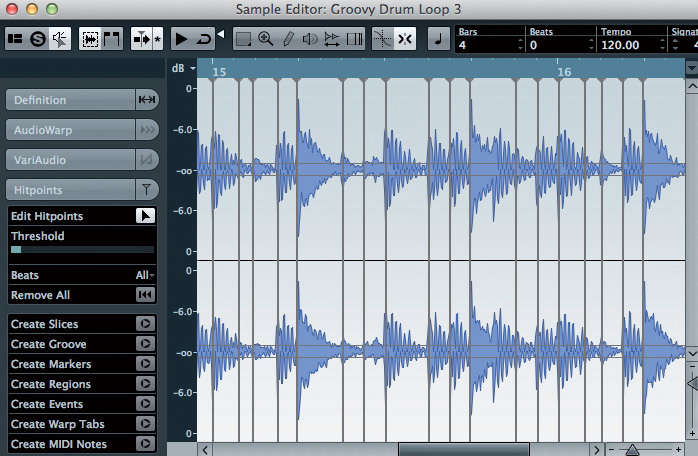 Part of the drum loop showing in the Sample Editor. Note the low threshold setting to ensure that all of the drum hits — loud and quiet — have a hitpoint associated with them.
In last month's Cubase column (/sos/jul12/articles/cubase.htm), I explored how to use Groove Quantize to extract the subtle rhythmic and dynamics variations that make up the 'groove' of one MIDI part, and apply them to another. Although the mechanics are slightly different, similar techniques can be used with audio parts, and that's our subject here. If you want to know more about grid-based quantisation of multi-miked, multitrack, audio (for example, from a drum kit) check out the workshop in SOS March 2012.
Prepare To Groove
To prepare the audio for groove quantising, I'll use a similar example to last month — taking a groove from a short (stereo) drum recording and applying that to other parts, such as bass and rhythm guitar. Imagine that the bass and guitar were originally recorded to a different drum performance but, in order to spice things up a little, the drum part has been replaced with a new recording which has a slightly different feel (more funky) than the original. So the task is to keep the bass and guitar parts, but give them a little more of the groove from our new drum performance.
First, double-click on the drum audio event to open it in the Sample Editor. You can now adjust the Threshold setting under the Hitpoint tab, to identify the key drum-hit thresholds. When working with drums, I tend to use a relatively low Threshold setting to capture even the quieter hits (in this case, from the hi-hat), but if Cubase has identified some additional spurious hits, you can manually disable individual hitpoints: with the Edit Hitpoints button engaged, hold down the Shift key and click on them (and move them if you don't think the algorithm has got the positioning spot-on). Don't forget the Remove All button if you decide to start from scratch.
Extraction
 Adding hitpoints to the bass part. As well as the notes starts, this also created two hitpoints at the ends of notes (just after the start of bar 14 and bar 15) that I disabled prior to quantising.
Having generated and sorted your hitpoints, you can make a groove preset from them directly from the Sample Editor window, via the Edit menu, or by dragging and dropping to the Quantize Panel, and it's worth noting that these three different methods don't always seem to produce consistent results (nope, I've no idea why either!). Personally, I tend to stick with the second approach, but see which works best for you.
With the drum part selected in the Project window, select the the Edit/Advanced Quantize/Create Groove Quantize Preset menu option. This uses the full length of the audio event to create the groove preset. Once done, make sure you save the preset (the name has an asterisk at the start of it when it has not been saved) and give it a meaningful name.
Groovy Application
To apply your groove to another audio performance, two different approaches may be used: AudioWarp and slicing.
For non-drum-based material, such as bass and rhythm-guitar parts, the AudioWarp approach can produce pretty decent results. First, create hitpoints for the audio that's to be quantised. When we later quantise the part, AudioWarp will time-stretch/compress the parts being quantised, so that the hitpoints align more closely with those in the groove preset.
As with any time-stretching process, though, if you ask too much of AudioWarp you can end up with all sorts of unpleasant audio artifacts. This is one reason why I suggested starting with a low hitpoint detection threshold when creating your groove preset: because there are a lot of hitpoints, it's less likely that the quantise process will have to stretch or compress any individual bit of your target audio too far.
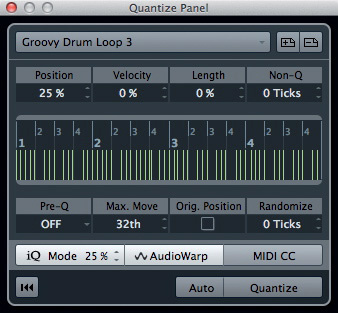 For the bass and rhythm-guitar parts used in this example, the Quantize Panel's AudioWarp option produced the smoothest results, but quantising based on sliced audio is also possible.
For the target audio, I prefer to create the required hitpoints via the Sample Editor, as it lets me fine-tune the process. A hitpoint at the start of each note or chord is a good starting point, and this can easily be checked by auditioning individual slices within the Sample Editor. As shown in my bass-guitar example, the hitpoint-detection process will sometimes be fooled by things like finger or fret noise at the end of notes and chords, and I tend to find that I get smoother results if I disable these hitpoints in the Sample Editor prior to applying any quantisation. Cubase can add hitpoints automatically for you when you select the audio event in the Project window and then open the Quantize Panel — but you don't get the same level of control if you use that method.
Once you've created and fine-tuned the hitpoints, open Cubase's Quantize Panel, select the groove preset and engage the AudioWarp button. For more gradual control over the quantise process, the iQ (iterative quantise) mode is useful: as the name suggests, this allows you to get closer to the groove by degrees, rather than snapping wholly to the groove, and this means that you can make the timing progressively tighter.
As shown in the screenshot, for both the bass and guitar parts used here a setting of 25 percent for the iQ and Position controls provided a good starting point, as it allowed me to repeatedly press the Quantize button and listen as the audio was gradually quantised a little more firmly with each iteration. In addition, a Max Move setting of 16th or 32nd intervals stopped the quantise process from moving any hitpoint too far from its original position, ensuring a smoother end result.
Nice Slice Baby
 A short section of the bass and rhythm guitar tracks with both the unquantised (blue) and quantised (red) versions shown. As an example, see how the note or chord at the cursor position has been pulled forward in time in the quantised versions and now coincides with the drum hit at the same time position.
Slicing is probably best used with audio tracks containing very sharp transients, such as drums or percussion, although there's nothing to stop you trying it with simple bass or rhythm guitar examples such as those we're trying to 'groove' here. When dealing with a single-track recording (rather than the multitrack drum recordings considered in SOS March 2012), the process is slightly different, as the slicing is done in the Sample Editor. Essentially, you create hitpoints as described above, and then press the Create Slices button to slice the audio at each hitpoint.
Once you've created your slices, the audio event is turned into an audio part in the Project window, containing separate events for each slice. You can now use the same combination of Position, iQ Mode and Max Move in the Quantize Panel as given in the earlier example (but leave AudioWarp switched off). The quantisation is then achieved by simply moving the start positions of each slice within the part to more closely match the hitpoints in the groove.
As with any slicing process, moving slices
Saturday, February 13, 2021
Friday, February 12, 2021
Groove-quantise, Part 1
By John Walden
 The groove from my two‑bar drum loop is captured and becomes available in the Quantize Panel.
Back in this column in SOS March 2012, I explained how Cubase 6 allows you to apply grid‑based quantisation to multitrack drum recordings. However, as I mentioned briefly at the end of that piece, Cubase also allows you to quantise to a groove, where you take the rhythmic feel of one music performance and nudge other parts to more closely match it. The end result allows you to keep some of that magical 'swing' or groove in the overall performance, while still getting that 'locked‑in' sensation between the key rhythmic instruments in your arrangement.
Cubase 6 includes features that allow groove‑based quantisation of both MIDI and audio performances, and this month and next I'll look at each of these in turn. To illustrate the process, I'll use a typical example; extracting a groove that I like from a two‑bar drum loop and applying that groove to other key elements of the arrangement, such as a bass line and rhythm guitar part.
Feeling Groovy
 Grooves can be accessed, saved, deleted or renamed via the Quantize panel's drop‑down menu.
Defining the term 'groove' is not so easy, but most people would agree that a groove (good or bad!) results from the rhythmic variations a performer introduces into their playing compared to a regular, grid‑based performance of the same notes, and that those rhythmic variations are repeated as a regular pattern. The sense of 'groove' can be increased when the player also emphasises (accents) some notes within the pattern.
In essence, then, to obtain the 'groove' of a performance we need to extract its regular pattern of both timing (and, in particular, timing that doesn't fit the regular musical grid that might be set by a metronome) and playing dynamics.
Capture The Feel
When it comes to capturing a groove from a MIDI performance in Cubase, you actually have very little control over the process: you simply select the MIDI part you want to take the groove from and choose the Edit/Advanced Quantize/Create Groove Quantize option. If you then open the Quantize Panel (Edit/Quantize Panel), you'll see your freshly captured groove in the drop‑down list of available grooves at the top of the panel. Note that, by default, this new groove is given a name to match the name of the MIDI part from which it was taken, but you can edit this to create a more meaningful label. Also note that when you first capture a groove, the name has an asterisk (*) character beside it to remind you to press the save preset button (located next to the drop‑down menu).
Although you can't change the mechanics of the extraction process itself, there are two significant things you can do prior to the extraction that influence just how groovy your captured groove will be... First, you need to decide where exactly you'll extract the groove from. If you only have a short MIDI performance as your source (two or four bars, for example), the choice is simple, but if you have a longer performance (for example, a complete drum performance generated from an electronic kit), you need to decide whether to use all of it or just a selection. Given that one of the key elements of establishing a groove is its repetition, selecting the 'grooviest' few bars is probably the simplest starting point.
When you extract a groove from a MIDI part, MIDI velocity and note-length information are also extracted, and, as we'll see in a moment, you can then choose how much of the MIDI velocity pattern is applied when you superimpose the groove onto another MIDI performance. If you think the original MIDI performance lacks a little something in terms of volume dynamics, then, it's a good idea to go in and tweak the MIDI velocity data a little, or use the Functions/Velocity options to expand the MIDI velocity range, prior to extracting the groove.
Groove Application
 If required, the Functions/Velocity menu option allows you to adjust MIDI velocity dynamics prior to groove capture.
Applying a groove preset that you've created to other MIDI parts is very simple and — unlike the extraction process — you get some user control. If you select the MIDI part to which you wish to apply the groove preset, and then open the Quantize Panel, you can select your new groove preset from the drop‑down list. You can then tweak the various Quantize panel controls to adjust just how 'hard' you apply the groove quantise to this MIDI part. These controls are described in the Cubase Operation Manual, so I won't go into too much detail here, but the key starting points are Position and Velocity.
A Position setting of zero percent means that the MIDI notes within the part aren't affected by the timing of the notes in the groove preset. By contrast, 100 percent means that notes are moved to match the groove exactly. Clearly, you can adjust this setting to taste, depending on how tightly you want the various performances to lock together, and I find that a value of 70 percent is a good starting point for a tighter feel, without taking away all the natural variation within the original performances.
Velocity is also expressed as a percentage value and behaves in a similar fashion; zero percent means that the velocities of the groove preset aren't superimposed on the MIDI part, whereas 100 percent produces a close match in terms of playing dynamics. Again, adjust to taste. The Max Move setting allows you to place a limit on how far notes can be moved by the quantise process, and the Randomize setting can be used to add just a touch of 'human' variation: both are well worth experimenting with.
 The Quantize Panel allows you to control how 'hard' the groove is applied to other parts. All of these controls are also available via the Quantize tab of the MIDI Editor window.
Once you've adjusted these settings, pressing the Quantize button applies them, but you also have the option of engaging the Auto button, which means that settings will be applied automatically as you make changes. Both note‑start positions and velocities will be adjusted. Because the quantise process is non‑destructive, you can make further changes and repeat this process as often as you wish: you can undo all of the effects of the quantisation by pressing the Reset button, located at the bottom‑left of the Quantize Panel. If there are times when you want to commit to the applied quantise, even if only to reduce the likelihood of resetting your perfectly locked groove by accident, Edit/Advanced Quantize/Freeze MIDI Quantize will do the trick.
These bread‑and‑butter groove‑transfer techniques are useful, but the same tools can also be used for more advanced tasks. For example, it's well worth experimenting with applying a short fragment of extracted groove to the remainder of the longer MIDI performance from which it was taken, to see if it helps (by making the groove feel more consistent) or hinders (by killing the natural variation in overall feel created by the musician). Alternatively, you can choose just to use a short section of the performance for the various instruments (as I've done in my example), and then loop that section, or to retain the whole performance and apply the groove to all of it. Both can work, the former giving greater potential for an ultra‑tight end result, while the latter may produce something with a more natural flow.
Final Thoughts
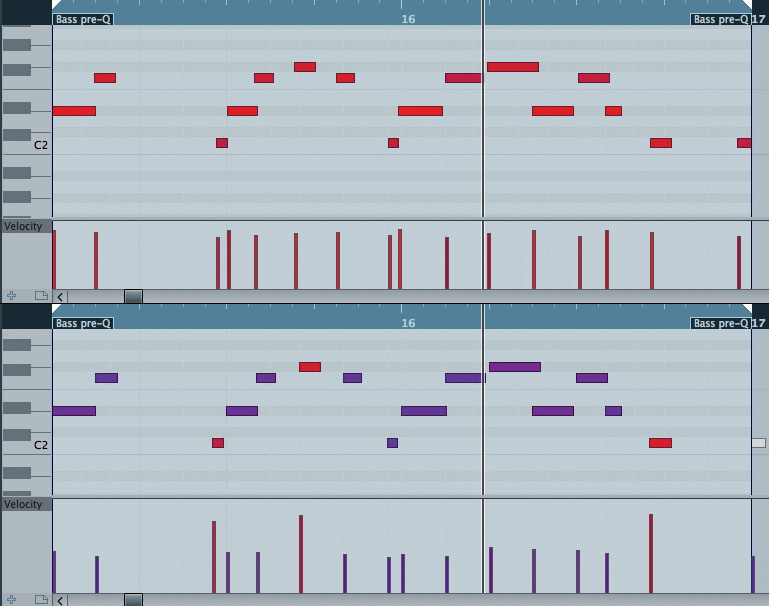 The two‑bar bass line without (above) and with (below) the groove applied. Note the subtle shifts in the starting points of some notes in the lower version and how the Velocity setting has been (deliberately over) used so that three notes are now heavily accented to mirror beats which had emphasis in the drum loop that formed the source of the groove
The example I've used to illustrate the MIDI groove-quantise process is deliberately a simple one: a two‑bar drum loop provides the groove that's applied to other two‑bar loops for bass and rhythm guitar parts, both of which are MIDI based. In a full production, though, things will usually be rather more complex. For example, even if you take the most simple of verse‑chorus song structures, you might experiment with one groove applied to all the song sections or a separate groove applied to each key song section. This is, of course, a creative decision, but Cubase has all the tools you need to do the required experimentation easily and quickly.
Finally, of course, we've been working only with MIDI here, but most of us now work with MIDI and audio alongside each other — so next month we'll look at how you can get both of these locked nicely into the same groove.
Published July 2012
Thursday, February 11, 2021
Wednesday, February 10, 2021
Get Real
These simple steps in Cubase 5 will make your programmed acoustic drum tracks sound more authentic.
 Assigning each of your GAO kit pieces to a Cubase mixer channel gives you a huge degree of control.
Last month, I explained how you can construct a realistic-sounding acoustic drum kit in Cubase's Groove Agent ONE (GAO), and now we'll learn to how to put the kit to good use by programming a realistic performance, and applying some mix processing. I've placed a number of audio examples on the SOS website.
Desk Job
Having configured GAO, your goal is to assign each kit piece to its own channel in the Cubase mixer, in much the same way as you would for a real multitrack recording. As well as level balancing, this will give you control over pan position, EQ, dynamics and ambience, which are all important.
You can choose to pan things from an audience or a drummer perspective. I tend to use the audience perspective, and assume the imaginary drummer is right-handed. (Whatever you pick, just make sure you're consistent, as nothing else will sound convincing.) So, facing the kit, and sitting a little distance from it, I end up with the kick and snare drum placed in the centre, the hi-hat central or very slightly offset to the right, the crash and ride cymbals set right and left respectively, and the toms panned from small to large going from right to left. A drum kit in the centre of a stage won't fill the panorama, so unless you really want tom rolls or cymbal crashes spanning the full stereo field (yuk!), keep the panning subtle, or route all channels to a bus which you can narrow to taste.
Half the point of using samples is that you can choose the sounds you want, so your EQ requirements will probably be modest, with perhaps a high-pass filter on the toms to tame any low-end ring. Placing a compressor on each channel is generally a good idea, though, as half the processing battle is about getting the sounds to fit the groove. Start with a low ratio (2:1), while adjusting the threshold to produce just a few dB of gain reduction on the loudest hits. Let the attack 'breathe' a bit (start at 10-20ms and adjust to taste), otherwise the drums can become a little lifeless.
With no overhead or room mics in our GAO drum kit, we need to fake some ambience to gel the kit together, so set up an instance of REVerence as a (100 percent wet) send effect, and load one of the small studio impulses, such as 'LA Studio'. Then add some pre-delay (start with roughly 20ms), apply a little low-cut EQ to the reverb, and adjust the time-scaling to suit. All you need to do now is set the send levels from each channel to taste. You're not looking for an obvious reverb tail, just a little cohesion — it's surprising how little you can usually get away with. For the sake of clarity, though, keep the kick drier than the rest.
I mentioned the idea of a drum bus for panning, but the bus can give you more control over the overall drum kit in other ways. Any further compression applied here should be subtle, just knocking a couple of dB off the peaks. If you decide that you want to be more aggressive, I'd advise that you don't push this compressor harder, but instead create another effects channel, this time with a compressor inserted in it. This can be driven quite hard via the channel sends, and you can even add tape-saturation and distortion efffects, and shape the return channel with EQ. You then blend in the channel at a low level compared with the main drum output. This isn't the place to go into how parallel compression works, but you should find that this fattens things up nicely without squeezing all the life out of your drum sound.
Keep It Simple
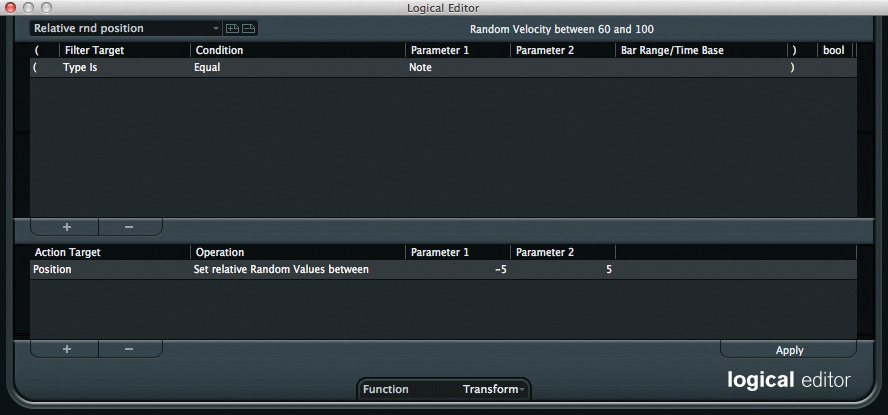 The Logical Editor makes it easy to add subtle random velocity or (as in this case) timing variations to the drum performance.
Rory Dow's article about programming your own drum parts in SOS September 2010 (/sos/sep10/articles/drum-prog.htm) is well worth a read, but two salient points are worth noting. First, keep your patterns simple before you start adding touches of 'flash': a drummer only has four limbs, so use no more than four sounds at once; and try to think like a drummer when playing simultaneous hits. (for example, most drummers don't hit the hi-hat when playing a crash). Second, you can avoid obvious repetition by applying Rory's 'doubling up' approach. In essence, start with a two-bar loop, then copy it and tweak it very slightly (velocity, timing, fewer/more/different hits) to give a four-bar loop. Repeat the process to create an eight-bar loop, and so on. In this way, even a metronomic eighth-note hi-hat with kick and snare on alternate beats can become less robotic.
While such editing can be done by hand, Cubase has plenty of tools to help you. You can apply a groove quantise (as described in the July/August 2012 columns), just add a little 'quantise swing', or apply a Logical Editor preset, for example. The last technique can be applied to an entire pattern or just to selected notes. For instance, the 'downbeat accent' preset increases the velocity only of the MIDI notes falling on, or close to, a beat. This can be great for programmed hi-hats, as it adds a nice dynamic to the playing.
While repeated timing variations from the grid help to create a groove, even the best drummers also exhibit some random variations. The Logical Editor can also help simulate this, by adding a random relative change in timing and velocity to selected MIDI notes. Provided you keep the amount of randomness small, what you end up with is subtle variation, rather than something that screams 'sloppy programming'!
Adding Bling
 Even the simplest of drum patterns, such as a metronomic eighth-note hi-hat with a kick and snare on alternate beats (top left), can easily be transformed into something less robotic with the tiniest bit of editing, as shown in the other two-bar loops and the final eight-bar version (bottom).
By now, we're halfway towards a convincing sound, but we still need a few embellishments to make things truly realistic.
Ghost notes, particularly ghost snares (hits at a low level and generally off the beat), and a few fills at song section transitions, are good places to start. The screen shot shows a how a typical two-bar MIDI pattern has been transformed from something very simple (and mechanical) to something much more natural sounding. Doing this simply involved applying a tiny bit of swing to the hi-hat, copying to give eight bars, a very modest randomisation of the timing and velocity of all notes and then the addition of a few left/right 16th-note hi-hat frills, the occasional ghost snare hit (see the much lower velocities for these notes), a short snare fill in the last bar and a crash cymbal replacing the hi-hat at the start of bar 1. In a list like that, it can seem like a lot to do, but it's actually really quick and easy!
Sneaky Snare
If you read last month's column, you'll remember that I created an alternate snare pad in my GAO kit. I set the Amp Mod to zero percent for this pad, so that velocity didn't control volume but did control which sample layer was triggered. If you make a copy of your MIDI drum track and mute (or delete) all but the snare notes, you can then transpose this note so that it now triggers the alternate snare pad. You can then randomise the velocity of the MIDI notes on this track, effectively varying which sample layer is triggered — and when layered at a suitable level beneath the main snare, it will add a useful dimension to the tone.
It's easy to randomise the MIDI velocities using the Logical Editor 'random velocity (60 – 100)' preset. Simply adjust the MIDI range to span from 1 to 127 (rather than 60 to 100) before applying. However, you need to listen for any flam effect, which will occur if the attack of the two snare samples doesn't match perfectly (some editing in GAO might be required), or for masking of more subtle hits of the main snare (perhaps ghost notes). In this case, you might need to mute the second snare layer.
Tempo & Playing Dynamics
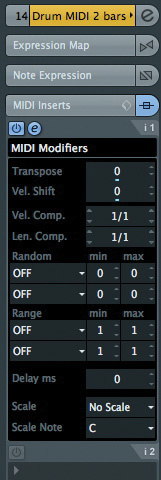 The MIDI Modifier plug-in allows you to automate the Velocity Shift parameter, adding an overall sense of dynamics to the performance.
If you're adding drums to a live recording, you'll also need to get to grips with constructing a tempo map (something we'll investigate next month). However, even if the programmed drums are the starting point of your recording, consider adding some tempo variations, via a Tempo track, to give the song a more human feel. This might be as simple as a small tempo gradient in the two bars leading up to a chorus, with the chorus itself being a couple of bpm faster than the verse. Again, this just helps to make the performance feel a little less machine-like.
A final touch is to add variation in the overall playing dynamics. While this can be done to some extent via volume automation, it's often not enough, because the drummer playing harder in the high-energy song sections makes the drums sound not only louder, but also slightly different.
Cubase makes this very easy to mimic. The MIDI Modifier plug-in includes a Velocity Shift parameter that applies a relative reduction or increase to a note's MIDI velocity. If you insert the plug-in on the main drum MIDI track, you can automate this parameter to ride the velocity shift as the song plays. This is a great way to add emphasis to particular song sections, or even to certain beats with individual bars. Who'd have thought that Cubase's built-in tools and plug-ins could breathe so much life into your programmed drums?
Amp It Up!
By John Walden
 The VST Amp Rack includes seven amp/cab models, covering a wide range of possible tones.
Guitar players, myself included, often argue over the tonal merits of real amps relative to virtual ones. But whatever your views on plug-in guitar-amp simulations, you can't deny that they present some very useful possibilities, not all of which are confined to guitars. So this month we'll explore a few examples of how the VST Amp Rack, which was introduced in Cubase 6, can be put to good use.
To use the VST Amp rack for guitar tones, you'll first need to get a DI signal from your guitar into Cubase. Most modern audio interfaces have an input or two that can work quite happily with a direct guitar-level signal, but if yours doesn't, you'll need a DI box that can send one signal 'thru' to your amp and another to your interface's mic input. You can choose to record this DI signal alongside the output from an amp or hardware modeller, in which case the DI and amp signals should be recorded on separate Cubase tracks, to give you flexibility later.
Dial In Tones
The VST Amp Rack's primary function is, of course, to create some decent guitar tones. You have seven amp and six cabinet choices which, as hinted at by the graphic styling, include models based upon three Fender classics, a couple of Marshalls, a Vox and a Mesa Boogie. You can combine the different amp and cab types to give you quite a wide range of tonal starting points.
All the amps are capable of decent clean tones, but the best choices are probably the Fender- and Vox-based models. For super-clean, back off on the gain settings or, for a bit more twang (via the Tweed amp) or grit (for example, via the Vox amp), start with the gain about halfway and adjust to taste. With a little more gain, or the addition of an overdrive pedal in a pre-effects slot, you can create a range of 'just breaking up' tones — perfect if blues is your thing. The Plexi model can also do this at lower gain settings, while for straight 'rawk', both Plexi models can do the business. For a more saturated overdrive, the Plexi Lead and Diamond (Mesa Boogie) models are your best bet.
You also get a decent selection of emulated stomp-box effects that can be placed pre- or post- the amp/cab modelling, a choice of microphone type and position and a 'master' section with EQ, a tuner and master output level control. In short, for a bundled plug-in this is a pretty decent package!
So that you can hear the differences between the various models, I've created some short audio examples, and these are available via the SOS web site (/sos/sep12/articles/cubasemedia.htm) for you to audition. In addition, there are audio examples to illustrate each of the VST Amp Rack applications described below. Hopefully, listening to these while reading the text will give you a better idea of what can be achieved.
Reamp At Mixdown
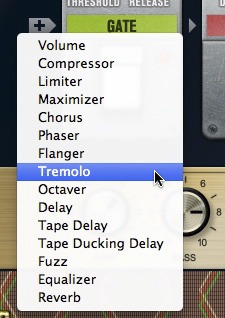 For both corrective and creative applications, there's a good selection of virtual stomp boxes.
It's one thing creating the perfect tone for while you're playing the guitar, but at mixdown you might find that your chosen sound is inappropriate. For example, you might decide the original sound requires more or less gain in order to sit well in the mix. In a traditional recording environment, a DI signal is often recorded alongside the miked amp so that, at mixdown, this DI signal can be fed back to the same or a different amp, the tone tweaked to best fit the mix, either by tweaking the amp settings or changing and moving microphones, and then re-recorded to replace the original. While the results can sound great, this technique can be a bit of a faff — and one of the key advantages of plug-in amp-sims like VST Amp Rack is that they make the process a breeze to perform: you already have your DI'ed guitar part, so you just change the Amp Rack settings to suit the mix.
Layer Take
Another common traditional recording technique is to layer several guitar sounds using different amps, blending the sounds as desired at mixdown to create a fuller tone. With VST Amp Rack, the same effect can be achieved very simply by duplicating the track containing the DI'ed recording and adjusting the amp settings on each track to taste. There's nothing (other than computing power) to stop you from layering as many tones together as you want, if it gets the job done, although usually things will start to sound mushy if you stack more than three or four parts.
While a 'wall of sound' is one application of this approach, a subtler one might be to blend a cleaner sound with an overdriven or fuzz-style sound. When using a heavily overdriven tone, the part as a whole might leap out of the mix, but you pay a price, in that note definition can often be lost. Blending in a cleaner tone can provide the transient information that helps listeners pick out each note without compromising the overall tone.
For example, if you were using a high-gain Diamond amp for your main sound, you might blend in a much cleaner Plexi-based amp tone to add some clarity. The second tone needn't be ultra clean for this to work, just clean enough to have better note definition; and it only needs to be blended in quite subtly, otherwise it becomes obvious that there are two very different tones in use. A further trick is to quite aggressively filter the low frequencies out of the cleaner tone, so that it's only providing aural cues that notes are being picked, but without intruding on the frequencies that define your fuzz tone.
An alternative — or complementary — technique is to insert an instance of Cubase's Envelope Shaper after the Amp Rack on the more distorted sound, which will help emphasise the attack portion of the cleaner sound.
Faking It
 As described in the main text, the Envelope Shaper can be used when blending a cleaner tone with a more distorted one.
The VST Amp Rack can also be used very effectively to fake double-tracked guitar parts. Again, copy the DI part to two tracks, pan each hard right and left respectively, and insert an instance of VST Amp Rack on each. The two tracks can be given different guitar tones, to create the illusion of two different guitars playing exactly the same part. You can create radically different sounds if you want, but the differences can also be quite subtle. For example, try simply swapping the default speaker cabinet model for one of the alternatives. If you also apply just a little nudge to the Inspector's Track Delay for both tracks (perhaps bring one slightly forward in time and the other slightly back) you can create a much more convincing impression of two guitars being played. Just make sure that the sound works when listening in mono, if you do this.
In a similar vein, it's also possible to take a section of your guitar performance, move it to a different track, and treat it to a completely different guitar tone. A typical example might be to transform a part that is overdriven (try the ZZ Bottom preset) for the majority of the track into something much cleaner or with some sort of 'ear candy' type special effect (the heavily flanged 'Purple Gain' preset, for example) for use in a breakdown section of the song. This kind of marked contrast can add interest for the listener.
This Means Wah
 The sine waveform line tool is great for creating automation data for the wah pedal.
All the VST Amp Rack's parameters can be automated, most easily using Cubase's Quick Control system, so you can vary your tone in different song sections if required. An obvious target for automation is the Amp Rack's wah pedal. Unless you have a MIDI volume pedal that can be used to send controller data while you are playing, you have to resort to adding suitable controller data after recording the DI signal. This actually works quite well, and provides plenty of control. However, for a funky auto-wah effect, you can use the sine waveform line tool to create automation data first (in the screenshot, this has been drawn with a quarter-note grid setting so the wah syncs with the song tempo) and then record your performance while Cubase controls the wah pedal for you. There are, of course, other automation tricks you might use such as varying the amp gain between different song sections, to help create dynamics in the production.
The Guitar Is Not The Star
 The VST Amp Rack can also be used as a send effect alongside your more usual reverb or delay processors.
In record production, guitar amps regularly get used for more than just guitar duties: almost any sound source might be processed through a guitar amp to add a little warmth or overdrive. Obvious candidates are keyboard sounds (such as rock organ) and vocals, to give a little grit. A plug-in virtual amp like Amp Rack makes this sort of experimentation quick and easy. There are two approaches you can adopt. First, if you want a full-on effect, simply place the plug-in as an insert effect on the track (or on the audio output channel if it is a software instrument you want to process), just as you would with a guitar.
The second approach, which will often yield more pleasing results, is to set up VST Amp Rack as a send effect. You can then use a parallel-processing approach to blend in just as much (or little) of the amp processing as required, and automate the send level to create any variations you might like in different song sections. This can, for example, be a great way to add just a tiny amount of edge to a vocal to lift it out of a busy chorus section mix. The key here is to experiment with various sources to see what effect you can achieve, and you might be surprised — I've even had good results using amp sims in parallel to add body and sustain to a wimpy snare drum, blending it with the original sound that provided the transient which identifies the sound as a snare.
Published September 2012