Welcome to No Limit Sound Productions

Company Founded
2005
Overview

Our services include Sound Engineering, Audio Post-Production, System Upgrades and Equipment Consulting.
Mission
Our mission is to provide excellent quality and service to our customers. We do customized service.

Monday, October 19, 2020

Cubase: Groove Agent SE4's Acoustic Agent

 By Matt Houghton


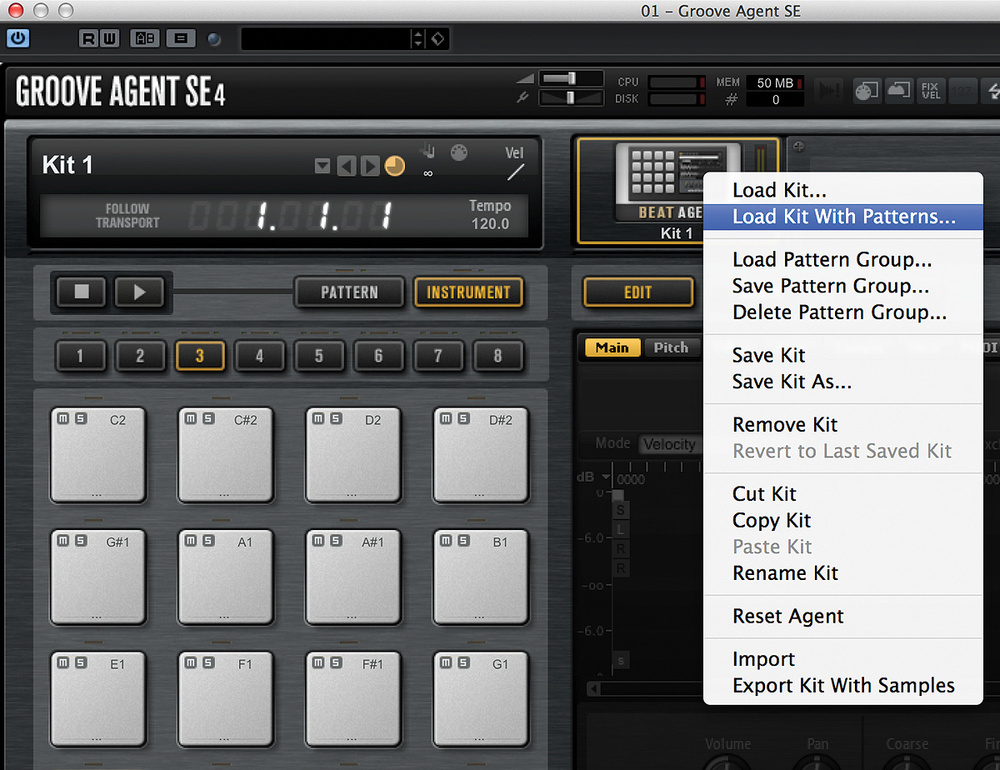
To load a kit and set of rhythms, right-click on the Agent box, top middle, and select ‘Load Kit With Patterns...’.To load a kit and set of rhythms, right-click on the Agent box, top middle, and select ‘Load Kit With Patterns...’.

Cubase’s Groove Agent SE4 isn’t the most intuitive drum machine, but it’s well worth getting to grips with.

Cubase’s Groove Agent SE4, bundled with version 8.0 onwards, is something of a hidden gem. It’s a virtual drummer along the lines of BFD, EZ Drummer and so on, with loads of good-sounding kits, a great ‘Rhythm’ library and lots of tweakability. In SE4, Steinberg added the ‘Acoustic Agent’, which enables you to vary and automate the virtual drummer’s performance with ease. Several SOS forumites, though, found it confusing enough that they asked for a step-by-step guide. So, here’s a quick guide to creating a natural-sounding acoustic drum part using SE4’s Acoustic Agent. I can’t cover everything in two pages, so it’s a topic I’ll revisit in the future.

Secret Agent

The basics are easy to understand: on the left are eight banks of 16 pads (128 pads in total, each mapped to a different MIDI note), onto which layered kit-piece samples can be loaded, either individually or a whole kit at a time. There’s another bank (there are eight banks in the full version of Groove Agent) of 16 pads for MIDI loops, which ‘play’ the kit pieces, and again these are assigned a MIDI Note. Over on the right, it’s a little more complex: there’s an Edit page for the ‘Agent’ associated with the kit (more on that later), a Mixer for balancing and processing the various kit pieces, and an Options page, which we’ll explore later.

The different Agents can be thought of as engines for customising the patterns or samples (depending which Agent you’re using). As I said, we’ll be examining the Acoustic Agent, which is all about tweaking the virtual performance. Finding a suitable kit isn’t straightforward, as the browse-by-Agent page of Groove Agent 4 is missing in SE4, but here’s a quick way to find a kit that’s compatible with the Acoustic Agent.

Groove Agent SE4 defaults to a blank preset (no kit, no patterns), but the ‘Beat Agent’ is activated. Right-click on the Beat Agent box at the top centre, and select ‘Load kit with patterns...’. A kit browser window will appear which, alas, is fixed to a narrower width than is helpful. Scroll across until you see the Library Name column — it’s a good idea to drag this column over to the left if you wish to be able to select kits by Agent easily in the future. Click on the column header and the results will be ordered alphabetically (A-Z) by Agent type, click again and you reverse the order (Z-A). As there are some kits without a dedicated Agent, the column will be empty at the top (in A-Z), but if you scroll down you’ll soon find all your Acoustic Agent SE kits (the full version of Groove Agent gives you more options). Click on one: the kit and its patterns will load, and the Beat Agent icon will be replaced by an Acoustic Agent one. Whichever you choose you’ll be able to customise it, but if in doubt try the ‘Forget The Past’ kit: it sounds decent and the rhythms are simple enough for learning the ropes. Use the Pattern and Instrument buttons (top right of the left-hand pane) to view the Instrument (kit piece) or Rhythm pads. Click any pad or use a MIDI device to trigger the sounds.
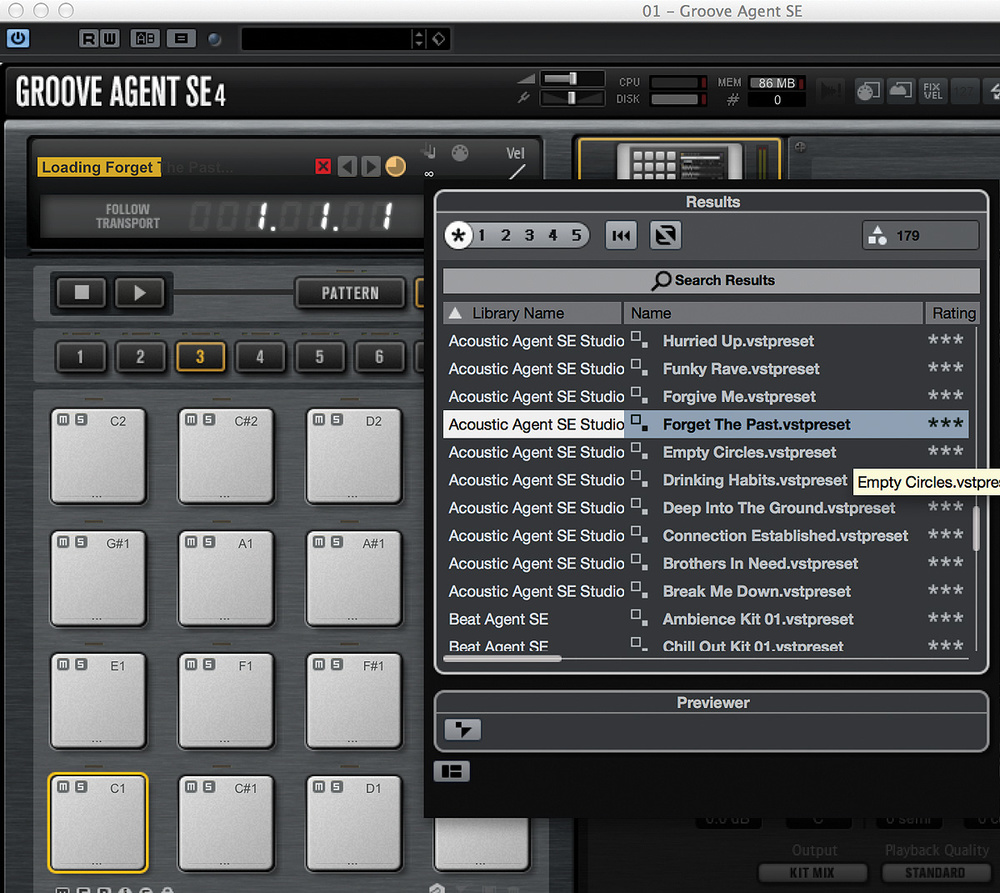
It’s helpful to drag the Library column over to the left, so you can easily find all the kits that work with Acoustic Agent, which is the newest and most sophisticated Agent in Groove Agent SE4.It’s helpful to drag the Library column over to the left, so you can easily find all the kits that work with Acoustic Agent, which is the newest and most sophisticated Agent in Groove Agent SE4.

Transport Policy

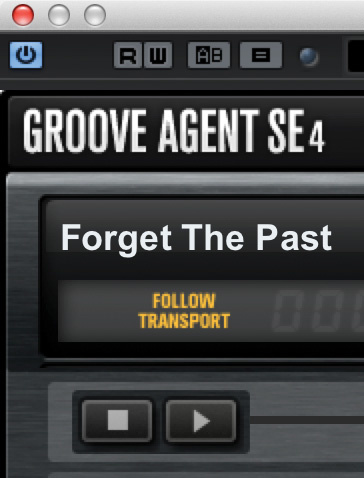
Groove Agent SE4 has its own transport but can also be set to start and stop in sync with Cubase, which is the way I prefer to work: click on the words ‘Follow Transport’ above Groove Agent’s stop and play buttons — they should turn yellow/orange. When you hit play (space bar) in Cubase, the currently selected pattern (highlighted by a yellow/orange line around the pad) will start playing. You should notice a little ‘clock’ and beat numbers displayed in the pad, which enable you to see quite easily how long/short the pattern is and when it will loop back to the beginning.

Hit another Rhythm pad and, by default, it will take over instantly. If jamming these parts to come up with ideas, I prefer to change the Trigger Mode setting for all pads from Immediately to Next Beat or Next Measure (bar), to ensure smooth transitions between different-sounding Rhythms. To do this for several pads at once, click the first pad, then shift-click the last pad to make your selection. Next, shift-click to select the desired setting from the Transport Mode drop-down list in the Edit page on the right-hand portion of the GUI. Now hit play and switch between a few patterns using your mouse. I’m sure you’ll get the idea pretty quickly. If you program MIDI Notes in Cubase’s Instrument Track to trigger these patterns, it will behave in the same way, so once you have the desired patterns mapped to pads, you can sketch a song structure out pretty swiftly.Sync’ing Groove Agent SE4’s transport with that of Cubase is a  good idea!Sync’ing Groove Agent SE4’s transport with that of Cubase is a good idea!
Pattern Tweaks

All of which brings me neatly on to tweaking those patterns. There are a number of ways you can do this, but for me, the stand-out feature of the Acoustic Agent is the X-Y pad governing the Intensity and Complexity parameters, which apply to the individual Rhythm pads — each has a different setting. Intensity dictates how hard the Agent ‘hits’ the kit, and Complexity adds little embellishments to the rhythm (or simplifies it, depending which way you go). So, set one of the Main pattern pads playing and try dragging the little ball/knob around and see how the sound changes. If you do anything to extreme too quickly it can sound a little odd, but for the most part, it’s pretty impressive.

Now for a clever feature: you can easily create variations based on just one Rhythm pad, and assign them to unused pads or pads with unwanted Rhythms. To remove a pattern, click on the offending pad and hit backspace — the rhythm will be removed and you’ll have a blank, grey-coloured pad. You don’t need to do this, but I find it helpful to see which pads are available; you could, alternatively, change the pad colour by right-clicking and selecting Set Colour, but I like to keep colour-coding for other things. Don’t worry, the usual Cmd-Z or Ctrl-Z undo facility works here: (go to the Options/Global page to set the maximum number of undo steps from zero to 20). To copy a rhythm from one pad to another, Alt+click-drag it. Then, twiddle the Intensity/Complexity controls to create a new but related part to give you a bit of believable variety.

Automation Station

As with most facilities in the right-hand Edit section, the Intensity and Complexity parameters can be automated. That said, the automation system is a little more sophisticated than for most plug-ins, partly because there are far more parameters than it’s possible to list in one place!

Thankfully, Steinberg’s approach is fairly elegant. In the right-hand pane, select the Options page and then, in the next row down, select Automation. You’ll see a long list of automation ‘slots’ that are ‘not connected’. The left column is the name given to your automation lane; the right one displays the Groove Agent parameter mapped to it. Now, go back to the Edit page and right-click on the Complexity text box (the one containing the current numeric setting; don’t select the text first, or you’ll see the wrong menu!). Select Add To Automation / Automation 1, and return to the Options/Automation page, where you’ll see your Complexity parameter for the currently selected pad has been added at the top. Back in the Cubase Project page you can now open up the automation lane for this parameter in the usual way.

I mentioned that this automation is assigned on a per-pad basis — and that’s obviously not always going to be a convenient way to work. For example, if you automated the Complexity parameter for a loop that played throughout a song, but later decided to play a different Rhythm pad at certain points, you’d have to go back and automate the same parameter for the second pad. I find that it’s often a good idea, therefore, to assign the same parameter for all pads to a single automation lane. I can’t find a way to map all pads simultaneously in one step, but it’s not too time-consuming to do it one by one: again, right-click the Complexity value for each pad in turn, assigning it to automation slot 1 as you go. You only need do this once, and you can then save the kit (right-click on the Agent icon and select Save As...), and all will be recalled. Now, you have access to a single Complexity automation lane for the entire kit.

The real power of Groove Agent lies in the automation system. Multiple parameters from different pads can be assigned to a  single automation lane, which makes it easy to introduce natural-sounding variation in the virtual performance.The real power of Groove Agent lies in the automation system. Multiple parameters from different pads can be assigned to a single automation lane, which makes it easy to introduce natural-sounding variation in the virtual performance.

If you plan on using a lot of automation in Groove Agent SE4, it can be a good idea to rename the automation slots. To do that, go to the Options/Automation pane, and double-click on the name in the left-hand column. You can change it to what you wish, and the name will be updated in the list when you try to map further pads/parameters to it.

Striking Out

Regrettably, that’s all I have space for here: there are numerous ways to tweak the drum sounds, and yet more ways to automate the performance, which as I said earlier, I’ll come back to another time. Meanwhile, I hope there’s enough here at least to get you exploring SE4.


Published August 2016

Friday, October 16, 2020

Cubase 8.5's Channel Settings Panel

 By John Walden

Published September 2016

The Channel Settings Panel gives you an expended view of the control set for a single channel in your project.The Channel Settings Panel gives you an expended view of the control set for a single channel in your project.

Cubase’s Channel Settings Panel lets you see what’s going on under the hood of the Mix Console.

Cubase’s Mix Console offers access to more parameters than most DAWs’ mixers, but sometimes you’ll need to focus in more detail on an individual channel’s settings — and that’s the Channel Settings Panel’s raison d’être. Whether it’s an instrument, audio, group, effect or MIDI channel, a quick click on the ‘E’ (edit) button in the Mix Console or the Project window’s Inspector pane brings up the Channel Setting Panel. Some of its facilities are obvious, but several useful or unusual features lurk beneath the surface.

Panel Navigation

You can configure exactly what’s on display in the Channel Settings Panel via its Window Layout dialogue box (located top-left). By default, you see a control and navigation strip at the top, three tabbed sub-panels and a fader strip (far right). The top strip allows you to specify channel input sources, channel name, channel output destinations, and to load channel presets. This strip also includes options for moving to the next/previous channel, and also to the ‘last edited’ or ‘next edited’ channel. The latter pair are useful if you need to move frequently between a small number of channels that are located in very different parts of the Mix Console layout. It would be nice if all these ‘channel switch’ options could be assigned to a key command but, at present, I don’t believe that’s possible.You can access the Channel Setting Panel for a given channel from the Mix Console (as shown here) or from the Project window’s Inspector panel.You can access the Channel Setting Panel for a given channel from the Mix Console (as shown here) or from the Project window’s Inspector panel.

From left to right, the three sub-panes provide access to the channel’s insert slots or built-in channel strip signal chain, channel strip or EQ controls, and effects sends or cue sends settings, respectively. Tabs at the top allow you to move between the alternative views in each pane. There are further tabs at the base of some panes, too. For instance, the Inserts pane can show either the selected plug-ins or the audio routing for all slots; and the Sends pane can be toggled to show the send destinations or the L-R pan settings for the send slots.

Strange But True

The Inserts Routing options allow you to determine how audio is passed through any mono or stereo insert plug-ins you deploy on surround-sound channels. The Sends Panning tab will be more useful to most of us, though. For example, if your audio track is panned hard left, you might choose to pan a send to a stereo reverb hard left, to keep the sound in the same location, or to opposite-pan the send, to create a sense of stereo width from a mono source. If you want to link the send pans to the main channel pan automatically, enable the Link Panners option for that channel from the drop-down menu next to the Track Preset selection box in the top strip.

For those with a more ambitious studio setup, who wish to create different cue mixes when recording multiple musicians, the Cue Sends pane is invaluable, as it allows you fine-tune the level sent from the selected channel to each musician — you can send more drums to the bass player, or more of a pitched instrument to a singer to assist with their pitching, and so on. (This all requires that you’ve first configured physical outputs for the cue sends, via the VST Connections window and Control Room).

Channel Stripper

The Channel Settings Panel also allows you to see the various channel strip components in more detail than can be seen in the Mix Console, and in the Strip sub-panel you can drag-and-drop to reorder the processing tools (to use the EQ pre- or post-compression). You can also toggle the processing position pre or post the insert slots, using the small arrow at the top of the Strip pad. This is really useful if you want to add a third-party processor after you’ve already made tweaks to the in-built EQ — unfortunately, you can’t drag inserts in between different elements of the strip, though. Presets for each strip processor can be accessed here, and you can easily switch between the multiple options of any processors which offer them (for example, the Maximizer’s choice between maximizing and limiting).

The Channel Strip sub-panel layout automatically adjusts to reflect any signal chain changes you have made in the Strip sub-panel. Unless you’re working with a very high horizontal zoom level in the Mix Console, the Panel offers a much nicer view of all the channel strip controls.

The Equalizer sub-panel gives you a live spectrum view while adjusting your EQ settings and, as you can expand the horizontal size of the Channel Settings Panel, you can get as much visual detail as you need.The Equalizer sub-panel gives you a live spectrum view while adjusting your EQ settings and, as you can expand the horizontal size of the Channel Settings Panel, you can get as much visual detail as you need.

Join The EQ

By default, the Equalizer pane provides a much larger spectrum view than that available in the Mix Console. For more surgical EQ adjustments this visual feedback can be extremely helpful; the spectrum display in particular becomes more useful. But there are actually three views available, and you can toggle between these via the (very) small green button at the top right of the pane. You can choose to see sliders or knobs, or to remove the virtual controls altogether, leaving a larger spectrum view. As you can stretch the horizontal size of the Channel Settings Panel, you can super-size the Equalizer’s spectrum display for an even more detailed view.The Channel Settings Panel can show you (far right) just how your audio is eventually being routed to the main outputs — in this case, via a reverb send and a parallel processing bus.The Channel Settings Panel can show you (far right) just how your audio is eventually being routed to the main outputs — in this case, via a reverb send and a parallel processing bus.

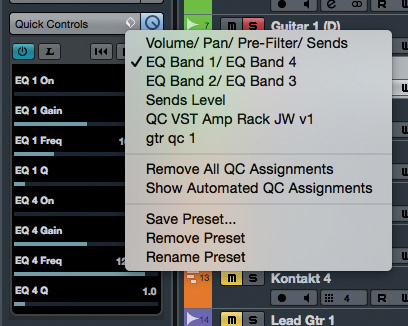
This ‘spectrum-only’ view makes a lot of sense if you also map an external hardware controller, with a set of rotary knobs, to control the EQ of the currently selected channel. The simplest way to do this, even if your controller has a modest number of knobs, is via the Quick Controls (QC) system, and Steinberg have helpfully included some QC presets. As the QC system only gives you control over eight parameters at a time and there are four bands of EQ, you have to strike a compromise — the supplied QC EQ presets do so by giving you full control over two of the four EQ bands. An alternative approach, which I’ve set up myself, is to map the eight QCs to the gain and frequency controls for all four bands. This lets me sweep frequencies, cutting or boosting to find the areas I want to work in, while giving me clear visual feedback via the spectrum display. I then move between the onscreen controls to adjust the Q (bandwidth) settings and my hardware Quick Controls to fine-tune things.

Once you’ve created a QC preset for the Channel Strip EQ, it can be added to any track in an instant via the Project window’s Inspector. But as EQ is so fundamentally important in the mix phase of a project, I’ve set up project templates with this QC preset pre-loaded on all audio and group tracks.The Quick Control system lets you easily assign a hardware controller to the channel strip’s EQ parameters.The Quick Control system lets you easily assign a hardware controller to the channel strip’s EQ parameters.

However you approach this, if the QC system is configured to control your EQ, as you switch between different channels in the Channel Settings Panel, your external hardware controller will automatically give you hands-on EQ control for the currently selected track. Of course, if you happen to have an external controller with more than eight knobs, you can use Cubase’s Remote Control options to give you more comprehensive hands-on control of the Channel Settings Panel. Check out Matt Houghton’s January 2015 workshop for more on this (http://sosm.ag/stripitgood).

En Route

One last feature in the Channel Settings Panel is worth a quick mention: the ‘Show Outputs Chain’ facility. This is toggled on/off via the double-headed arrow icon in the top strip. When on, the Channel Settings panel expands to the right and displays, for the currently selected channel, all the channels that the audio subsequently passes through before reaching the main stereo output. If you like to keep your mixes simple (every channel is directly routed to the main stereo output) this won’t tell you much you didn’t already know, but if you use lots of Group Channels and sends to FX Tracks, this is both a very handy way to check how the currently selected channel’s audio is eventually getting (or not getting!) to your main output, and a useful means of navigating to those subsequent channels in a large mix.


Published September 2016

Wednesday, October 14, 2020

Cubase: Parallel Bus Compression

 By John Walden

Published July 2016

With Cubase, you can implement an innovative parallel compression technique first conceived by producer Andrew Scheps.

We’ve discussed parallel compression a number of times previously, but if you need an introduction, read Hugh Robjohns’ excellent article in SOS February 2013 (http://sosm.ag/latest-squeeze). Parallel compression can be implemented in different ways to achieve slightly different things, though, and this month I’ll discuss how you can implement producer Andrew Scheps’ ‘rear bus’ technique, which derives from his time working on a Neve console that was designed for quadraphonic sound. Scheps would use the console’s ‘rear bus’ — a second stereo bus that was intended for the rear speakers in a quad system — as a sort of ‘global’ parallel compressor bus. He would often send multiple instruments to a single compressor placed across this ‘rear’ bus, rather than treat each source to its own parallel processing.An FX Channel with a compressor insert serves as our ‘rear bus’.An FX Channel with a compressor insert serves as our ‘rear bus’.

Using a single ‘master’ parallel compression bus in this way yields different results from those achieved by setting up multiple parallel compressors. The main difference is down to the interaction between the multiple sources you’ve fed to the parallel compressor, and how the compressor then reacts to whatever element happens to be loudest at any point. In the right mix, and set at the right balance with the uncompressed output, this interaction can create some interesting, almost ‘automated ducking’ effects. Combined with more conventional parallel compression, this can give a mix a certain sense of movement, as elements ‘pop’ gently in and out of the mix. A second benefit is that a single parallel compressor bus is used to accommodate a significant number of the overall mix elements; compared to a more conventional approach, you therefore end up with fewer parallel compressor busses to keep track of, and don’t need to use so many compressors.

The Bus Route

So, if you fancy trying this technique, what’s the best way to set it up in Cubase? The starting point is simple: create an FX Channel with a compressor in one of its insert slots. The stock Cubase Compressor plug-in works well enough for initial demonstration purposes, but feel free to experiment if you have access to something more ‘esoteric’. (We’ll come back to the limitations of Cubase’s compressors later.)

In most parallel compression contexts, a low threshold (so gain reduction is almost much always being applied), fast attack, medium release and a 3:1 ratio make for a decent starting point, though more (much more) extreme ratios can be dialled in; you need to let your ears be the judge as you balance the compressed and uncompressed signals.

Next, create a send from each track you want to be part of the parallel compression processes, almost as if the compressor were an artist for whom you’re creating a bespoke foldback mix. Scheps was reportedly always willing to experiment here, but let’s get the basics sorted before you try anything too sophisticated. A good ‘all in’ approach is to send everything except the drums (or the drums and bass), as this both focuses the compression more on the mid range and will allow your overheads and cymbals to ‘breathe’. A quick way to do this is to select the chosen channels and use the Quick Link function to set up a send from them all simultaneously; be sure to disengage Quick Link when you’re done.

With suitable starting-point settings, the stock Cubase Compressor plug-in can serve on your ‘rear bus’.With suitable starting-point settings, the stock Cubase Compressor plug-in can serve on your ‘rear bus’.

In configuring the sends from each track, there are three things you need to ensure. First, leave all the send levels at zero gain (the default value). Second, ensure that the sends are all post-fader (also the default). You can check this in the Mix Console, but you’ll need the Channel Settings panel for something else in a minute, so it makes sense to use that here; you can toggle between pre- and post-fader settings by clicking the appropriate button as you hover your mouse over the send label. The combination of these first two settings ensures that the send level from each track is dependent on the channel fader itself, so send levels to the compressor will match the main fader balance.

The Channel Settings window can be used to set all the send settings for each channel to the ‘rear bus’ including, in Cubase Pro at least, ensuring the pan of the send is linked to the pan of its host channel.The Channel Settings window can be used to set all the send settings for each channel to the ‘rear bus’ including, in Cubase Pro at least, ensuring the pan of the send is linked to the pan of its host channel.

If you’re using Cubase Pro, rather than one of the ‘lite’ versions, you can configure the third setting in the Channel Settings panel. (Don’t worry if you don’t have Pro, as while this stage is useful it’s entirely optional.) From the drop-down menu in the top strip, toggle the Link Panners option on for each track. When you next adjust the main pan of the track, the pan of the send will be linked to it, rather than being left at the default centre position. This has two useful consequences. First, it ensures that the pan position of the track is matched in the stereo image of the parallel compressor channel. Second, as I’ll explain later, it means you can experiment with independent compression of the left and right channels of the parallel compressor.

In The Blender

As with any parallel compression approach, it then becomes a simple task of blending the parallel compression bus in to taste alongside your master stereo bus. There are no hard-and-fast rules but a good starting point is to gradually raise the parallel compressor’s fader until its contribution sounds obvious, and then back it off slightly.

What’s interesting about this approach is the way in which the various sounds contributing to the bus compete with each other. It can result in some interesting changes in their respective volumes and, while perhaps more noticeable in a busier mix with lots of different sound sources feeding the compressor, the end result is not unlike lots of small automation moves having been added, introducing some really nice micro-dynamic variations to an otherwise static-sounding mix. It’s an effect which might not be appropriate for every mix, but when it works, it’s really rather cool — so don’t write it off if it doesn’t work the first time you try it!

Along Came Two Busses

Providing you mix without any plug-ins on your main stereo master bus, you can route your parallel compression bus to the master. This would replicate the signal routing used by Andrew Scheps, even though, in our case, all the audio is eventually being passed to a single stereo output. However, lots of DAW/sequencer users (myself included) often place a plug-in or three on their master bus, which means your parallel compressor bus will receive a further (often unwanted) stage of processing, as it’s blended with master output. The workaround is to configure a Group Channel — a ‘master, not-parallel-compressed bus’, for want of a snappier name — and to route the output of every track to that, rather than directly to the main stereo output bus. Any processing you want to add to the main (not parallel-compressed) mix can be applied here. Both the ‘unparallel bus’ and the parallel compression bus are then routed to the main stereo output channel, where their signals are summed without further processing. It sounds more fiddly than it is!

Melda Production’s MCompressor is a free compressor that offers unlinked ‘dual-mono’ operation.Melda Production’s MCompressor is a free compressor that offers unlinked ‘dual-mono’ operation.

There’s More!

A number of variations could be built around this ‘rear bus’ approach, but one interesting one is to compress the left and right channels of the parallel compressor bus independently —in other words, use a dual-mono compressor rather than a stereo-linked one. You still use identical compressor settings on each channel, but this way you prevent a loud sound that’s panned hard right (for example) from ducking a quieter one that’s panned hard left. And once again, treating the left/right channels independently can introduce some interesting small-scale movement.

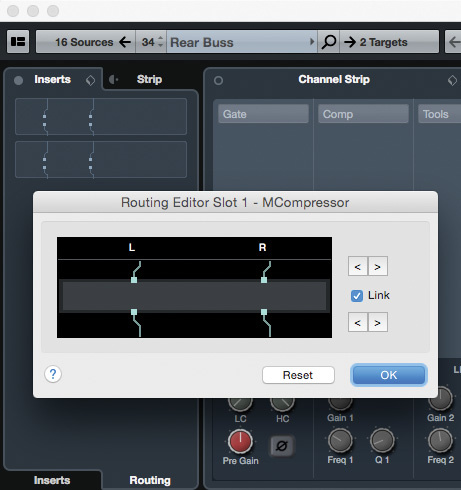
If you’re to avoid complex routing scenarios in Cubase’s Channel Settings window, this requires that you have a compressor plug-in that supports a dual-mono configuration, and unless I’ve missed something, that is something none of the stock Cubase compressor plug-ins offer! The easiest workaround is to find a compressor that does offer independent left/right channel processing. In the screenshot shown here, I used the freeware Melda Production MCompressor. While working as a stereo or mono compressor, it also offers the option to just process either the left channel (allowing the right to pass uncompressed) or visa-versa.

With two instances of MCompressor inserted on the parallel compression bus, one set to compress the right channel only and the other set to process the left channel only, you are then ready to experiment. (If you’d prefer a single plug-in for dual-mono compression, you could check out the VladG’s more colourful-sounding freebie Molot.)Cubase: Bus Compression

Louder Or Better?

Like all parallel compression approaches, this method has to come with a health warning: as you blend in that overly compressed parallel buss, your mix will become louder, and our ears are easily fooled into thinking louder is better — even when it isn’t! So, before you shout ‘result!’, plenty of A/B comparison is required to check whether the contribution from the parallel compression is really helping the mix rather than just adding level. And if in doubt, you can use Cubase’s in-built LUFS meter to make sure you’re comparing like with like.


Published July 2016

Wednesday, October 7, 2020

Using Cubase iC Pro Remote Control App

 By John Walden


Cubase iC Pro: touchscreen remote control of Cubase (Mac & PC) from an iOS device.Cubase iC Pro: touchscreen remote control of Cubase (Mac & PC) from an iOS device.

Steinberg’s dedicated app can turn your iPad into a fine control surface for Cubase.

Touchscreen controllers offer a versatile alternative to conventional DAW control surfaces. There are both pros and cons but the potential is obvious. If you happen to have access to an iPad (or iPhone) then, whether you run Cubase on a Windows or OS X platform, Steinberg’s iOS-only Cubase iC Pro app ($16.99) provides a very creditable option. And, as the app has recently been updated (v.1.2.1 was released in July) to support some of the newer Cubase 8.5 features, maybe it’s time to explore your touchy-feely side?

Appy Days

Essentially, Cubase iC Pro provides a touchscreen remote control surface for Cubase. It includes virtual faders, record enable, mute/solo and automation read/write buttons, project navigation, transport controls and access to the key-command system. The app requires an Apple device capable of running iOS 7.0 or later and will support Cubase versions from v6 upwards.

Communication between the app and Cubase is wireless, and just requires your computer and iOS device to be on the same Wi-Fi network. This is undoubtedly one of the big benefits of using the app and, if your studio workflow means that you are sometimes both the engineer and the performing artist, being able to trigger recording and playback while sat in front of your instrument (rather than your computer) makes life a heck of a lot easier.

As well as installing the app on your iOS hardware, you also need to download and install the (free) Steinberg SKI Remote extension for your desktop system from the Steinberg web site. Once installed, this is activated via the Device Setup window from the Devices menu, by clicking on the ‘+’ icon to add a new device and then simply selecting the Steinberg SKI Remote from the pop-up list that appears. The authentication or password options can be ignored unless you work in an environment with multiple Cubase systems active.The SKI Remote extension is a free download from Steinberg’s web site.The SKI Remote extension is a free download from Steinberg’s web site.

With the SKI extension installed, and Cubase itself running, the first launch of the app should give you an initial prompt for iC Pro to connect to your computer. Subsequent launches ought to make a connection automatically but if you do get stuck, iC Pro has some built-in help to guide you through the process.

Incidentally, although the current version of iC Pro is iOS-only, Steinberg used to offer an Android version. This is still available as a public beta (it’s compatible with Android 5 operating systems) but, while this will still function with the right Android hardware/software combination, development is no longer active and it doesn’t support some of the newer features available in the iOS version.

Control Freak

The control features offered by iC Pro are divided into three ‘panels’; the Project (timeline), MixConsole and Key Commands panels. On the iPhone, you can see one of these panels at any one time as well as a pop-up transport panel. However, on an iPad, you get to see two panels (there are four different combinations available, accessed via the buttons located bottom-left), song position/tempo information, and transport controls, all at the same time.

The Project view provides a neat overview of your project timeline. You can use standard iOS touchscreen gestures to swipe left/right to move the cursor position (although, actually, the cursor stays fixed and the project scrolls behind it) and you can also pinch/stretch to zoom in/out along the horizontal (although not vertical; that’s fixed) axis.

Cubase iC Pro also gives you access to, and the option to create, Markers or Cycle Markers (loop regions) in your project. This combination of scrolling, markers and transport controls makes it very easy to navigate around your project and, whether you are sat right in front of your computer, or on the other side of the room about to record a take, once you have trained yourself to reach for the touchscreen rather than the mouse, it is both simple and slick in use.The MixConsole Settings screen allows you to configure the mixer controls, including channel types and cue mix faders.The MixConsole Settings screen allows you to configure the mixer controls, including channel types and cue mix faders.

Console Yourself

The MixConsole Settings page offers a number of ways to configure this panel. For example, three different zoom resolutions each provide access to different fader strip features. In ‘large’ mode you see eight faders on screen at any one time with track labels, chunky faders, level indicators, pan, mute and solo buttons. In this view you can also switch between seeing Record Enable or automation Read/Write buttons. If you opt for ‘medium’ view, then you get to see more faders but fewer controls per channel, abbreviated channel names, level meters and faders only. If you go for the ‘small’ view then you can see even more channels but you only see the level indicators; this view is “for information only”.

Swiping left/right allows you to scroll across the full range of your MixConsole channels. However, as with the MixConsole on the desktop, within the Settings screen, you can toggle on/off the display of specific channel types. And since the July update, this includes VCA faders.

There are a couple of further observations worth making. First, touchscreen faders are never going to be as tactile as physical faders. However, at both the large and medium zoom level, the faders are most certainly very usable and, as you can also enable automation when in large view, this is a very handy means of creating your initial mix moves.

Second, as regular iOS users will know, the touchscreen supports multi-touch functionality; provided your fingers are agile enough this is a system on which you can move multiple faders at the same time. For mixing tasks that’s potentially a big plus over using a mouse to adjust faders in the desktop MixConsole window.You can toggle between Record Enable buttons or automation Read/Write buttons (shown here) in the MixConsole.You can toggle between Record Enable buttons or automation Read/Write buttons (shown here) in the MixConsole.

Push The Button

The Cubase key-commands system is something we’ve extolled the virtues of before (see SOS January 2012’s column). It’s a very powerful means of streamlining your workflow, but it does have one obvious issue: to get the best from it, you have to memorise the keyboard shortcuts themselves. Thankfully, the Key Commands panel of iC Pro not only presents you with a dedicated, fully editable set of your favourite key commands, but it also allows you to colour-code and label them. Yay — no more memory tests!

The app allows you to define up to 200 such key commands. These are organised into eight sub-panels of 25 and you can swipe left/right to move between them. And, if you pick the ‘Dual Key Command’ panel layout, you have your favourite 50 key commands all instantly available. Each slot is easily editable via the Settings screen.

iC Pro allows you to see either one or two sets of 25 key commands at the same time, all labelled and colour-coded for ease of use. iC Pro allows you to see either one or two sets of 25 key commands at the same time, all labelled and colour-coded for ease of use.

It Takes Two!

There is one other significant feature of iC Pro to mention: it allows multiple iOS devices to connect to Cubase at the same time. This is particularly useful in two contexts. The first is pretty obvious; if you happen to have two iPads (perhaps of various generations if you have upgraded, or if your bandmate has one too), then you can use them simultaneously. An obvious configuration would be one iC Pro instance showing the MixConsole/Project panels and the other showing dual Key Commands panels.

However, the other feature of iC Pro’s MixConsole support is that, if you’re using Cubase Pro, it also caters for the Control Room’s Cue Mix system. The Settings page allows you to switch the view between the MixConsole and any of the four available cue mixes. If your musicians are being fed a cue mix to their headphones, providing they have access to the Wi-Fi network and an iPad or iPhone, they can configure their own cue mix directly from the touchscreen without having a back and forth dialogue with the engineer sitting in front of the computer; very neat indeed.

Cheap At Twice The Price?

Having used Cubase iC Pro for a couple of years, it’s become a highly valued part of my personal Cubase workflow. While there are some great external controller systems out there (including dedicated touchscreen systems), and although I’m always hopeful, as yet I’ve not quite found something that seems to offer (a) a perfect fit to my personal workflow preferences or (b) is within my personal budget. And, with iC Pro now so familiar, maybe I never will?

I’m not sure I’d go so far as to say I’d buy an iPad solely to run iC Pro (there are some other music apps that I might put in that category!), but if you happen to own an iPad then iC Pro is more than worthy of its price tag.


Published October 2016