Tuesday, April 4, 2017

Monday, April 3, 2017
Q. Dynamics processors: what's the difference?
By Hugh Robjohns

Chris Haslingfield
Technical Editor Hugh Robjohns replies: They are, in fact, all variations on the same thing. The term 'levelling amplifier' is just another name for a compressor. It was the popular name back in the '50s and '60s, and stems from the idea that a compressor is used to level out variations in volume. However, you will still see the term used in modern products, such as the Universal Audio 2LA2, which is a 'feature-enhanced', two-channel version of the Teletronix LA2A.

The term levelling amplifier was common in the '50s and '60s, and was clearly written on the front of the compressors of the time, such as the Teletronix LA2A, pictured below. This unit is still manufactured by US manufacturers Universal Audio. It's no surprise, therefore, that they apply the levelling amplifier badge some of their other products (including the 2LA2, pictured above), to give them that 'vintage' je ne sais quoi.
The difference between a compressor and a limiter is only in the compression ratio used. A limiter is intended to limit the maximum level, normally to provide overload protection. This involves setting a threshold close to the maximum desired audio level, and using a very steep ratio (anything above 10:1). What this means is that the input signal has to go 10dB above the threshold before the output will rise 1dB above it. And in practice, that means that the signal doesn't exceed the limit threshold to any significant degree.
A compressor is used for less drastic, more creative dynamic control, and tends to use lower ratios; typically 5:1 or less. A ratio of 2:1 means that for every 2dB of input level above the threshold, the output level only rises by 1dB, so the dynamic range above the threshold is halved.
The only other significant difference between a compressor and limiter is that the latter tends to have much faster attack and release times, so that it can respond to brief transient peaks very efficiently, and without affecting the rest of the audio signal. Compressors tend to be set up with a slower attack specifically so that they don't squash the attack transient on percussive sounds. They also usually have a slower release so that their gain changes are more gentle; more like pushing a fader up and down.
Published June 2007

I know they are all dynamics processors, but what's the difference between a levelling amplifier, a limiter and a compressor?
Chris Haslingfield
Technical Editor Hugh Robjohns replies: They are, in fact, all variations on the same thing. The term 'levelling amplifier' is just another name for a compressor. It was the popular name back in the '50s and '60s, and stems from the idea that a compressor is used to level out variations in volume. However, you will still see the term used in modern products, such as the Universal Audio 2LA2, which is a 'feature-enhanced', two-channel version of the Teletronix LA2A.

The term levelling amplifier was common in the '50s and '60s, and was clearly written on the front of the compressors of the time, such as the Teletronix LA2A, pictured below. This unit is still manufactured by US manufacturers Universal Audio. It's no surprise, therefore, that they apply the levelling amplifier badge some of their other products (including the 2LA2, pictured above), to give them that 'vintage' je ne sais quoi.
The difference between a compressor and a limiter is only in the compression ratio used. A limiter is intended to limit the maximum level, normally to provide overload protection. This involves setting a threshold close to the maximum desired audio level, and using a very steep ratio (anything above 10:1). What this means is that the input signal has to go 10dB above the threshold before the output will rise 1dB above it. And in practice, that means that the signal doesn't exceed the limit threshold to any significant degree.
A compressor is used for less drastic, more creative dynamic control, and tends to use lower ratios; typically 5:1 or less. A ratio of 2:1 means that for every 2dB of input level above the threshold, the output level only rises by 1dB, so the dynamic range above the threshold is halved.
The only other significant difference between a compressor and limiter is that the latter tends to have much faster attack and release times, so that it can respond to brief transient peaks very efficiently, and without affecting the rest of the audio signal. Compressors tend to be set up with a slower attack specifically so that they don't squash the attack transient on percussive sounds. They also usually have a slower release so that their gain changes are more gentle; more like pushing a fader up and down.
Published June 2007
Saturday, April 1, 2017
Friday, March 31, 2017
Q. How should I treat my project studio?
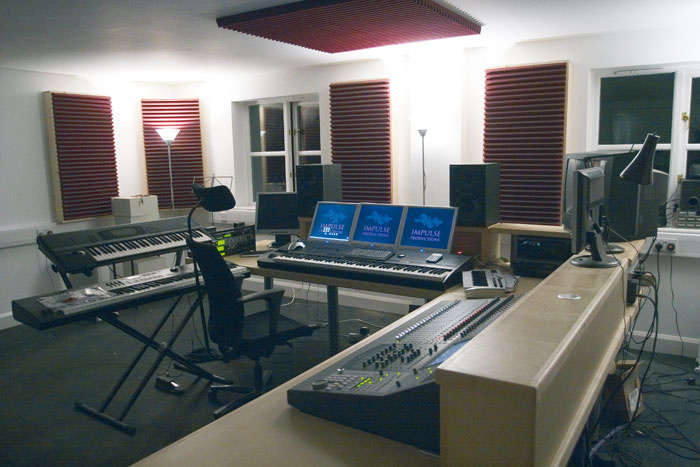
A good starting point when tackling an untreated room is to hang traps behind each speaker and to the sides of the listening position. If there's enough space, additional treatment can be added on the ceiling above the listening position, as well as in the corners, as shown here.
I'm just about to get started on quite a big project in my new home studio. I'm a bit concerned about the acoustics of the room, so I've been re-reading Studio SOS from July 2006 where Paul and Hugh sorted Hilgrove Kenrick out with some great acoustic trapping, and I'm thinking of making some myself. I just wanted to ask if you thought it would help in my situation.
My room is 4.6m x 4.1m, with a height of 2.4m. The walls taper in at a 45-degree angle about 30cm below the ceiling. The floor is covered in thin carpet, and there is one single-glazed window about 2m x 1m in the front wall. I can record instruments and vocals in the adjoining room if necessary, to reduce noise from my workstation (an Apple Macbook running Logic Pro).
But I'm more concerned about playback and EQ. I'm unsure about the best place to put the workstation, and I'm a bit worried about the listening environment; I'm not sure whether I'll be able to hear all frequencies correctly and therefore provide good-quality mixes. Do you think the traps and foam will help, if positioned in a similar manner to the article?
Simon Greenwood
Editor In Chief Paul White replies: The traps we made for Hilgrove would certainly work in your room, and if you're willing to get your hands dirty with the manufacturing process, I'd start by making one for each side of the listening position and another pair to situate behind the speakers. As a starting point, try setting your speakers up around 18 inches from the wall and make sure they're angled towards your head, with the minimum of reflecting surfaces between you and them.
Your room's dimensions are a bit closer to a square than I'd like, but at least it is large enough that you won't need to sit too close to the centre, which is where the bass becomes most unpredictable. If you have space, add further traps in the corners of the room, again as we did in Hilgrove's studio. Alternatively you could put them between the wall and ceiling on the walls that don't have angled sections.


Logic's Test Oscillator (above) can be assigned as a source on an instrument track, then sequenced to play sine tones at semitone intervals, using the Matrix Editor, as shown below.
I wouldn't recommend using EQ to try to fix the monitoring, as it is rarely very successful. Instead, use your ears (and some test tones) to analyse the best placement for your speakers. This is a fairly laborious task, but one that's certainly worth the effort. Here's what to do.
Set up ascending sine-wave tones in semitone steps, starting from around 30Hz. As you have Logic Pro, you could use Test Oscillator, which is listed as a source on an instrument track, to generate these steps. Alternatively, you could open an instance of EXS24, which has a sine-wave tone as its default sound. You could, of course, use ES2 on an instrument track, and set up a sine wave on one of the oscillators (making sure the other two oscillators are switched off), but you must be careful to check that all modulations, LFOs, envelopes and, most importantly, velocity sensitivity controls are having no affect on the output.
All three of these options give you the flexibility to trigger the tones using a MIDI controller keyboard, enabling you to find out where the troublesome frequencies are at the point in the room where you play the keyboard. But sequencing a stepped sweep (as shown in the screenshot, bottom left) is a better option, as it allows you to listen to other parts of your room. When programming the steps, it's important to check that MIDI velocities are the same, and that notes don't overlap (if using ES2, set your sine-wave generator to 'mono' mode).
Once you've set up the sequence and ensured that there are no programmed jumps in volume, listen for excessively loud or quiet notes around the room. Moving your speakers further from or closer to the walls will change this, so look for the spot that gives the smoothest response. A further piece of acoustic foam on the ceiling directly above your knees in your normal monitoring position will help kill reflections from that source.
Published July 2007
Thursday, March 30, 2017
Wednesday, March 29, 2017
Tuesday, March 28, 2017
Q. Should I use my spare PC as a remote workstation?
My friend has just built a control room at the rear
of his house, and he would like to set up a networked remote
workstation in a room at the front of his house, which he is using as a
recording space. We want the computer in the front room (which will be
connected to a multi-channel audio interface) to transmit live audio
inputs via LAN into the host computer, which is running Cubase
in the control room. I realise that we could route the inputs along
analogue cables to the host PC, but in this case we would like to be
able to run just one Cat 5 network cable. I'm envisaging a system where a
VST plug-in, running on the host PC, shows the audio signals being
transmitted by the remote PC, in a similar fashion to FX Teleport. Is this possible?

Sean Hughes
PC music specialist Martin Walker replies: If you've already got a spare PC and soundcard available, I can see why this idea occurred to you. One possible solution that would fit the bill is the Digital Musician Net software (www.digitalmusician.net), a free VST 2.0 plug-in that enables musicians in different locations around the world to collaborate 'live', all running their own computers and audio interfaces. Usually you would do this via an ADSL Internet connection, but I dare say you could also adapt it to a local network.
However, I can't help thinking that this approach is using a sledgehammer to crack a nut. While my August 2005 PC Musician feature on Spreading Your Music Across Networked Computers (available on-line at www.soundonsound.com/sos/
aug05/articles/pcmusician.htm) covered using a second PC as a simple stand-alone synth, or running software such as MIDIoverLAN, Steinberg's VST System Link and FX Teleport, none of these alternatives supports the running of live inputs on a remote PC. And there's a very simple reason for this: the last thing most musicians would want in a 'live room' is a noisy computer, and many already go to great lengths to get their computer out of the control room too!

There are a number of ways to transfer audio from one room to another. One is to use a computer in each room and a networked audio transfer application, as illustrated on the left. However, this process will involve significant latency issues that can prove particularly tricky to resolve. The most effective alternative is to remove the second computer and use an audio multicore to connect the two rooms, as shown on the right. With this option, there are no latency issues encountered in the transfer of audio between the recording space and the control room.
Another problem when connecting live inputs via a remote PC would be additional latency. When you use a utility like FX Teleport to add the processing power of a second PC to the pool, the latency of its remote plug-ins is automatically compensated for while mixing, just like those on the master PC. However, your proposed live inputs would be delayed by the latency of the network, as well as the audio interface input buffers, and would all end up behind those on the master PC. If the musicians wanted to monitor existing tracks being played back on the master PC, these would also be delayed on their trip back to the live room via the network. While you could, no doubt, line up the tracks afterwards, I suspect you'd find it a very frustrating experience.
One alternative approach that also uses a single digital cable would be to install a Firewire or USB 2.0 audio interface in the recording space, connected to the host PC via a single long Firewire or USB cable. Many manufacturers offer software drivers that support three or four of their interfaces simultaneously, so with a suitably compatible audio interface in each room you could end up with a greater amount of inputs and outputs. These would, of course, be locked to sample-accuracy, there would be a complete absence of computer noise in your live room, and you'd be able to route headphone mixes to the extra interface's outputs for monitoring. One thing to consider with this option is the length of the cable you use. The official limits for both USB and Firewire cable lengths is around five metres, but you might get away with longer than this (there are plenty of companies advertising Firewire cables up to 120 feet if you look on-line); with a repeater box, to clean up and boost the signal, you could run much longer cables.
However, there's an even easier alternative, which you actually mentioned in your query: connecting the live room sources to unused inputs on the control room PC's audio interface via analogue cables. You dismissed this because you didn't want to run multiple cables, but you don't have to; the vast majority of recording studios use a single multi-core 'snake' cable containing multiple, balanced audio cores, terminated in a robust breakout box at the live end, and a set of XLR plugs at the other.
You can buy these in many formats ranging from two-way to 32-way and beyond, and despite their increased diameter over a single Cat 5 cable I can't help thinking this would be the best solution, especially as a 30-metre, 12-way snake would only cost around £100, and you could use a few cores to send monitor outputs to the live room.
Published July 2007
Subscribe to:
Posts (Atom)