Tuesday, May 31, 2016

Monday, May 30, 2016
Hot Fuzz! | Media
Cubase Tips & Techniques
Technique : Cubase NotesCubase’s unique Quadrafuzz v2 plug-in is useful for so much more than guitar processing...
John Walden
These files accompany the Cubase Notes article in the February 2016 issue of SOS
Download
7.2 MB
Cubase’s Quadrafuzz v2: Audio Examples
These audio files accompany the Cubase feature that appears in SOS February 2016. As with all this sort of processing, how much of the effect is ‘right’ is very much an artistic decision made in the context of the full mix, and there are plenty of different sounds to be had by experimenting, but the examples below are illustrative of the range of possibilities Quadrafuzz v2 offers.
Example 1a (Electric guitar): The same guitar part is heard five times: (1) unprocessed, (2) single-band operation using the Tape option, (3) single-band mode using the Tube option, (4) single-band mode using the Amp option and (5) multi-band mode using the Tube option for both the lower-mid and upper-mid bands with the other bands bypassed.
Example 1b (Bass guitar): The same bass guitar part is heard four times: (1) unprocessed, (2) single-band operation using the Tube option, (3) single-band mode using the Amp option and (4) multi-band mode using the Tube option, for both the lower-mid and upper-mid bands and with the other bands bypassed.
Example 2 (Stereo drum loop): The same drum part is heard four times: (1) unprocessed, (2) multi-band mode as per the screenshot shown in the main article with the three upper bands using the Distortion option, (3) as for (2) but using the Amp option for the lower-mid and upper-mid bands and with the high band bypassed, (4) using the Scene feature to switch between different Quadrafuzz v2 configurations.
Example 3 (Vocals): The same song extract (from Cristina Vane’s ‘So Easy’ Mix Rescue article in SOS September 2013) is heard twice: (1) with the vocal unprocessed, (2) with the vocal processed as per the screenshot in the main article using multi-band mode, but with only a single-band operational.
Example 4 (Stereo mix mastering): The same song extract (again, from Cristina Vane’s ‘So Easy’) is heard twice: (1) with mix unprocessed, (2) with the mix processed as per the screenshot in the main article using multi-band mode but with only the lower-mid and upper-mid bands subject to processing and using the tape option in both cases. The processing is perhaps a little over-cooked here to make the effect more obvious.
Saturday, May 28, 2016
Friday, May 27, 2016
Hot Fuzz!
Article Preview :: Cubase Tips & Techniques
Technique : Cubase Notes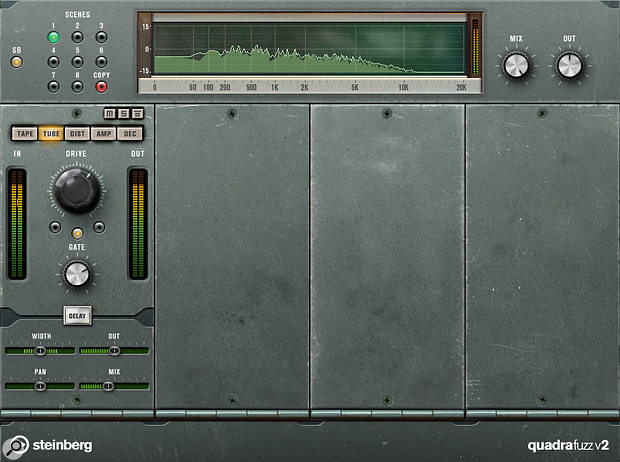
Quadrafuzz v2 offers a basic single-band mode, and it’s well worth exploring. Quadrafuzz v2 offers a basic single-band mode, and it’s well worth exploring.
Cubase’s unique Quadrafuzz v2 plug-in is useful for so much more than guitar processing...
John Walden
Many users were sad when Cubase lost its Quadrafuzz plug-in a few versions ago, but in Cubase 8 this popular little plug-in was re-incarnated — and Quadrafuzz v2 looks like it’s been working out, because it boasts both a bigger GUI and some impressive new features! It offers both single and multi-band operation, five different distortion types (Tape, Tube, Dist, Amp and Dec), gate (more on this in a minute), delay and stereo-width sections per band, and a ‘scene’ system for instant switching between complete configurations of the plug-in. So, if you only think guitar or bass when someone says ‘fuzz’, it might be time you broadened your sonic horizons — let me take you through a few examples.
Stomp On It
Of course, guitar and fuzz do go together like Keef and Satisfaction, so it would be remiss of me not to at least mention guitar applications. Some fairly conventional ‘warm up and crunch’ guitar sounds seem a good place to start exploring this plug-in, so that’s what we’ll do, but bear in mind that Quadrafuzz v2 can run the full gamut, from gentle warming through to bee-in-a-bottle fizz.
After inserting an instance of Quadrafuzz v2 on your guitar track, click the SB button to switch from the default setting to the simpler, single-band format. This single band’s control set is the same as that in each band in multi-band mode, which makes this a good place to accustom yourself to the Tape, Tube and Amp modes, which are the most guitar-friendly choices.
Published in SOS February 2016
Thursday, May 26, 2016
Wednesday, May 25, 2016
Tuesday, May 24, 2016
VCA Team
Article Preview :: Cubase Tips & Techniques
Technique : Cubase Notes
VCA faders have been created for each sub-section of a drum kit, with these VCA faders then ‘nested’ underneath a ‘Drums master’ VCA fader on the far-right.VCA faders have been created for each sub-section of a drum kit, with these VCA faders then ‘nested’ underneath a ‘Drums master’ VCA fader on the far-right.
Make mixing in Cubase Pro 8 that little bit easier with VCA Faders.
John Walden
Back in SOS October 2014 (http://sosm.ag/cubase-vca-1), Matt Houghton expressed a wish for a true VCA-style fader/automation system in what was then Cubase 7.5. Matt devised a workaround solution that still applies for anyone using a ‘lite’ or older version of Cubase, but Cubase Pro 8, which was released shortly after that article was published, includes VCA fader facilities. These provide some useful options for streamlining your mix and automation processes, and are well worth exploring.
VCA Rules!
There’s no great mystery to the advantages of voltage-controlled amplifier (VCA) faders. In suitably equipped mixers (hardware or software) you can link any group of standard channel faders to a VCA fader: adjust the VCA fader and it automatically applies the same gain change to any of the linked channels while preserving the relative level differences between those linked channels. Used to manage levels of particular instrument groups (drums, guitars, bass, vocals and so on), it means far fewer faders to worry about when setting your overall mix balance. And, in systems where the VCA faders can be automated, the process of creating your mix automation is also made that much easier.
Published in SOS January 2016
Subscribe to:
Comments (Atom)