Welcome to No Limit Sound Productions

Company Founded
2005
Overview

Our services include Sound Engineering, Audio Post-Production, System Upgrades and Equipment Consulting.
Mission
Our mission is to provide excellent quality and service to our customers. We do customized service.

Monday, December 8, 2025

Cubase: String Theory Part 2

Merge MIDI In Loop can be used to render the notes created by Arpache SX and Transformer to regular MIDI clips for each string part.Merge MIDI In Loop can be used to render the notes created by Arpache SX and Transformer to regular MIDI clips for each string part.

Last month we ‘faked’ some string‑arrangements. Now it’s time to add a human touch.

Last month, we used Cubase’s Chord Track, Arpache SX and Transformer MIDI plug‑ins to create an almost‑passable five‑part string arrangement. However, we left off with the ‘performance’ sounding a little robotic, and perhaps a little too busy as well. So this month I’ll explore some more ‘fake it’ options that can create a better impression of ‘human’ parts.

As our quest for realism requires us to edit the MIDI performances, you must first render the MIDI note data that’s being created on the fly by the Arpache SX and Transformer. To do this, go though each track in turn: solo the track and action the Merge MIDI In Loop command (in the MIDI menu). As you do this, enable the Include Inserts and Erase Destination options to ensure both that the replacement MIDI clip contains the results of both Arpache SX and Transformer, and that the original sustained notes are deleted. Finally, bypass or remove the instances of Arpache SX and Transformer.

Thin On The Ground

Five arpeggiators can generate lots of notes, so start by thinning out the parts a little. For example, the cello and double‑bass are often played more sparsely than the other strings. Suitable arpeggiator settings (for example, quarter‑note rather than 16th‑note step sizes) may already have helped, but further note muting may be required. It’s more common for the violas and violin parts to be a little busier but, even so, thinning these out a little can work wonders, especially if it helps the sequence ebb and flow between the different instruments.

Prudent thinning out of the arpeggiator note data can create more interesting rhythmical interplay between the different string lines.Prudent thinning out of the arpeggiator note data can create more interesting rhythmical interplay between the different string lines.

Note‑thinning can also be used to create a more distinct rhythmic feel. For example, simply muting some notes in a continuous 16th‑note pattern can change the rhythmical emphasis of the part. This can be enhanced further if, in some sections of the sequence, you let different instruments emphasise different beats, while at other points you have instruments playing in unison.

Once satisfied with your thinning, unwanted muted notes can be deleted. To save doing this manually for each note, select all the MIDI clips and, from the MIDI menu, navigate to Logical Presets/standard set 1, and select the ‘delete muted’ option. It’s a really neat time‑saver!

While editing, another useful feature is the Key Editor’s ability to overlay multiple MIDI parts: you can see and edit, for example, the MIDI notes for both the 1st and 2nd violin parts in one window; enable the Key Editor’s Event Color controls in the toolbar if you want to see each part in a different colour.

Performance articulations are important if you want your virtual string performance to sound convincing.

The Art Of Articulations

Performance articulations are important if you want your virtual string performance to sound convincing. The HSSE3 Pro Large Strings VX preset used for my worked example includes two spiccato (short note) articulations; f and ff (loud and very loud). These suit the performance style I was attempting so, in most of the parts in my arrangement, I used the ff articulation on the first and third beats of a bar and the f articulation elsewhere, for some subtle variety and rhythmic emphasis.

For Cubase Pro users, the Expression Map system can be used to add and edit any required articulation changes.For Cubase Pro users, the Expression Map system can be used to add and edit any required articulation changes.

For Large Strings VX, the keyswitches (MIDI notes outside the playable range of the instrument) for spiccato f and ff are D#0 and E0. Adding either note to the MIDI sequence means that from that point on any notes in the instrument’s playable range will play back using the corresponding articulation. For Cubase Pro users, the Expression Map feature is a more elegant articulation‑switching option. See the SOS January (https://sosm.ag/cubase-0110) and February 2010 (https://sosm.ag/cubase-0210) columns for more on this but, essentially, articulations can be displayed and their use sequenced in a Key Editor controller lane. There is a catch, though: while the Large Strings VX preset is supplied with an Expression Map, most third‑party VSTis are not. Still, creating one yourself is a straightforward, one‑off job, and there are some downloadable third‑party Expression Maps on Steinberg’s website too.

Less Perfection!

The Logical Editor can be used to add accents on the beat (top) and some subtle randomisation to velocity and timing (bottom) to improve the realism of the performance.The Logical Editor can be used to add accents on the beat (top) and some subtle randomisation to velocity and timing (bottom) to improve the realism of the performance.

Some subtle velocity and timing variation can also help things feel more real. This can be accomplished with manual edits and in some cases (eg. adding a velocity data crescendo at the end of a phrase) this is the easiest method, but Cubase also offers some shortcuts. For example, in many forms of music accenting notes that fall on the beat can clarify the rhythmic nature of the performance: a Logical Editor preset will do this for you. With the desired MIDI clip(s) selected, from the MIDI menu, select the Logical Presets/experimental/downbeat accent (4/4) option (it assumes your time signature is 4/4). The settings this applies are shown in the screenshot; open this preset in the Logical Editor and you can adjust these to taste.

To my surprise, I found that the current collection of Logical Editor presets lacks a simple ‘humanise’ option, but the commands required to create your own preset are simple, as shown in the final screen. In the upper pane, the preset selects all objects in the selected clip that are notes. It then applies two actions, defined in the lower pane, which apply a small amount of randomisation to each note’s velocity (cryptically labelled Value 2!) and start position. Adjust the values if you want more or less ‘humanisation’.

Top Tunes

If you wish, without manual editing, to add a more defined top‑line melody or counter‑melody (counterpoint) to your arp‑inspired string arrangement, the StepDesigner MIDI plug‑in is worth exploring. StepDesigner makes it easy to experiment with adding and subtracting notes to/from a short sequence, and put a Transformer plug‑in after StepDesigner and whatever changes you make in the step sequence can be automatically corrected to a key/scale combination. Once you have something you like, Merge MIDI In Loop can again be used to render the result as a conventional MIDI clip for further manual refinement.

For more semi‑automatic approaches to top‑line melody creation, Cubase has plenty more to offer. In particular, you might like to dip back into the Cubase workshops from November 2019 (https://sosm.ag/cubase-1119) or November 2013 (https://sosm.ag/cubase-1113).

Next Steps

In my main example, I started with a sequence of simple sustained chords, divided the chord notes between various string sub‑sections, and then applied some arpeggiator ‘magic’ to create single‑note performances for each instrument. But other starting points can also deliver interesting results. For example, rather than split the notes from the chord sequence before applying the arpeggiation, you could start by applying a single instance of an arpeggiator to the full chords. Transformer can be used again, to keep everything in the desired key/scale, and once you have something promising, Merge MIDI In Loop can create a conventional MIDI clip with all the notes from the arpeggiator. The notes from this clip can be copied to each individual string‑instrument track for manual editing. For comparison, I’ve included another audio example using this alternative starting point; you’ll find all examples at http://sosm.ag/cubase-1220. The two approaches have generated different, but complementary musical, outcomes from the same chord sequence starting point.

Package icon cubasestringtheorypart2audio.zip

I’ve kept things simple here to demonstrate the workflow, but if you want to attempt a full orchestration, there’s nothing to stop you applying the same ‘fake it’ approach to the brass or woodwind sections. That said, if the results are going to have a chance of sounding authentic, our arp‑based cheats will need to be applied with some sensitivity to the roles and ranges the various instruments generally play, and to that end a little knowledge can go along way — so I’ll point you once again to Dave Stewart’s ‘The Sampled Orchestra’ series (https://sosm.ag/the-sampled-orchestra-pt1) and leave you to do some homework! 


Published December 2020

Friday, December 5, 2025

Cubase: String Theory Part 1

To pull off this ‘string fakery’ trick, you’ll need a set of multi‑articulation strings sounds. Cubase Pro’s Large Strings VX is a usable ensemble patch, but plenty of good‑quality alternatives offer more flexibility, including Spitfire Audio’s free BBC Discover library.To pull off this ‘string fakery’ trick, you’ll need a set of multi‑articulation strings sounds. Cubase Pro’s Large Strings VX is a usable ensemble patch, but plenty of good‑quality alternatives offer more flexibility, including Spitfire Audio’s free BBC Discover library.

Cubase can help you write and arrange realistic string parts.

Credible string arrangements can add a real touch of class to your productions. Dave Stewart’s four‑part Arranging For Strings (part 1: https://sosm.ag/string-arranging-pt1) and nine‑part The Sampled Orchestra (part 1: https://sosm.ag/the-sampled-orchestra-pt1) are great places to start learning, but in the meantime Cubase offers some tools that can help you get ideas down quickly. There’s lots of ground to cover, so I’ll cover this subject in two tutorials, Part 1 this month and Part 2 next.

Cubase includes some impressive virtual instruments, but multi‑articulation (performance‑style) orchestral sounds are thin on the ground. Still, the Large Strings VX preset in the Halion Sonic SE Pro soundbank that comes with Cubase Pro is very usable. It includes eight articulations, and while it’s an ensemble patch (all strings at once, rather than in separate instruments) it’s good enough for the examples that follow.

If you want a more capable library with separate string instruments, a third‑party option I can recommend is Spitfire Audio’s BBC Discover. It’s inexpensive anyway but free if you’re prepared to sign up and wait two weeks. It’s a super‑compact taster of the full version of their BBC Symphony Orchestra library, and includes separate bass, cello, viola and violin patches, each with long, spiccato, pizzicato and (with the exception of the double bass) tremolo articulations. If you want something more fully featured than this, and are prepared to pay, check out the aforementioned Dave Stewart series for some recommendations.

Strike The Right Chord

Once you’ve chosen your instrument(s), add some tracks to a Cubase project. Even if, as here, you’re using an ensemble patch, create separate tracks for double bass, cello, viola and first and second violins, as this is how they’d conventionally be arranged/scored in a real orchestra.

For the example, I aimed to create a kind of rhythmic performance based on short (staccato) notes. But whatever performance style you want, the starting point when ‘faking it’ like this can be the same: a single MIDI part with some simple, sustained chords to define the chord sequence. These can be played in, or created using the Chord Pads (www.soundonsound.com/techniques/strike-chord).

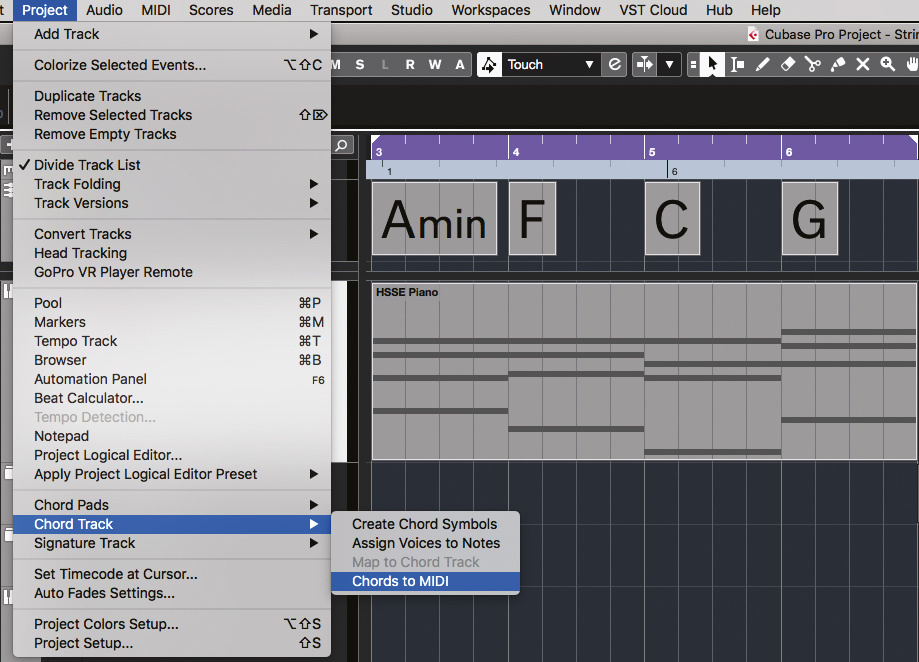
Cubase’s Chord Track allows you to explore your initial chord‑progression options and then makes it easy to create a clip with the sustained MIDI notes you need to get started.Cubase’s Chord Track allows you to explore your initial chord‑progression options and then makes it easy to create a clip with the sustained MIDI notes you need to get started.

For my example, I used the Chord Track (see June 2013: www.soundonsound.com/techniques/re-chord-industry) to create a simple four‑chord sequence, using an HSSE acoustic piano preset. Once happy with the sequence, I selected the piano track and executed the Project/Chord Track/Chords To MIDI command. This created a MIDI clip on the piano track containing block chords derived from the Chord Track.

String Roles

Generally, each string subsection in an orchestra will play one note at a time. By combining the notes from each subsection, a full chord can be voiced. If more notes are needed, a subsection may play divisi (divided in two, each half playing a different note), but this halves the impact of each note. You can break such conventions when using virtual instruments, but I’ll aim for realism here (as you must do if writing parts that will later be played by a real string section).

Your next task, then, is to allocate the notes of each chord across the five string subsections. An easy starting point is to assign the highest note to the first violins, the second highest note to the second violins, the next to the violas. The lowest goes to the double‑basses, but can be doubled an octave (or perhaps a fifth) higher by the cellos. For our block four‑note chords, it’s easy to copy the MIDI clip to each of the respective string MIDI tracks and then delete/mute the excess notes in each copy, leaving only the notes required for each subsection.

Check that the notes are in a suitable octave for the real instruments: A7‑G3 for the violins; A6‑C3 for the violas; A5‑C2 for the cellos; and G4‑E1 for the double basses. For my example, I ensured the notes were in the lower/mid portion of each instrument’s range, leaving me some room to tweak.

For something that’s rhythmically and harmonically more adventurous, a MIDI arpeggiator plug‑in or, better still, several of them, can help.

Inspiring Arps

Arpache SX offers plenty of creative options. Shown here are settings for my viola (upper) and double‑bass (lower) parts. The MIDI clips in the background show the eventual output from the arpeggiation process for each of my five string parts.Arpache SX offers plenty of creative options. Shown here are settings for my viola (upper) and double‑bass (lower) parts. The MIDI clips in the background show the eventual output from the arpeggiation process for each of my five string parts.When a little velocity and volume automation is added, and appropriate articulations are used, the sustained single‑note parts for each subsection can combine to make perfectly acceptable string ensemble chords. But it’s not much of a ‘performance’, so for something that’s rhythmically and harmonically more adventurous, you can turn to a MIDI arpeggiator plug‑in or, better still, several of them.

There are several possible options here, but one is to place individual instances of your arpeggiator on each of your string tracks. For the example, I did this with Cubase’s Arpache SX and followed each instance with a Transformer MIDI plug‑in. The latter’s Transpose To Scale function is essentially a MIDI note pitch‑correction processor, and here it ensures that Arpache SX’s output will always remain harmonically correct. (Of course, ‘wrong’ notes can sometimes sound cool too, so you can always experiment with bypassing Transformer to see what happens.)

The key to coaxing something interesting from this setup is to use different settings on each instance. In the screenshot, the upper instance of Arpache SX is used for the viola. A Step Size of eighth‑note triplets is combined with an Up Transpose setting, one Repeat and a Pitch Shift setting of 5. This results in a fairly brisk sequence of short notes from each of the sustained notes going into the arpeggiator. In contrast, for the double‑bass, I used a quarter‑note triplet setting with the Transpose off. This produces a less busy but still rhythmic performance, in which the pitch simply follows that of the input. When the two parts are combined, their rhythmic interaction is pleasing, and there’s also some melodic content.

Transformer’s scale‑based MIDI pitch‑correction can make experimenting with arpeggiator settings much easier.Transformer’s scale‑based MIDI pitch‑correction can make experimenting with arpeggiator settings much easier.

Hand‑built By Robots

By applying these principles across all five string tracks, with suitable experimentation (and a bit of luck), your arp‑fuelled string section will hopefully now play something that: (a) is rhythmically interesting; (b) has harmonic movement that follows the chord changes; and (c) remains in the correct key/scale. The performance might sound a little robotic and perhaps a little on the busy side, so next you’ll probably want to turn your attention to some manual editing. And that’s where we’ll pick up next month.

In the meantime, check out the audio examples (https://sosm.ag/cubase-1120) that illustrate the steps we’ve taken so far and, by way of a teaser, also reveal how the same arrangement will sound after a little more tweaking.

Package icon cubasestringtheorypart1.zip 


Published November 2020

Wednesday, December 3, 2025

Cubase 11: The Multiband Squasher

 By John Walden

Example 1: Squasher, used in two‑band mode to even out a recording of a bass guitar performed with too much dynamic variation.Example 1: Squasher, used in two‑band mode to even out a recording of a bass guitar performed with too much dynamic variation.

We explore four ways to make the most of Cubase 11’s new multiband Squasher plug‑in.

The new Squasher plug‑in Cubase 11 (Elements, Artist and Pro) has obvious appeal as a ‘make it loud’ tool for EDM but, with downward and upward compression, multiband operation and band‑specific side‑chains, it’s capable of much more. To help you get started, here’s my choice of four things to try with Squasher. You’ll find audio examples for each tip on the SOS website (https://sosm.ag/cubase-0321).

Ups & Downs

In most contemporary mixing contexts, mix‑critical elements such as bass and lead vocals need to maintain a broadly consistent level throughout. Conventional (downward) compression has its place, but detailed volume automation and plug‑ins such as Waves’ MV2, Vocal Rider and Bass Rider offer additional possibilities. As well as bringing down the peaks, they can also raise quieter notes/sounds. Squasher can do this too.

Example 1 screenshot (and audio example) shows how I treated an electric bass guitar part. My aim was to achieve a more consistent signal level without resorting to heavy (and more noticeable) downward compression of the signal peaks. Squasher is set to two‑band mode, with the split around 200Hz, and each band applying upward compression to make quiet notes louder and downward compression to make louder notes quieter.

The Up and Down ratios can be adjusted to taste; alongside the Up and Down thresholds, these allow you to dial in as much/little upward and downward compression as you require. I also used the global Mix control to blend the original and processed signals to taste: essentially, this is parallel compression, and the end result is a part that’s much more even and easier to sit in the mix. As a bonus, the Gain for the two bands lets you adjust the tonality of the bass while mixing and, if you want to dig even deeper, you can also open the Parameter panel and adjust the compressor attack/release times for each band.

Detail Enhancer

As it relies on upward compression, my second example — making low‑level detail in a performance more prominent — isn’t a million miles from the first, but the musical target is different. Two common applications are: (a) making ghost notes in a snare track more audible; and (b) enhancing the level of percussive elements in an acoustic guitar recording. In both cases, these lower‑level elements can be important to the character of the performance, but might require adjustment to be satisfactorily balanced alongside other elements in the mix.

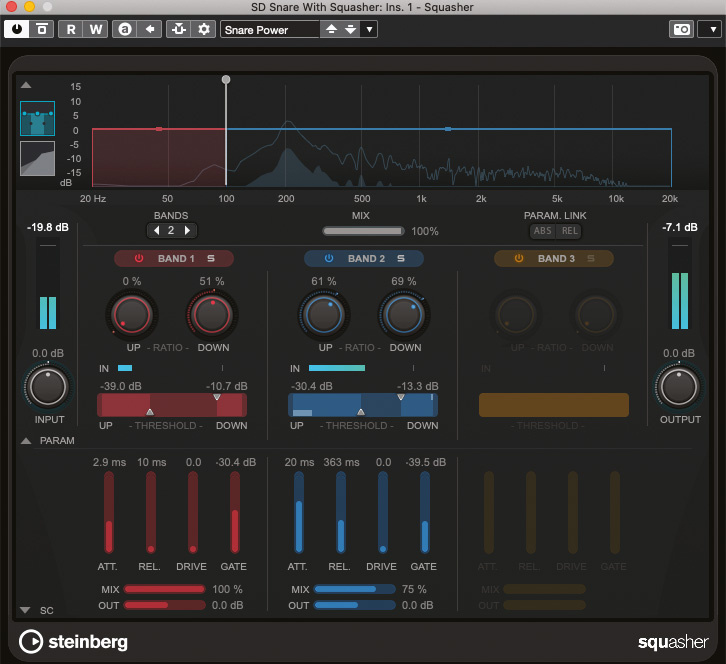
Example 2: Squasher’s ability to apply upwards compression is great if you need to make low‑level details in a performance more prominent; it’s used here to raise ghost notes in a snare track.Example 2: Squasher’s ability to apply upwards compression is great if you need to make low‑level details in a performance more prominent; it’s used here to raise ghost notes in a snare track.

Example 2 screenshot shows a Squasher instance applied to the close snare mic in a multitrack drum recording. It also features two‑band operation but this time the split is around 100Hz. The low band has a high gate setting and no upward compression applied, so as to reduce bleed from the kick drum into the snare mic, and prevent upwards compression making any bleed louder. The bulk of the snare sound occurs at 100Hz and upwards. For this band, I’ve applied both downward and upward compression.

As demonstrated in the audio examples, the latter catches any ghost (softly played) snare strokes, and the degree of upward compression can control just how loud these get relative to the main snare hits. It’s a simple means by which these sorts of low‑level playing details can be drawn out and placed within the overall mix without impacting upon the louder parts of the same performance.

Drumtastic

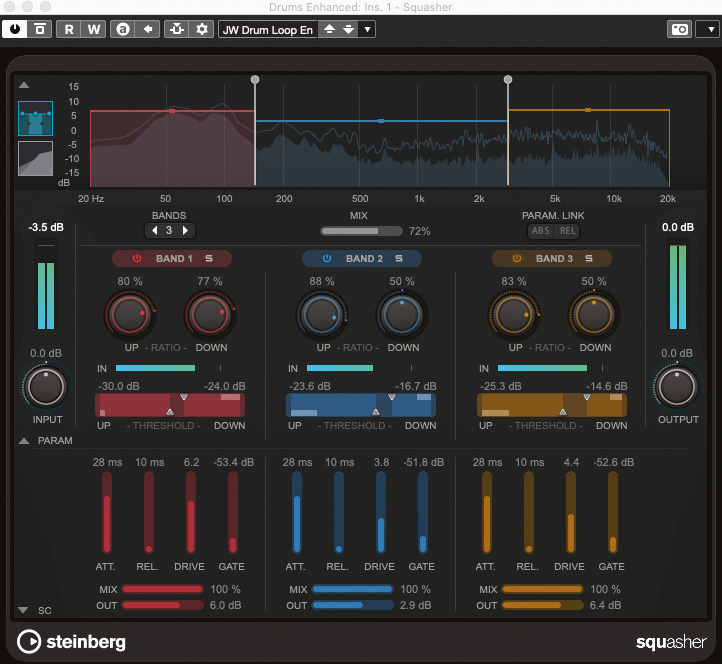
Squasher can be used to inject some intensity into drum loops. Example 3 screenshot (with accompanying audio example) shows some settings I used to add an edge to a fairly ‘vanilla’ electronic drum loop. I’ve used all three Squasher bands and set the frequency splits so that the low band is focussed on the main energy of the kick, the mid‑band on the snare and the high‑band on the hi‑hats. If required, the Gain settings for each band can be used to adjust the balance between these three elements (here, I’ve boosted the lows and highs). Experimenting with the upward and downward compression settings for each band allows you alter the amplitude envelope for each ‘hit’ in some interesting ways.

Example 3: If your drum loop feels a little tame and uninspiring, full‑on Squasher might add just the edge required.Example 3: If your drum loop feels a little tame and uninspiring, full‑on Squasher might add just the edge required.

I’ve deliberately gone for something big and splashy: in each band, a fairly conventional amount of downward compression is combined with completely over‑the‑top upward compression (a combination of high Up ratio and threshold settings). Combined with a fast release, this brings out the tails of each drum hit, and in the audio file it’s particularly noticeable in the hi‑hats. Slower attack times allow transients to pop through, to retain a sense of impact. I’ve also applied some Drive to each band, for a little extra grunge. The ability to solo and disable individual bands can be very useful when you’re tweaking the various compression settings.

Squasher, then, can be a very useful source of ‘attitude’ if your drum loop needs a push. It’s worth noting that, while I might have sacrificed good taste for an in‑your‑face result here, the global and per‑band Mix controls allow you to dial things back a little.

Rise & Fall

As with Cubase’s other multiband processors, each band in Squasher can be set to respond to a different side‑chain source. This can have a number of applications but the screenshot for this example (Example 4) shows an instance of Squasher inserted on a rhythm guitar bus. The guitars in question provide a chunky, slightly overdriven sound, occupying a broad frequency range. The high‑frequency band (above 2kHz) is used, as before, to provide fairly gentle upward and downward compression. However, two different side‑chain input sources (the side‑chain input sources can be configured via the side‑chain settings drop‑down dialogue in the plug‑in’s top menu bar) are used to control the compression applied to the guitars in the low (below 200Hz) and mid bands.

Example 4: The ability to use different side‑chain input sources within each of Squasher’s bands makes it a great tool for ducking a target such as rhythm guitars or synth pads out of the way of things like bass or vocals.Example 4: The ability to use different side‑chain input sources within each of Squasher’s bands makes it a great tool for ducking a target such as rhythm guitars or synth pads out of the way of things like bass or vocals.

For the low band, the bass guitar provides the side‑chain input — so when the bass plays the low‑end of the guitars is ducked, allowing the bass to be heard more clearly. In between the bass notes, I’ve also applied a modest amount of upwards compression, so that these frequencies in the guitars are raised by a dB or two to gently fill in the low‑end space.

The same combination of side‑chain triggered downwards and upwards compression of the guitars is applied to the mid band. This time, I’ve used a vocal track as the side‑chain signal. During vocal phrases, this ensures that the voice isn’t masked by the guitars’ mid‑range. But when the vocal is absent, the guitars’ mid‑range is boosted slightly, to make them more prominent.

You can configure multiband side‑chain‑driven compression in other ways in Cubase 11, but Squasher provides a neat one‑stop‑shop for this kind of task. It’s worth noting, though, that unless you want obvious pumping, you should use fairly slow attack and release times, and low ratio settings for the upward compression.

Freshly Squeezed

As with any compression task, you must tailor the settings to the source, but hopefully these examples will inspire you to explore Squasher further. There are plenty of other applications for it, including hyping your latest EDM mix — indeed, Squasher is impressive in that role, but as with most master‑bus processing do take care and pay attention: it’s just as easy to ruin a good mix as it is to enhance it!

Each band in Squasher can be set to respond to a different side‑chain source.


Published March 2021

Monday, December 1, 2025

Mastering In Cubase 11

 By John Walden

Some freeware plug‑ins that can enhance your DIY mastering experience in Cubase Elements.Some freeware plug‑ins that can enhance your DIY mastering experience in Cubase Elements.

Want to try a spot of DIY mastering? You can do so in any version of Cubase 11, including Elements.

Realistically, we can’t all get every track we write mastered professionally. But we still want our material to sound ‘finished’ so it’s natural that many of us look to dabble in a little DIY mastering. Our recent six‑part video series on the subject by mastering engineer Ian Shepherd (https://sosm.ag/MasteringTechniques1) is a great introduction to the topic, and I’d encourage you to watch it. One of the key things Ian explains is that, for the basics of mastering, his processing chain is always simple: it consists only of gain adjustment, EQ, compression and limiting, although he also makes use of various meters. That got me wondering how someone might attempt DIY mastering for the first time if using a relatively basic DAW such as Cubase Elements 11, perhaps with the help of a few freebie plug‑ins.

Seeing Is Believing

Ian discussed how useful he finds it to be able to visualise both the spectral balance and loudness of the audio. Cubase Pro 11 has comprehensive loudness metering, courtesy of its SuperVision plug‑in, but users of Elements or Artist don’t have that and nor does it provide us with one of Ian’s favourite tools: a virtual VU meter. Happily, you can add one of those for free (eg. TBProaudio’s mvMeter and PreSonus’ VU Meter). Elements and Artist users might also want to investigate Youlean’s Loudness Meter 2 Free (there’s also a paid version with more features but the free one should do just fine).

Loudness targets can be a matter of personal taste, musical genre and where you intend the final master to be played (vinyl, CD or a streaming service, for example) but in the audio examples that accompany this article (on the SOS website at https://sosm.ag/cubase-0421) I’ll not veer too far away from Ian’s suggestions of ‑11dB on my VU meter (by calibrating the zero point on the meter to ‑11dB) and ‑10 LUFS for short‑term loudness of the loudest part of my mix. For visualisation that can help you achieve a ‘balanced EQ’ (rather than EQ matching), I’m not sure Cubase (or any other DAW) really has anything to match something like iZotope’s excellent Tonal Balance 2 plug‑in, but there are nonetheless some simple, pragmatic workarounds that I’ll touch on below.

Simple Steps

Even though it’s technically possible to mix and master a single track in the same Cubase project, I recommend handling them as two separate processes — partly for the clarity of thought this forces upon you, and partly so that you can master multiple tracks together (eg. for a compilation such as an album or EP). Each track will still require different mastering treatments, of course, so place each finished mix on its own stereo audio track in a new Cubase project. You can still use the same insert plug‑in chain for each, but this way you can tailor the settings to suit each track. You can also import any reference tracks you want to audition, again putting them on their own stereo track.

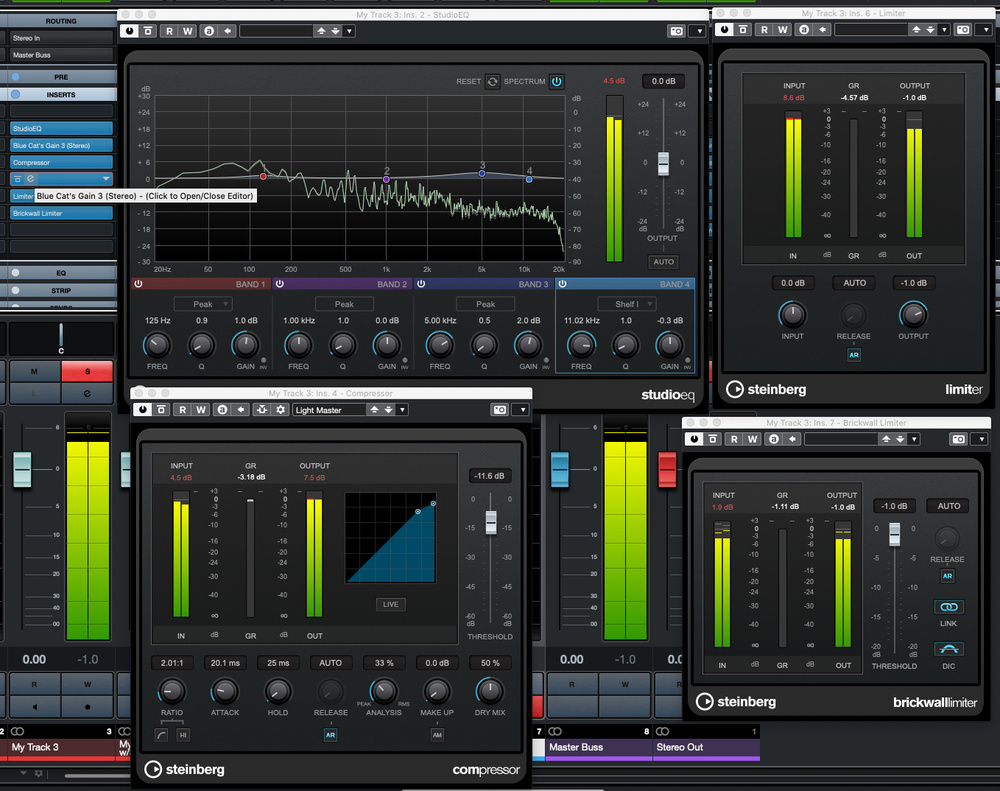
The first screen (above) shows the plug‑ins I used in Cubase Elements 11 to recreate Ian’s basic signal chain, and these are the settings I used for the first audio example. My first step was to use freebie VU and loudness meters to adjust the Pre‑Gain in the Channel Settings dialogue. I aimed for something with average/peak levels 2‑3 dB below Ian’s suggested final targets, because I knew my EQ, compression and limiting would likely add some gain.

My second step was to compare the frequency spectrum displays of a reference track (using the Channel Settings dialogue for that track) with my track (using the StudioEQ plug‑in). This way, the two frequency displays can be seen on screen at the same time, so it’s relatively easy to see any broad ranges where the balance is noticeably different. In this case, that lead me to make a broad 2dB gain increase centred at 5kHz (to add some brightness) and a smaller 1dB boost at around 125Hz, for just a touch more low‑end umph. For the sorts of subtle, broad, EQ moves Ian recommends, StudioEQ’s four bands are generally sufficient but you could always use a second instance if more complex correction is required.

Third, with a gentle 2:1 ratio on Cubase’s Compressor plug‑in, I gradually lowered the Threshold until I could see at most around 3dB of gain reduction, which generally sounded ‘transparent’. The Compressor plug‑in includes a Dry Mix control, so you can blend the unprocessed and processed signals, and with modest compression like this, that can be a useful way to adjust the severity of the compression; I quite liked the blend set at 50:50 so left it there.

Finally, I used Cubase’s Limiter with the Output set to ‑1dB. In this case, I didn’t need to adjust the Input level to achieve my fairly conservative target of 3‑4 dB maximum gain reduction of the peaks. The screenshot also shows an instance of Brickwall Limiter inserted after Limiter; I’m not 100‑percent sure why anything above ‑1dB gets past the Limiter to reach the Brickwall Limiter (answers on a postcard please) but as it does, this additional limiting stage takes care of any stray ‘overs’.

For basic DIY mastering, a simple chain of StudioEQ, Compressor and Limiter is a good place to start. (The Brickwall Limiter simply acts as a final safety net to prevent clipping.)For basic DIY mastering, a simple chain of StudioEQ, Compressor and Limiter is a good place to start. (The Brickwall Limiter simply acts as a final safety net to prevent clipping.)

How High?

Toggling on/off the Insert Rack in the track’s Mixer channel allows you compare your original mix with your master‑in‑progress. Note, though, that the difference you perceive will be influenced by any overall loudness changes (that you can also check via the VU and loudness meters). You can, if you wish, add a freeware gain plug‑in such as Blue Cat Audio’s Gain 3, at the end of the chain to attenuate your master, for more meaningful loudness‑matched comparison — but you must remember to bypass it when you bounce your master!

Being able to adjust the gain either between the StudioEQ and Compressor, or between the Compressor and the Limiter, can be useful.

For the example, the settings in the main screenshot got me pretty much exactly where I wanted to be in terms of Ian’s suggested loudness ‘targets’. But being able to adjust the gain between StudioEQ and Compressor, or between Compressor and Limiter, can be useful: you can experiment with how hard you can drive either the Compressor or the Limiter before the mastering becomes overcooked. Again, a separate gain plug‑in can be useful here, as it allows you to toggle on/off the gain change without adjusting any parameters in the StudioEQ or Compressor plug‑ins. It’s an interesting experiment and one I’ve included in the audio examples that accompany this workshop.

Easy Squeezy

One obvious difference so far between my keep‑it‑simple Cubase Elements signal‑processing chain and Ian’s chain in Wavelab is that the latter included a three‑band compressor. All versions of Cubase 11 include the new Squasher plug‑in, though, so if you’re feeling adventurous you might use an instance of Squasher in place of Compressor. The final screenshot shows the settings I used to do this.

If you feel brave enough to use multiband compression, you can try putting Squasher in place of Compressor in your mastering chain.If you feel brave enough to use multiband compression, you can try putting Squasher in place of Compressor in your mastering chain.

First, I set all Squasher’s upwards compression features so that they were essentially bypassed, and put all the Drive controls to zero too. I then followed Ian’s advice, configuring each band with identical settings and, where possible, I used similar settings to those I used with Compressor earlier. The obvious exceptions are the Down Ratio and Down Threshold, which are a little unconventional in Squasher. I simply used the mini‑graphs at the top of the display to set the Down Ratios to find a gentle(ish) compression slope (to match the relatively low ratio setting used in Compressor), and then adjusted the Thresholds until I could see just a few dB of gain reduction in each band. Note that I also set Squasher’s global Mix control to 50 percent, as I’d done in Compressor, just to back off the overall compression a little.

Once configured, I could again experiment with my freebie gain plug‑ins pre‑ and post‑Squasher, to control how hard the compression or limiting (or both) were driven. I’ve included a further set of audio examples so that you can hear the differences between the two alternative processing chains.

Final Thoughts

It’s well worth creating presets for each plug‑in that you use, as well as a preset for the full Insert signal chain (do this in the MixConsole’s Insert Rack), and even creating a basic project template for mastering. The fully configured processing chain(s) can then be quickly reloaded when you need them. You’ll always have to fine‑tune the settings for every mix you want to master, but the basic chain will still provide you with a solid starting point and save you time.

Hopefully, the above examples show that it’s possible to attempt some basic DIY mastering even with the modestly priced Elements version of Cubase 11 and just a few freeware plug‑ins. But if you have Cubase Pro, you’ll have more sophisticated tools at your disposal, which are capable of better results — or, if misused, worse ones — and we’ll investigate all that in a future workshop.


Published April 2021