Welcome to No Limit Sound Productions

Company Founded
2005
Overview

Our services include Sound Engineering, Audio Post-Production, System Upgrades and Equipment Consulting.
Mission
Our mission is to provide excellent quality and service to our customers. We do customized service.

Monday, April 8, 2024

Cubase Pro: Using VariAudio 3 Pitch-correction

 By John Walden

VariAudio 3 massively enhances Cubase Pro's pitch-correction capabilities.VariAudio 3 massively enhances Cubase Pro's pitch-correction capabilities.

Cubase Pro 10's VariAudio 3 competes with the best pitch-correction plug-ins around. Find out how by reading our article and watching the videos.

A headline improvement in Cubase Pro 10 was the major revamp of VariAudio. Despite under-the-hood refinements to its pitch-manipulation algorithms, perhaps the most significant improvements are those which allow a far more efficient workflow. Before we dive in, it's worth saying that while VariAudio's capabilities have improved massively since I wrote about it in SOS August 2009 (https://sosm.ag/cubase-0809), some of the advice I gave 10 years ago still stands. In particular, before you start doing detailed work in VariAudio, try to get other 'housekeeping' tasks out of the way first — things like comping from multiple takes, for example, or editing breaths, plosives or sibilance. Then use the render or export options to generate a new, 'cleaned' audio event that's ready for pitch-correction work.

Smart Thinking

At the heart of VariAudio 3's operation is a large collection of Smart Tools.At the heart of VariAudio 3's operation is a large collection of Smart Tools.

Although the Sample Editor's VariAudio panel contains new options, the first step remains the same: click on the Edit VariAudio button. This activates the initial pitch-detection process that superimposes pitch segments and a pitch curve on the waveform display. But the real workflow magic of VariAudio 3 lies not in the panel but in the new Smart Tools. To get the best from these, select the All option from the panel's small Smart Controls drop-down menu. Now, when you hover over a pitch segment, some 12 controls (the Smart Tools) appear around the edges of the selected segment or segments.

There's a lot to take in the first time you use this, so I've annotated the opening screenshot as a handy summary of the functions offered by each Smart Control. Hopefully, this is a useful reference, but it also serves to indicate just how many pitch-manipulation options are instantly on offer without ever moving your cursor away from the segment in question. I obviously can't explore all of these tools in detail in a single article, so instead I'll illustrate their potential by taking you through how these tools can be used to perform a few common vocal pitch-correction tasks and offer some video tutorials too.

Eager Cleaver

Hovering over the bottom of a segment provides a scissor tool, so you can easily split segments such as this example that seem to contain two different pitch zones.Hovering over the bottom of a segment provides a scissor tool, so you can easily split segments such as this example that seem to contain two


 different pitch zones.
A common first task, before performing any actual pitch correction, is to identify any pitch segments where the detailed pitch curve suggests that multiple notes exist within the same segment. Splitting such segments into two (or more) notes will provide you with a greater degree of control over your pitch adjustments. This is easy: hover the mouse over the horizontal line towards the base of the segment, and a scissors tool will appear; then click where you want to split the segment. Incidentally, if you hold Shift while doing this, you also have instant access to the option to glue two adjacent segments together.


Snap!

Most of the remaining pitch-correction tasks will typically done in iterative fashion, but a good starting point is to decide which pitch segments need a general nudge to tighten their overall tuning. Set the Pitch Snap Mode to Absolute or Relative (both are useful, but Absolute is my default) and as you click and drag on a segment it will snap to the nearest note centre. That might give you the most technically correct pitch in algorithmic terms, but it won't always be the most musical-sounding result — you must let your ears be the judge here.

Two useful options give you more control over any general pitch adjustments. First, holding Shift while dragging the segment up/down will override either Pitch Snap Mode, leaving you free to adjust the segment's pitch centre as you wish. Second, clicking and dragging the Smart Control that's bottom-centre of the segment gives you precise control over pitch quantisation; you can very gradually nudge the segment's pitch centre towards the nearest scale note.

Set Things Straight

The Straighten Pitch tool lets you reduce (or expand) the pitch variation anywhere inside a segment, the range being defined by the two Set Range marker tools. Once you click and adjust a Smart Tool, the various tools disappear from view, but you do get feedback on the adjustments you're making.The Straighten Pitch tool lets you reduce (or expand) the pitch variation anywhere inside a segment, the range being defined by the two Set Range marker tools. Once you click and adjust a Smart Tool, the various tools disappear from view, but you do get feedback on the adjustments you're making.The Straighten Pitch Curve Smart Control mimics that in the VariAudio panel, but it's now also available in the segment (the square node, top-centre). This is used to adjust the amount of pitch variation inside a segment, to reduce unintentional pitch wobble, or tame/enhance deliberate vibrato. But in combination with other Smart Controls, you can shape the pitch curve with much greater finesse. For example, the two triangular Smart Controls (top left and top right) can be placed anywhere on the segment to define the time range on which the Straighten Pitch Curve control operates. A handy application is to exclude note onsets and endings; these often contain important information about the pitch transition from/into the previous/next note, and being too aggressive with pitch straightening here soon results in an unnatural sound. (If T‑Pain/Cher is what you're after, be as aggressive here as you want!) Perhaps more useful is that you can place Range Smart Controls around the note start or end, allowing you to control any pitch 'scoop' as your vocalist transitions into notes.

What's more, you can first straighten one region, and then define a different one and apply a different amount of straightening to that. A useful application is to fine-tune note vibrato: for example, apply straightening to the first half of a sustained note (excluding the very start), and then enhance any vibrato in the second half (excluding the very end). This gives you very precise control over the amount and onset of vibrato.

Full Tilt

You can also tilt portions of the pitch curve to remove pitch drift.You can also tilt portions of the pitch curve to remove pitch drift.Another common issue is pitch drift, by which I mean there's an overall trend up or down of the pitch (with or without vibrato) of a sustained note. The Tilt and Tilt Anchor Smart Controls (the top left/top right squares and top diamond, respectively) allow you to adjust this in various ways. If the pitch drift extends through the whole segment, hold down Opt/Alt while clicking and dragging up/down on one of the Tilt Smart Controls to 'tilt' the whole pitch curve for the segment. This is another 'use ears, not eyes' adjustment, and note that the Straighten Pitch Curve Range Smart Controls don't constrain the tilting range; tilting will affect the note start/end sections. If you only need to adjust the drift (tilt) towards the start or end of a note, the left/right Tilt Smart Controls can be used without holding down Opt/Alt. In this case, the position of the Tilt Anchor Point Smart Control defines the point from which tilting is performed — reposition this by dragging the Smart Control left/right.

That's Not All Folks!

Natural-sounding pitch correction inherently requires plenty of manual input and critical listening, but VariAudio 3's new Smart Tools make this easy. A combination of dividing multi-note segments, pitch snapping, tweaking any 'wobble' with pitch straightening, and finessing pitch drift (tilt) will get you a long way towards that perfectly pitched vocal, and you can do all of this without moving your cursor away from the segment(s) you're adjusting. But what's really note-worthy is the speed with which this can all be done. For me, VariAudio 3 now sets the bar for efficient vocal pitch correction.

Finally, I mentioned above that I hadn't space to go into detail about everything here. Indeed, VariAudio 3 has so much more to offer than what I've described above — I've not touched on the options to warp segment starts/ends for fine-tuning the timing and/or phrasing of your vocal, the ability to adjust the volume of a segment or change its formants, the possibility of extracting detailed MIDI data from your pitch-corrected vocal, or the option to superimpose a MIDI reference track as you perform your VariAudio edits — so I'll probably pick up on these in another column soon.


Published May 2019

Friday, April 5, 2024

Cubase Pro: VariAudio 3 Smart Controls

VariAudio 3's Smart Controls make possible much more than just pitch correction.

In my SOS May 2019 column, I considered how the overhaul of VariAudio in Cubase Pro 10 made routine pitch correction more efficient. But VariAudio offers more than pitch correction alone, so in this follow-up article I'll consider some of the corrective and creative options.

Stretch In Time

If you enable Show All Smart Controls in the Inspector's VariAudio tab (discussed last month), when you hover over a pitch segment in the Sample Editor you'll see Warp Start and Warp End Smart Controls, located centre-left and centre-right respectively. These don't change the pitch, but when grabbed and dragged left/right, Cubase will apply its audio-warping algorithms to time-stretch or time-compress the portion of the waveform bounded by the selected segment. (As you move the Warp Smart Controls for one segment, any segment adjoining the edge being moved is also stretched/compressed to compensate.) In a corrective context, this makes it very easy to make small timing adjustments to a performance. You can, for example, adjust the phrasing of syllables to hit an underlying beat/groove. As with quantising, a little can go a long way here, but if you're after that super-slick, polished vocal style, this can help you achieve it — and when you make these kinds of small timing adjustments, the results can be incredibly transparent.

A vocal phrase before (upper) and after (lower) gentle use of the Warp Smart Tools to align pitch segments within a phrase more closely to the musical grid. Note that some pitch correction has also been applied, and the warp markers are displayed in the adjusted version.A vocal phrase before (upper) and after (lower) gentle use of the Warp Smart


 Tools to align pitch segments within a phrase more closely to the musical grid. Note that some pitch correction has also been applied, and the warp markers are displayed in the adjusted version.
More extreme timing changes can be used for creative 'rephrasing' of your vocal. You'll eventually come up against unmanageable audio artifacts, but it's remarkable just how malleable VariAudio can make a vocal — particularly with syllables that already include some element of sustain, since these can often take more extreme changes before the audio rot sets in. Audio artifacts are generally less of an issue when shrinking than stretching, but care is still needed if you wish to avoid the phrasing sounding unnatural.

Two options are worth exploring if your 'phrase changing' requires more precise control. First, as discussed last month, you can hover over the horizontal line Smart Control towards the base of the selected segment and split the segment with the scissors tool. Second, if you hold Alt/Option while hovering over the Warp Smart Controls and then drag left/right, the audio is not time‑stretched/compressed; instead, the positions of the segment boundaries are moved. Both options mean you can adjust the default pitch segmentation, and any subsequent warping can be applied to the waveform sections you've defined.


Follow Me

VariAudio can display a MIDI reference to assist with your pitch- and time-correction.VariAudio can display a MIDI reference to assist with your pitch- and time-correction.When composing, many people (myself included) add a piano melody as a guide for a future vocal. But VariAudio makes it easy for you to cross-check the pitch and timing of a recorded vocal to this MIDI-based guide, and you can even use it as a template for your pitch correction (see last month's column) and timing edits (described above) — though be aware that a vocalist might well improvise a little, so a good dollop of common sense is still required!

VariAudio can be used to extract MIDI data, based on the pitch segments and pitch curve in the audio.VariAudio can be used to extract MIDI data, based on the pitch segments and pitch curve in the audio.To display this MIDI reference in the Sample Editor, visit the Inspector's VariAudio tab and select the desired MIDI track from the Reference Track drop-down. The MIDI notes are superimposed on your vocal waveform and the VariAudio segments. In the screenshot, the MIDI track is labelled 'Piano melody', and although the vocalist stuck pretty closely to the pitch and timing of the guide, you should be able to see how you could use this to guide any further pitch and timing adjustments you wished to make.

Before we move on, note that the VariAudio tab's Functions drop-down also offers the option to 'extract' MIDI data — in other words, to generate MIDI pitch information from the VariAudio pitch segments and pitch curve. You might use this to create a MIDI-based line to double a vocal part, for example, or, via transposing and editing the MIDI, to harmonise with it. The extraction process is simple, but you might need to experiment with the pitch-bend data options to find the best match for the pitch-bend resolution of your target VST instrument.

On The Level

The Volume Smart Control is useful for spot-fixing the levels of words or syllables.The Volume Smart Control is useful for spot-fixing the levels of words or syllables.For lead vocals in most modern genres, keeping every syllable audible is a must. In SOS July 2018 (https://sosm.ag/cubase-0718), I looked at using stacked compression to ease at least some of the pain of syllable-level volume automation, but pitch correction will usually be done before you get to that stage — and as you're already paying minute attention to the vocal you'll tend to spot words or syllables that need volume adjustment while you're in VariAudio.

You can now grab the Volume Smart Control, bottom-right of each pitch segment, and drag up/down to change the segment's level. As you drag, you get visual feedback showing the amount of gain adjustment you've applied. It's rather like clip gain in the Project page, but you can save time by doing multiple jobs (pitch, timing and level correction) in a single pass.

Vocal Tract Surgery

If you like pop vocals laden with ear-candy, check out the Shift Formant Smart Control, bottom-left of the selected pitch segment. Again, you can drag up/down, but this time you adjust the formant rather than the pitch.

In sung vocals, formants are essentially harmonic elements created by the size/shape of the singer's vocal tract, so adjusting this is a little like shrinking/growing that vocal tract. Larger vocal tracts tend to sound a little more 'male' and smaller ones either more 'female' or 'younger', so you can tweak this setting to change the character of the voice subtly or considerably.

A vocal phrase before (above) and after (below) application of some Smart Tools editing. In the lower version, some segments have been split for more control, pitch-correction/changes have been made, there's a little warping to tighten the timing and, finally, some formant-shifting of selected syllables provides some extra ear candy.A vocal phrase before (above) and after (below) application of some Smart Tools editing. In the lower version, some segments have been split for more control, pitch-correction/changes have been made, there's a little warping to tighten the timing and, finally, some formant-shifting of selected syllables provides some extra ear candy.This is useful if you want to give backing vocals sung by the same singer a slightly different sound, but perhaps the most fun is to be had by using formant shifts as a deliberate ear-candy effect. For example, if you have a phrase with multiple short syllables, an interesting spot effect is achieved by applying formant shifting to alternative syllables (pitch segments). Crank the Shift Formant Smart Control well above 50 percent and you get an obviously artificial — but not unappealing — result.

You can combine various Smart Tools to enhance this too. For example, you could use the Scissors tool to split a sustained note into a number of shorter segments that fall exactly on the musical grid, then apply extreme pitch quantising and perhaps pitch shifts to make it more synth-like, before finally using the Shift Formant control to add a further twist.

This sort of extreme vocal processing is very much a matter of taste, so I'll leave you to decide where the boundaries of aesthetic decency lie on that front! But don't be scared to experiment — the VariAudio tab's Functions drop-down menu includes several options for resetting your edits, both for the whole audio event and just the selected segments, so if you need to scrap things and start again, it's easy to do so.

Perfect Performance?

VariAudio 3 is undoubtedly a highlight of Cubase Pro 10. It's a powerful, flexible and, with the new suite of Smart Controls, super-efficient tool for all sorts of corrective and creative vocal editing. Indeed, taken as a complete vocal editing suite, I think Steinberg have set a pretty high bar for others to aim at. Oh, and it doesn't have to be just for vocals; other mono (not stereo) and monophonic (single‑note lines, not chords) audio recordings can also be subjected to some of this VariAudio magic. 


Published June 2019

Wednesday, April 3, 2024

Cubase Pro: Reference Tracks

Cubase offers various options for comparing your mixes with reference tracks.

When Sample Magic announced that they'd soon stop supporting their Magic AB plug-in, some of you asked me to recommend other mix-referencing tools. Several plug-in options exist, including Mastering The Mix's Reference, Melda's MCompare, and ADPTR's Metric AB, but you may be able to do what you want using Cubase alone...

Simple A/B'ing

Cubase's Pro's Cue Sends can be used to monitor your reference tracks via the Control Room without the signal flowing through your project's master stereo bus — but while this side-steps any bus processing, it also skips the loudness metering, and it uses up one of only four available Cue Sends.Cubase's Pro's Cue Sends can be used to monitor your reference tracks via the Control Room without the signal flowing through your project's master stereo bus — but while this side-steps any bus processing, it also skips the loudness metering, and it uses up one of only four available Cue Sends.An obvious approach is to put references on a track in your mix project and align the clips with the relevant parts of the arrangement. If you don't use master bus processing, this can work well: keep the reference track muted, and when you solo it, it will play and all the other tracks will be muted. But if you use master-bus processing, as many of us do, you don't want to apply this processing to your references. There are a couple of ways around this.

One is to create a second stereo output in the Studio/Audio Connections window and route your reference track to that. This bypasses the processing but now your references aren't reflected on the master-bus loudness metering. If that's important to you, you could use a Group track as your master bus, and route that and your reference track to the default stereo output (on which you put no processing).

Right On Cue

Cubase Pro's Control Room offers an alternative. Although (curiously) the Control Room doesn't allow you to select different output busses, you can monitor artist cue mixes, and can route your references to one of those. Go to Studio/Audio Connections, make sure the Control Room is activated, and in the Control Room tab hit Add Channel. Select Add Cue, create a stereo Cue Mix with a meaningful name (eg. 'Reference'), and leave it routed to no output.

Again, you'll need a track in your project to host your reference tracks. Set its output to No Bus. Strangely, there's no option to display the Cue Mixes in the Track Inspector, so to send your reference track to your Cue Mix you'll need to open the track's Channel Settings window (you'll find Cue Sends in a tab adjacent to the regular sends) or the MixConsole (if Cue Sends aren't there make them visible via the Racks drop-down). Enable the Reference send and set it to unity gain. In the Control Room section of the mixer, next to the main Mix button, you'll see a button marked C1 (for Cue Mix 1). With your mix playing, hit C1 to toggle between monitoring your reference track and your mix project. If you go to Edit / Key Commands and search for Cue 1 On/Off, you can assign a keyboard shortcut to this action.

It's pretty slick, but there are a couple of down sides. First, Cubase gives you a rather meagre ration of Cue Mixes — you have a maximum of four in your project — which could be problematic if you need them for another purpose. Second, Cubase's master-bus metering continues to tell you what's happening in your mix while you listen to your references — so if you want to match the loudness of the reference to that of your mix (as you should) you'll need a separate loudness meter on your reference track, which is a bit of an inconvenience.

Although (curiously) the Control Room doesn't allow you to select different output busses, you can monitor artist cue mixes, and can route your references to one of those.

The Logical Approach

The Project Logical Editor can be used to create a  handful of basic 'building block' commands to use in Macros (see below).The Project Logical Editor can be used to create a handful of basic 'building block' commands to use in Macros (see below).What if you want to meter what you're listening to on Cubase's master meters? Here's an approach that uses Cubase's powerful Project Logical Editor (PLE) and Macro facilities. We'll use these to automate both the 'simple' A/B mute/solo approach described above, and the bypassing of the master bus processing. As with other approaches, you'll need to create a track for your references, but this time leave it and your mix routed to the main Stereo Out. Name this track 'Reference' and mute it.

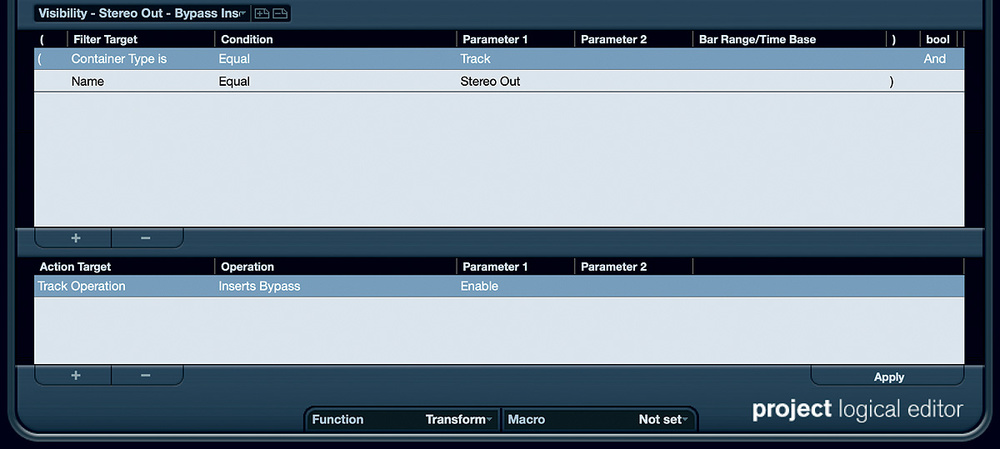
Next, we'll make four simple PLE presets to use in our Macro. A little quirk of Cubase is that you need to be in the Project page to access the PLE (I have no idea why!). From here, go to Project / Project Logical Editor. The PLE can appear daunting, but we can just customise an existing preset. I started with the 'Visibility — Show Tracks containing Drum in the Name' preset. In the top section, change the second row's Condition from 'Contains not' to 'Equal' and change Parameter 1 from 'Drum' to 'Reference'. The bottom section tells the PLE what action to perform, so change the Operation from 'Hide Track' to 'Solo'. That's your first PLE preset done, so click on the + icon at the top to save this as a new preset called 'Reference — Solo'.

Next change the Operation from 'Solo' to 'Mute' and save it again, this time as 'Reference — Mute'. With the same PLE window still open, in the top section, change the second row's Parameter 1 from 'Reference' to 'Stereo Out', and in the bottom section change the Operation to 'Inserts Bypass'. Save this as a preset called 'Stereo Out — Bypass Inserts'. Finally, change Parameter 1 in the bottom section from 'Enable' to 'Disable', which does the reverse (it will reactivate the Stereo Out bus's inserts) and save this as 'Stereo Out — Activate Inserts'.

These simple Macros run the Project Logical Editor presets and bypass the master-bus processing whenever the reference track is soloed. This way, you  always have access to the built-in metering of the master stereo bus, but the bus processors will act only on the mix you're working on, not the reference track.These simple Macros run the Project Logical Editor presets and bypass the master-bus processing whenever the reference track is soloed. This way, you always have access to the built-in metering of the master stereo bus, but the bus processors will act only on the mix you're working on, not the reference track.Finally, we'll stitch these presets together using a pair of Macros that we can assign keystrokes. Go to Edit /Key Commands and open the Macro window at the bottom. Hit the New Macro button, and label your Macro 'Reference Track — On'. In the upper pane's search bar type 'Process Project' to take you to the relevant folder (I find this quicker than scrolling). Open this, and locate the PLE presets you just created. Select 'Stereo Out — Bypass Inserts' and hit the Add Command button. Then select 'Reference — Solo' and hit the Add Command button again. Create another new Macro called 'Reference Track — Off' and add the commands 'Reference — Mute' and 'Stereo Out — Activate Inserts'.

You'll find your two new Macros in the Macro folder in the upper pane, and here you can assign them shortcut keys. Sadly, I've been unable to find a way to toggle between the two Macros with a single key command, but I did find easy to remember shortcuts: Ctrl+R for 'Reference Track — On' and Shift+Ctrl+R for 'Reference Track — Off'. It's worth mentioning that I'm on a Mac, so the Ctrl key may be assigned to different functions on Windows, but you get the idea. Now, with your mix playing back, hit Ctrl+R to switch to your references, and Shift+Ctrl+R to switch back to your mix.

Checking reference mixes with this technique can be performed using just a  couple of key commands.Checking reference mixes with this technique can be performed using just a couple of key commands.Note that this won't work if you have other tracks soloed in your mix, or any automation of the master fader. If the solo issue really bothers you, put the 'Deactivate All Solo States' command at the beginning of your 'Reference Track — On' Macro, though note that you'd have to re-solo things when you switched back to your mix. Note also that you won't be able to take advantage of Cubase's Solo Defeat Mode. On the plus side, you can use Cubase's loudness metering to make sure your reference is at the same level as that particular part of your mix (using clip gain on the references is the best approach), and thus ensure that you're making objective comparisons.

Decisions, Decisions...

While none of these options for monitoring reference tracks and clips is perfect, they can all work pretty well if they fit your own workflow. Each one offers different pros and cons — hopefully there's a tactic here that will do the job for you. 


Published July 2019

Monday, April 1, 2024

Cubase Pro: Audio Alignment & ADR

 By John Walden

Screen 1: The Audio Alignment Panel, primed to tighten up a  double-tracked vocal part.Screen 1: The Audio Alignment Panel, primed to tighten up a double-tracked vocal part.

Cubase Pro 10's Audio Alignment Panel can do more than just deliver tight backing vocals!

The new Audio Alignment Panel (AAP) was one of Cubase 10's most eye-catching new features — it allows you to align the timing of two (or more) audio clips almost instantly, by automating its AudioWarp and Hitpoints/Slices facilities. What was previously a time-consuming manual chore now takes just a few clicks. It holds obvious appeal for working double-tracked lead vocals and stacked backing vocals, but it can also be useful in some other scenarios, as I'll show — but let's start with the obvious...

On The Double

Screen 1 (red waveforms), above, shows a section of a double-tracked lead vocal. The waveform (and audio examples below) show that the singer actually did a pretty good job, but there was scope for improvement — and the AAP allowed us to tighten things nicely.

Open the AAP (from the Project window toolbar or via the Audio menu), select the audio clip that will act as your Reference (timing master) in the Project window, and click the '+' button for the Reference entry in the AAP. The track's name should appear. Repeat this for the Target clip (the audio whose timing you wish to adjust to match the Reference). In this example, that's our second lead vocal take.

For double-tracked vocals, the Match Words option is best; the AAP will use AudioWarp to stretch/compress the Target to more closely match its timing to that of the Reference. You can also set the Alignment Precision, which is similar in concept to quantising (higher values produce a more precise timing match). I chose 100 percent, which could be extreme for some styles, but if you take things too far you can simply undo the processing once applied. Experimenting with the Alignment Precision in this way makes it super-easy to find the setting that sounds the most musically appealing. And that's it. It takes just a few clicks and a few seconds. Typically, no further manual tweaking will be required, but you can move the AudioWarp markers by hand as normal if you feel the need to tweak any little details.

Well Stacked

Screen 2: Aligning multiple backing vocal tracks at once.Screen 2: Aligning multiple backing vocal tracks at once.

The same principles apply when dealing with more parts, as with stacked backing vocals. Screen 2 (blue) shows five vocal takes and, as before, I've identified my Reference take. But this time, I've selected and added multiple (four) Target clips. If you do this and then click Align Audio, all targets will be time-corrected relative to the Reference clip in a single operation. Again, experiment with the Alignment Precision — in this case, I opted for 80 percent, which struck a nice balance between tightness and a natural sound.

In my experience, with a reasonable vocal performance as a starting point, the AAP produces a very good result nine times out of 10. If you find that you do need to go in and manually tweak an AudioWarp marker or two, don't get frustrated: just try and remember just how much time you've saved overall!

Read My Lips

Another common application for the AAP is Automatic Dialogue Replacement (ADR), a common practice in film/TV post-production. The idea is that less-than-perfect on-set dialogue is overdubbed and replaced in a studio, but with timing correction applied so that lip-sync with the picture is maintained. There are specialist software tools for this task (notably Synchro Arts' Revoice Pro 4, reviewed in SOS April 2019), but if you can't justify the additional outlay, is the Audio Alignment Panel worth exploring?

Screen 3: Although it doesn't quite match Revoice Pro for high-end professional ADR duties, Cubase's AAP is still capable of great results.Screen 3: Although it doesn't quite match Revoice Pro for high-end professional ADR duties, Cubase's AAP is still capable of great results.

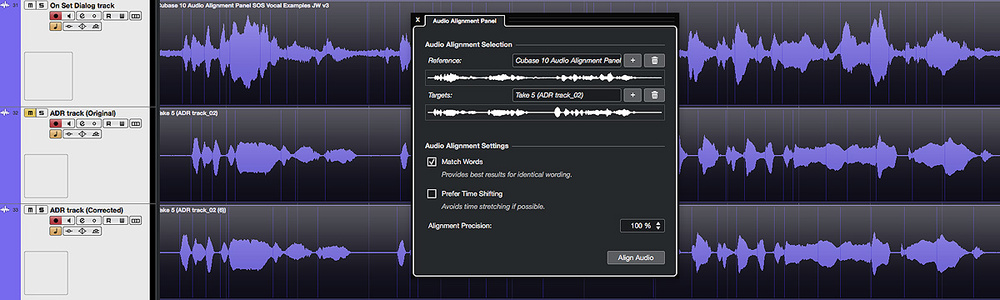
Screen 3 (purple) shows a typical case, with a section of on-set spoken dialogue (the top-most track, recorded with a boom mic and with background noise) and a version of the same dialogue recorded in more ideal studio conditions, to be used as a replacement (the middle track; no correction yet applied). As indicated by their respective waveforms, the replacement dialogue is not a disaster, but still there's scope to tighten the timing.

In the AAP, the on-set dialogue acts as our Reference and the studio version our Target. I experimented with different Alignment Precision settings and also with engaging the Prefer Time Shifting setting. The latter is well worth exploring if your voiceover artist is particularly good to start with, as it does less time stretching/compression and more slicing and moving — so, in theory, it ought to sound cleaner. In this case, despite my less-than-average voiceover skills, the default AAP settings did the best job.

One other option worth trying is to split the Target audio into separate clips for each distinct phrase and then process these independently. While this takes more time — and in this case it didn't really seem to bring any great benefits — it could be a useful approach when faced with just a few stubborn phrases.

The bottom-most track shows the AAP-corrected dialogue. The shifts in the waveform transients, while modest, are easily seen and heard; on the whole, the result is a much tighter match to the timing of the original dialogue. Would it satisfy the more exacting demands of a sound editor on a Hollywood film? Perhaps not. But for most of us it's certainly a huge time–saver, even if we find ourselves making the occasional manual edit.

Guitar's The Star

Vocals aren't the only source that's commonly double-tracked. Guitars are another popular candidate; in fact, in some genres (metal springs to mind) they can often be quadruple-tracked. A really good player can pull this feat off without breaking sweat, but us mere mortals might need a little help to get the same super-tight result. In principle, it's no different from tightening vocals, but if the part is busy, or the sound overdriven, or if the player uses techniques such as palm muting or slides, it's not difficult to imagine Cubase struggling to determine where the AudioWarp markers should sit. So, is the AAP a viable option here?

Screen 4: It might be primarily intended for vocal alignment, but the AAP can also work well on other instruments, such as double-tracked guitars.Screen 4: It might be primarily intended for vocal alignment, but the AAP can also work well on other instruments, such as double-tracked guitars.

In Screen 4 (green) there are again three waveforms. Top and middle are the original, unprocessed, double-tracked guitar parts (a grungy riff followed by a short chord sequence) and, as the marker positions indicate, the performances were not a million miles apart but the note/chord transient positions are consistently different. The bottom track shows the result of applying the AAP to the middle track, using the top one as a Reference. While some transients don't line up perfectly with the Reference, the match is certainly closer — and if you check out the audio examples, you'll hear that the riff section in particular feels much tighter.

Having tried the same approach with a range of other guitar parts, the results were generally pretty good. Yes, you can defeat the AAP with performance/sound combinations that are rhythmically very complex, or the sounds slathered in effects, both of which understandably make automatic identification and matching of transients more challenging. And if you usually DI your guitar parts, it's perhaps worth using the clean DI signal for alignment, before adding distortion or amp-sim effects. But given that the process takes only a few seconds, it's well worth seeing if the results are usable or not.

So, for vocals, this new facility is a huge time-saver that delivers great results. And even for non-vocal applications the Audio Alignment Panel can be well worth a try.

Audio Examples

Audio Example 01

Double-tracked vocal example. Two passes of the same double-tracked vocal performance are presented in this clip. In the first pass, the two tracks are unprocessed and panned left/right. In the second pass, the Audio Alignment panel settings shown in the screenshot of the main article have been applied. The result is a much tighter match between the two tracks.

Audio Example 02

Stacked backing vocals example. Two passes of the same multi-tracked backing vocal performance are presented in this clip. In the first pass, five takes are included, panned at various points across the stereo field (note that the performance contains two phrases with similar wording). In the second pass, one track has been used as a Reference and the other four as Targets within the Audio Alignment Panel. The settings used are shown in the screenshot within the main article. While there are still a couple of spots where you can hear timing differences (and these could be manually edited within the Sample Editor if required), the result is a much tighter match between the various tracks while still maintaining a natural sound.

Audio Example 03

Automatic dialogue replacement (ARD) example. Three passes of the same spoken phrase are presented. The first contains the 'on-set' audio with the voice and a certain amount of ambient background noise picked up from the location by the boom mic. The second pass contains both the same on-set dialogue and the replacement dialogue recorded in a studio situation (panned left/right) but without any other processing. There are some obvious timing differences between the two performances. In the third pass, the studio dialogue has been timing matched to the on-set dialogue by using the Audio Alignment Panel. This results in a much tighter timing match between the two performances. Further manual editing of the timing might be required in a mission critical work context, but the AAP has done much of the work. The studio dialogue could then be subjected to suitable processing (EQ/reverb, etc.) to 'place' it in the location of the on-screen action.

Audio Example 04

Double-tracked guitars example. Three passes are presented of the same double-tracked guitar performance with the guitars panned left/right. The first pass contains the two performances as recorded. In the second pass, the Audio Alignment Panel has been used with the settings shown in the article screenshot. This produces a tighter timing between the two performances, and this is perhaps more noticeable in the riff section within the first part of the performance. The third pass is presented simply as an experiment. This compares the unprocessed Target track to the processed version of the same track (the track used to reference the processing is not included). This produces an interesting result with (unsurprisingly) a very tight tracking between the two performances. While you might need to listen carefully for phasing issues, or perhaps where the two versions are exactly time locked (no time shifting has been done) and the stereo image folds into the centre (as seems to happen on the last chord), this might offer an interesting alternative means for generating double-tracked parts.


Published August 2019