Thursday, January 2, 2020

Wednesday, January 1, 2020
Q. Can I connect an AES output to an S/PDIF input?
 Liquid Channel offers AES digital in/out on XLRs.
I own a Focusrite Liquid Channel (which is great!) and would like to connect it to my MOTU 828's digital input. However, on the digital side of things the Liquid Channel only has an AES-EBU input and output, and the MOTU 828 only has S/PDIF and ADAT digital connections. How can I connect them together?
Bernhard Wagner
Technical Editor Hugh Robjohns replies: The proper way to connect AES to S/PDIF is to use a dedicated digital format converter, of which there are plenty around (although some older designs only pass 16 bits rather than the full 24, so check before buying). The M Audio CO3 and the Behringer Ultramatch and Ultramatch Pro probably represent the most affordable options.
However, although it is a rather makeshift solution (a 'bodge', to use the technical term), if you only need the signal to travel a fairly short distance — say, no more than two metres — you can get an AES output to feed an S/PDIF input with just a simple XLR-to-phono cable. Wire pin 2 of the XLR to the tip of the RCA phono jack, and pin 3 of the XLR to the sleeve of the phono. Pin 1 of the XLR should remain wired to the cable screen at the XLR end, but leave it disconnected and insulated at the phono end.
Strictly speaking, the Channel Status and other subcode data is formatted differently between AES and S/PDIF, but very little equipment bothers to send or read the full subcode data set anyway, so it is rarely a problem.
Published November 2005
Tuesday, December 31, 2019
Monday, December 30, 2019
Q. How do I set my DAW levels to match my hardware?
 When hooking hardware up to your DAW via an audio interface, you need to ensure you’re sending appropriate levels to your gear. Here you can see how the three RME level settings relate to the SMPTE and EBU analogue standards.
I recently ordered a matched pair of Warm Audio EQP-WAs [Pultec EQP-1A EQ clones]. As these have no level or peak indicator, what would be the correct way to output the signal from my DAW (Logic) via an RME Fireface 800 audio interface? Let’s say I was running a full mix outputting at 0dBFS through the unit. Should I reduce the output level to -16dBFS (ie. +4dbu) in either the routing software or DAW, or is there a piece of hardware that’s preferable? Also, is there any point/scope in deliberately overloading the unit slightly for saturation?
SOS Forum post
Hugh Robjohns replies: The EQP is old-school analogue equipment and it expects to work with old-school analogue signal levels. That means average signal levels around +4dBu with very occasional transient peaks up to maybe +18dBu or so. There are several ways you can achieve this.
The first (and most practical, in my view) is to maintain analogue-style headroom margins in your DAW as you track and mix your music. (Mastering is an entirely different situation, because of the bonkers historical practice of stripping off headroom on CD releases.) For more on that subject, check out our ‘Gain Staging In Your DAW’ article in SOS September 2013 (www.soundonsound.com/techniques/gain-staging-your-daw-software).
So, if you work with average levels around -20dBFS in your DAW, with very occasional transient peaks up to -6dBFS, you have a similar working range to traditional analogue. Couple that with an interface calibrated to provide +24dBu for 0dBFS and everything works seamlessly with analogue gear. The DAW and the analogue gear both clip at the same point (0dBFS / +24dBu), they both have the same nominal reference level (-20dBFS / +4dBu), and they both have a 20dB headroom margin. (They also both have similar noise floors at around -114dBFS / -90dBu). The closest RME interfaces get to this is in their Hi-Gain mode, where 0dBFS is aligned to +19dBu — being a German company they’ve adopted the EBU spec, but they’ve allowed an extra 1dB of headroom just to be helpful.
On the other hand, if you’re still wedded to the notion of hitting the DAW endstops all the time, you can make use of RME’s adjustable headroom facility to take the strain out of the analogue interfacing. Just set the RME interface to operate in its -10dBV mode on the input- and output-level settings. This will align the DAW’s 0dBFS with +4dBu in the analogue world, so your heavily squashed and peak-limited music will sit right on the nominal operating level of the EQP-WA.
If you want to drive the EQP a little harder (it won’t hurt to try), use the +4dBu setting on the RME interface. This aligns 0dBFS with +13dBu, which is pretty darn hot in analogue terms. I’ve included a comparison chart above, showing the three RME interface level modes in comparison with the standard EBU and SMPTE operating alignments.
Published August 2016
Saturday, December 28, 2019
Friday, December 27, 2019
Q. How can I minimise my soundcard's latency without the crackles?

After lots of fiddling with Cubase SX 2, moving cables around and all sorts of problem-solving, I've discovered that the reason for the pops and clicks which occur when pressing keys on the computer keyboard (transport bar shortcut keys) is my soundcard's buffer settings.
The best latency I can get is 35.5ms, with a buffer setting of 1536 samples and sample rate of 44.1kHz. There are no pops or clicks at 1536 samples, but there is a very slight audible delay between pressing a key on my Novation keyboard and the sound coming out of the speakers. I realise this is normal given the latency, but surely there must be a way to get the latency down to 11 or 12ms without the crackles? My computer has an Intel 2.8GHz Pentium 4 processor, 1GB of RAM, a 140GB hard drive and an M-Audio Audiophile 2496 soundcard.
Theo Wallis
PC music specialist Martin Walker replies: I'm pleased to note that you started by checking your cables — intermittent clicks, pops, and crackling can often be caused by faulty cables, and particularly by intermittent mains connections, so ruling these out before going any further can save an awful lot of wasted time. However, the giveaway that your problem is definitely computer-related is that it disappears when you raise the size of your soundcard's buffers (and hence its latency).
I agree that 1536 samples (35ms latency at a sample rate of 44.1kHz) is a high value, especially as the Audiophile 2496's drivers are now very mature and reliable. Unfortunately it's almost impossible to track down the specific cause of your particular problem from a distance, but here are some general hints and tips.
First, always download and install the latest soundcard drivers. M-Audio's installer is extremely thorough, and starts by removing every trace of the existing drivers (including references to them in the Windows Registry), before installing the new drivers. This will ensure that you have a matched set of driver files, which may cure some problems. Next, make sure you're using the proper ASIO drivers in Cubase SX. Some people reporting high latency have been mistakenly using the ASIO Multimedia or Direct X drivers, and these won't go as low as the proper ASIO ones before you hear glitching.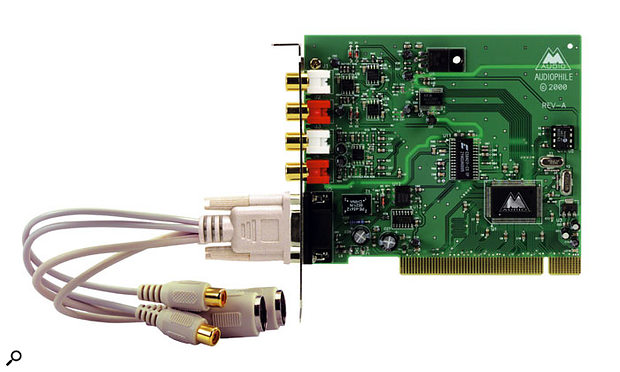 You should be able to achieve reliable performance and an acceptable degree of latency with M-Audio's Delta Audiophile 2496 soundcard. Downloading and installing the most recent drivers is the first step.
 You should be able to achieve reliable performance and an acceptable degree of latency with M-Audio's Delta Audiophile 2496 soundcard. Downloading and installing the most recent drivers is the first step.
Make sure you set Processor scheduling to 'Background Services' in the Advanced page of the Advanced section of the System applet in Control Panel — Steinberg specifically recommend this tweak to benefit their ASIO drivers, which run as a background task, and even mention that on some systems the usable latency can drop from about 23ms to 3ms as a result. However, don't succumb to advice to switch from Windows ACPI to Standard mode if you're running Windows XP — while this did allow many musicians to reduce latency under Windows 2000 and 98SE, Windows XP runs better with ACPI mode.
Sometimes tasks running in the background installed by other applications can cause the problems you describe. You can bring up a list of the tasks currently running on on your PC by right-clicking on the Taskbar and selecting the Task Manager option. You may be lucky and spot one task occasionally taking more than its fair share of CPU, but it can be a daunting task, especially as there are generally so many obscure tasks running.
However, if you want to find out exactly what each of them does, by far the best web site to visit in my experience is the 'Task List Programs' section of Answers That Work (www.answersthatwork.com/tasklist_pages/tasklist.htm). Not only does this contain detailed descriptions of what all the tasks do, and what applications may have installed them, but it also provides recommendations on whether or not to uninstall them, and how to do it.
For many musicians faced with a high-latency problem that resists all sensible attempts at resolution, the ultimate solution is to reformat your hard drive and start again from scratch, installing first Windows from its original CD-ROM, and then your applications. This approach has solved many a ticklish and long-standing problem that just wouldn't go away otherwise, but it's unwise to take this route lightly, and certainly not before backing up all your data and making an image of the current contents of your drive using a utility like Norton Ghost, so you can restore any file that you later find you've forgotten about but still need.
Alternatively, if your hard drive still has at least 5GB of free space, another related solution is to use a utility like Partition Magic to convert this unused space to a new partition on which you can install a second instance of Windows, followed by just your music applications — running a separate slimmed-down Windows partition just for music applications means that however poorly and bogged down your main Windows partition gets, your music-making experience will be forever sprightly!
Published April 2005
Thursday, December 26, 2019
Subscribe to:
Posts (Atom)