Welcome to No Limit Sound Productions

Company Founded
2005
Overview

Our services include Sound Engineering, Audio Post-Production, System Upgrades and Equipment Consulting.
Mission
Our mission is to provide excellent quality and service to our customers. We do customized service.

Friday, December 19, 2025

Podcast Dialogue Editing In Cubase

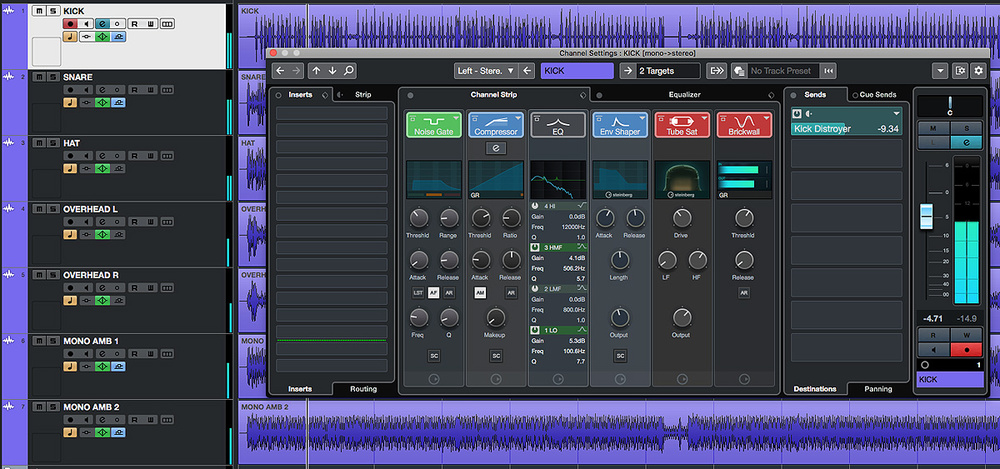
The Channel Strip's audio-sweetening tools are as good for dialogue as they are for music.The Channel Strip's audio-sweetening tools are as good for dialogue as they are for music.

Reduce the time you spend on podcasting post-production, with these Cubase voice-editing tips.

Some podcasters are happy simply to record their dialogue in a single take, top and tail it with their standard channel intro and outro, and publish, warts and all. But most — while still usually recording an episode in a single take — will perform in a way that allows obvious gaffes, over-long pauses, ums and errs, to be edited out later. Knowing that mistakes can be edited can mean a more relaxed attitude when recording and, for example, allow you to take a deep breath and start again if you fluff your lines. But equally, anticipation of an extended period of detailed editing could deter you from creating a podcast in the first place! So it's important to strike the right balance.

Thankfully, a little once-only work to organise things in Cubase can streamline many repetitive editing tasks — and have you transforming your raw takes into polished 'performances' in no time.

Podcasting Presets

Let's consider a typical situation where the dialogue has been recorded as a single take to a Cubase audio track. Everything you need to do to lick this performance into shape falls into two broad categories: you'll no doubt want to 'sweeten' and 'clean' the audio a touch, using EQ and compression; and you'll need to edit the recording to create a better-paced, more polished-sounding performance.

There are plenty of suitable third-party compressor and EQ plug‑ins, but in the vast majority of cases the Cubase Channel Strip has more than enough firepower. If you record your content using a consistent equipment/location setup, it's worth spending time up front figuring out some EQ, de-essing and compression settings, and creating a Track Preset based on them, for rapid repeat use. The Channel Strip's DeEsser can help tame any sibilance, and I also tend to use the low-cut filter in the Pre section to reduce the impact of any plosive sounds that crept past my pop shield. A combination of a fairly high frequency (perhaps 150Hz) and a steepish filter slope (24dB per octave) will generally take care of the worst offenders without robbing the voice of too much body. You can, of course, adjust the cutoff frequency to taste, or perhaps combine a steep high-pass filter cut with a gentle low-shelving boost that restores any lost body. (And if this isn't cutting the mustard, consider addressing the problem while recording before you look for more post-prod solutions!). Finally, if you've recorded different takes with different mics, Cubase Pro users might consider using the bundled Voxengo Curve EQ's 'match EQ' facility to make the takes more consistent before further processing is applied.

Note that while Cubase's plug‑in suite is great for music production, spoken-word can require more attention to extraneous noises and Cubase doesn't include a dedicated noise-reduction plug‑in. Again, try to address this in your recording environment, but if Cubase's EQ and (multiband) gate, compressor and expander options aren't up to the job, you'll probably want to explore third-party de-noisers (eg. iZotope RX, the freeware Cockos ReaFIR or, indeed, Steinberg's own Wavelab).

If you create this macro and assign a key command to it, each edit requires nothing more than you making a range selection and pressing a key.

Speedy Macros

With some time-saving Channel Strip settings in the bag, it's time to move on to the detailed audio editing. In general, this involves two kinds of task: removing unwanted sections of audio to tighten up the overall flow of the dialogue (including 'ums' and 'errs'); and reducing the level of breaths and other such natural noises (removing them completely often sounds unnatural and thus just as distracting to listeners as when they're too loud!). Both tasks can involve lots of tedious, repetitive, manual editing — but Cubase's powerful system of key commands and macros can turn 'tedious and repetitive' into 'speedy and efficient'!

We've looked at the Cubase Macro system many times (see SOS August 2018: https://sosm.ag/cubase-0818) but the uninitiated need to know that a macro is simply a sequence of key commands, and that the Key Commands dialogue box (accessed via the File menu) is where you view, create and edit macros; just open the dialogue and click the Show Macros button.

Macros can be created and edited in the lower pane of the Key Commands window, and you can assign a macro its own key command in the Macro section of the upper pane. The command sequence for the Cut Time And Fade macro is shown in the lower pane.Macros can be created and edited in the lower pane of the Key Commands window, and you can assign a macro its own key command in the Macro section of the upper pane. The command sequence for the Cut Time And Fade macro is shown in the lower pane.

Steinberg have made some useful additions to this panel since I last covered it (there are additional buttons on the left) so creating and editing a macro is now much easier. As before, though, once you've created a new empty macro and named it, you simply select key commands in the upper panel and 'add' them to the macro. Key commands can be moved up/down or removed from the macro. And, once you've created your macro, if you go to the Macros section of the key command list, you can also assign a dedicated key command to run the macro. You can also run macros within macros in this way... so a lot is possible.

Cut It Out

If you prefer your podcasts free of ums, errs and outright 'bad' takes where you had to repeat a section, the most time-consuming editing task will be cutting out all these vocal fails. You need not only to audition your performance, but to zoom in and select the offending sections, cut the unwanted audio, and move what remains to the right of the cut section so it neatly fills the gap you just created, butting up nicely against audio to the left of the cut section, apply suitable crossfades, and then repeat the process multiple times until all your cuts are made.

A little once-only work to organise things in Cubase can streamline many repetitive editing tasks — and have you transforming your raw takes into polished 'performances' in no time.

If this sounds like a recipe for RSI, fear not, as Cubase can prevent the pain! Switch to the Range Select tool and you can highlight the section of audio you wish to remove. Then, execute the Edit>Range>Cut Time command (the default shortcut is Cmd-Shift-X on the Mac, Ctrl-Shift-X on Windows), which will instantly delete the selected audio and move all audio to the right of the cut on the current track accordingly. Select, key command, done, repeat.

If 'auto fades' is switched on (via the Project menu's Auto Fades settings dialogue), every time you cut audio in this fashion a fade-out/fade-in will be applied on playback, reducing the possibilities of any click and pops at your edit points. Note that auto-fades aren't actually visible on the clips themselves, though. If, like me, you prefer to see any fades but don't want to have to insert them all manually, the Cut Time And Fade macro shown in the screenshot can do the Cut Time process and add the required short fades to the events either side of the cut.

This macro includes a number of steps. The first three commands set the left and right locators around your selection, move the cursor to the left locator, and execute the Cut Time command. The remainder of the commands move the cursor either side of the edit point, select each audio event that lies under the cursor in turn, and then apply suitable short fades. Finally, the last command ensures that the Range selection tool is still selected, so that, after the macro has run, you can move swiftly to your next edit point.

If you create this macro and assign a key command to it, each edit requires nothing more than you making a range selection and pressing a key. This is perhaps the most common type of audio edit any podcaster will make and, via this macro, the process is about as efficient as it can get — it's a massive time-saver!

A breath noise that has been processed via the Breath And Fade macro. The breath itself has been reduced in volume and a  fade-in/out applied to the audio event containing the breath. Fades have also been added to the audio events on either side of the selection.A breath noise that has been processed via the Breath And Fade macro. The breath itself has been reduced in volume and a fade-in/out applied to the audio event containing the breath. Fades have also been added to the audio events on either side of the selection.

Breathe Easy

The Breath And Fade macro comprises a long series of key commands, but the whole sequence can be executed with a single key.The Breath And Fade macro comprises a long series of key commands, but the whole sequence can be executed with a single key.Breath noises can often be distracting. But as I said above, deleting them can sound unnatural, and simply reducing their volume so they're less prominent can often lead to a better result. The same can go for some other mouth noises.

Again, a macro can be created so each edit can be executed with only a simple range selection operation and a keystroke. I included a macro for reducing the level of breath noises in the SOS August 2018 column I linked to above, but I've expanded on that process in the Breath And Fade macro shown here. Many commands used are similar to the Cut Time And Fade macro, but adding the fades requires more steps, simply because three audio events are involved rather than two.

Fades aside, the key part of the process splits the audio range you've selected containing the breath into a separate audio event. It then applies six instances of the Decrement Event Volume command, each instance adjusting the event volume handle by about 1dB. You can, of course, change the number of instances for less or greater volume reduction to suit your needs. 


Published June 2020

Wednesday, December 17, 2025

Cubase: Delta Monitoring Explained

With some simple signal routing, Cubase can tell you exactly what a plug‑in is doing to your audio.

A limiter's primary function is to prevent the loudest signal peaks from exceeding a specified maximum level, but they're often also used as a 'maximiser' to increase loudness — as you raise the input signal, everything below the limiter's peak detection threshold gets louder, while the peaks are reduced to the threshold level. But the latter tactic can mean the limiter both acting more frequently and applying more attenuation, and the more you ask your limiter to do, the more unwanted sonic artifacts it will leave behind. Eventually, it will become audibly unpleasant.

The Brickwall Limiter inserted on a drum bus Group Track, with the track's Pre Gain control used to adjust the input gain.The Brickwall Limiter inserted on a drum bus Group Track, with the track's Pre Gain control used to adjust the input gain.You can't simply crank up the gain and hope for the best, then; you must train yourself to hear exactly how the limiter is changing your audio. When you overdo it significantly, it's very easy to hear any damage being done. But, especially when you first start experimenting with limiters, it can be harder to judge where the sweet spot is.

To make this a little easier, you can use a technique that's often referred to as 'delta monitoring'. Essentially, this requires you to subtract the processed signal from the unprocessed one, so that you can listen to the remainder, which is what your limiter is removing. Some third-party plug‑ins helpfully include delta monitoring facilities (Tokyo Dawn Labs' Kotelnikov and Limiter 6, for example), but a little creative audio routing allows you to achieve it with almost any plug‑in in Cubase (or, indeed, any other DAW). I've used Cubase's simple Brickwall Limiter for the examples that follow.

Hitting Bricks

You can start by familiarising yourself with the Brickwall Limiter by using it on a drum bus track, as per the first screenshot — I've used the Gain control in the MixConsole's Pre section to set the signal level coming into the Brickwall Limiter. This plug‑in offers switchable dual-mono or stereo operation (via the Link button; best left engaged unless you have specific reasons to change it) and an auto-release option that generally works well. The most important control, though, is the Threshold slider, which sets the maximum level a signal can reach before limiting is applied. Any peak that exceeds this level is quickly brought down to the threshold.

To reduce the possibility of exceeding 0dBFS, you should set the Threshold to allow a small margin of error — the screenshot example shows 2dB of headroom left on a drum bus limiter. But if in doubt, the DIC (Detect Intersample Clipping) feature adds an extra level of safety; it uses a lookahead oversampling process that, at the cost of an additional 1ms of latency, ensures the signal won't exceed the Threshold, even at a point between two samples.

Take It Away

Delta monitoring: the final track and routing configuration required to isolate the audio differences between the processed and unprocessed versions of the drum bus signal.Delta monitoring: the final track and routing configuration required to isolate the audio differences between the processed and unprocessed versions of the drum bus signal.Now let's look at how we can set up delta monitoring to better hear what this limiter is doing — the final configuration is set out in the second screen, but a number of steps are required to get there. I'll assume we're starting with a limiter on the drum bus, as described above.

First, create two FX Tracks and insert an active (ie. not bypassed) instance of the Brickwall Limiter on each. Initially, configure these two instances identically to the one on your drum bus. Then disable the drum bus track's output (in the Routing section), and create two sends, each at unity gain (0dB), each going to a different one of your new FX Tracks. The audio from the drum bus now flows to the master output only via these two FX Tracks, so you can bypass the Brickwall Limiter on the drum bus track. Don't engage playback just yet, though, or the signal will be twice as loud as the original!

Now, in the Pre panel of the second FX Track, switch the 'phase' (polarity) from 0 to 180 degrees. Engage playback now, and you should hear silence — the two FX Tracks are playing identical audio out of phase and therefore perfectly cancel. Finally, bypass the Brickwall Limiter on the second FX Track. Now, identical parts of the audio will still cancel, but where the limiter has acted you'll hear only what it has removed.

Split The Difference

That was easy enough, but what does it tell you? Well, for a quick example (because it results in an obvious difference), experiment with the Threshold setting and listen to how the characteristics of the delta signal change. In practice, though, the Threshold is likely to be a 'set and forget' parameter. It's more interesting to change the input level (in this case, via the Gain control within the drum bus track's Pre section).

The delta monitoring signal will include any gain differences introduced by the processor.

As you'd expect, as you increase the gain, you force the Brickwall Limiter to work harder, and the differences between the processed and unprocessed audio become increasingly obvious. These differences manifest themselves in three ways. First, you can hear which elements within your audio are being altered most by the limiting (whether on a drum bus or a full mix, this will probably be the kick and snare drums). Second, you may be able to hear some audio nasties, which may encourage you to think about just how far you should push your limiter. Third, the delta monitoring signal will include any gain differences that are introduced by the processor itself.

In my example, the gain change is applied equally to both FX Tracks because it's performed on the drum bus Group Track that feeds them — so you won't hear any gain differences. But if the plug‑in being monitored is one with an input gain control (Cubase's Limiter, for example), and you adjust this in the FX Track instance of the plug‑in, then the delta signal will include this gain difference, and it will be present whether or not the limiter's gain reduction circuit is active. (It's also a great way to spot plug‑in presets that try to trick your ears with a sneaky 'louder-sounds-better' boost!) There are pros and cons to both approaches: it can be handy to hear just the limiting, or a combination of the limiting and any gain change.

Listen & Learn

Of course, while I've used limiting for this example, the same approach can work with almost any plug‑in. For example, try it with a compressor, or tape saturation processor if you struggle to hear precisely what it is they're doing. As a means of educating your ears, it's a really helpful technique. Hearing the differences isolated in this way can be really interesting, and when you then go back to monitoring the processed signal in the normal way, you'll hopefully have a better idea of just what artifacts to listen out for as you adjust the plug‑in's controls.

Audio Examples

I've created a number of audio examples so that you can hear what I'm writing about. You'll find them on this accompanying page:

www.soundonsound.com/techniques/cubase-delta-monitoring-audio-examples

Stream them by all means, but as this is about critical listening, you'll have a much better experience if you download the Zip file of uncompressed WAV versions and audition them in your DAW.

Package icon cubasedeltamonitoring0720.zip 


Published July 2020

Monday, December 15, 2025

How To Use Cubase's Spectral Comparison EQ

Cubase Pro 10.5's Spectral Comparison EQ can be helpful when adjusting the frequency relationship between two sources, such as kick drum and bass guitar, whose frequency ranges overlap.Cubase Pro 10.5's Spectral Comparison EQ can be helpful when adjusting the frequency relationship between two sources, such as kick drum and bass guitar, whose frequency ranges overlap.

Cubase Pro's Spectral Comparison EQ makes it easy to figure out why things sound too different or too similar!

In Cubase Pro 10.5, Steinberg added a very useful Spectral Comparison EQ option to the Channel Settings window. This makes it easy to compare the frequency distribution of two audio signals, in real time, providing a very useful visual guide to complement what your ears might already be telling you. There are plenty of scenarios in which such comparison can be useful, and I'll explore two here:

  • managing the relationship between a kick drum and a bass guitar.
  • comparing the overall balance of your mix to that of a reference track in the same musical style.

EQ For Two

Let's start with the kick and bass example. In the first screenshot (above) I've selected my bass guitar track and, in the Equaliser tab of its Channel Setting window, engaged the Activate Channel Comparison button. In the second (orange) drop-down slot, I've selected my kick drum track. As the project plays, I now see the EQ spectrum for my kick drum (orange) through that of the bass guitar (blue). This makes it easy to spot the two parts' peaks and troughs and identify frequencies where one part might be masking the other. You can then devise EQ settings to give each part enough space to play its intended role in the mix.

But this tool isn't just a visual aid; the Spectral Comparison feature also makes it easier to do the second part of this job. By default, the displayed EQ controls will be active for the currently selected channel (in my case, the bass guitar in blue). But clicking on the orange drop-down tab toggles the EQ controls to the kick drum (orange) track — so I can quickly flick back and forth to make the required EQ adjustments. As both tabs also feature solo buttons, you can isolate either signal (or both) from the rest of the mix.

In this kick/bass example, I eventually took a few decibels out of the bass at about 60Hz and a few out of the kick at around 110Hz. In conjunction with a little side-chain compression (to duck the bass guitar by one or two dB during kick-drum hits) this improved the clarity of the low end of the mix, without adding lots of additional energy that might devour the remaining mix headroom.

Master Strokes

In SOS July 2019's Cubase 'Reference Tracks' workshop, Matt Houghton outlined various strategies for comparing your own mix with reference tracks when preparing your final mix or doing DIY mastering. The new Spectral Comparison EQ feature can play a useful role in this process, helping you visualise what EQ moves might be required to nudge the tonal balance of your own mix towards that of your target. It can also be combined with Cubase Pro's metering options, so you can compare loudness between your mix and the reference.

It's not just a visual aid... the Spectral Comparison feature also makes it easier to adjust the EQ of the two channels.

To compare the tonal balance or loudness of your mix to those of a reference, you need to be able to switch quickly between hearing your own mix, with any master-bus processing applied, and the reference mix, without that also passing through your master-bus signal chain. As Matt described, there are various ways to set this up in Cubase, but if you want to exploit the Spectral Comparison EQ alongside any overall level metering, the following approach will allow you to switch between the mix-in-progress and the reference track very efficiently. It requires a little configuration, and there are six steps.

First, configure a Group Channel to act as the 'master bus' for your own mix (we'll call it 'Master Bus'). Other tracks from your mix that are normally routed to Cubase's Stereo Output should be routed to this channel, including group channels such as drum buses that act as submix buses. Any mastering-style processing you want to apply to your mix can be inserted on this new Master Bus group track, which can then be set to output to the Stereo Output.

Second, you need to add your reference track to your project and insert it on a standard stereo audio track. This track should also be routed to the Stereo Output track, so it doesn't pass through any 'mastering' processing you apply on the Master Bus channel. In the Project window, drag this 'Reference Mix' track so it appears directly below the Master Bus one. Your Master Bus and Reference Mix tracks should now also be sitting side-by-side in the MixConsole.

Third, we need to create two simple macros, as per the screenshot. I've named these Track Left Solo and Track Right Solo; when executed, all they do is toggle the mute status of the currently selected channel in the MixConsole, navigate to select the track immediately to the left (or right), and then toggle the mute status of that track. Once created, assign these macros to convenient key commands.

Don't be scared: the two macros described in the text are easy to create in the Key Commands window.Don't be scared: the two macros described in the text are easy to create in the Key Commands window.

Fourth, with the MixConsole in the foreground, select the Master Bus track. Open the Channel Settings window for that track and, in the Equaliser tab, click the Activate Channel Comparison button. Select the Reference Mix track in the orange drop-down menu (the Master Bus track will already be selected under the blue drop-down). Open the Channel Settings Function Menu from the down-arrow icon located top right and deselect the option called "Follow e buttons or selection changes". Normally, the contents of the Channel Settings window change to reflect the selected channel in the MixConsole but deselecting this means that even if we change the track selection in the MixConsole, the Channel Settings will continue to display the Master Bus track settings, so we can keep our comparative EQ display for the Master Bus and Reference Mix tracks in view.

Fifth, open the Right Zone on the MixConsole and select the Meter option (upper tab), and the Loudness option (lower tab), to display the Loudness Meter. A detailed discussion of the options here is a topic for another day but, for now, just focus on the visual feedback of the meter if you want to compare the loudness of your mix to the reference.

Finally, mute the Reference Mix track and select the Master Bus track. When you initiate playback, you'll hear your mix; but if you then execute the Track Right Solo macro, the Master Bus track will be muted and the Reference Mix track selected and unmuted. You've instantly toggled playback from your mix on the Master Bus track, to the reference mix. Apply the Track Left Solo macro to flip back to your own mix.

Together, Cubase's Spectral Comparison EQ facility and its Loudness Meter can provide very useful insights when comparing your mix with a reference track.Together, Cubase's Spectral Comparison EQ facility and its Loudness Meter can provide very useful insights when comparing your mix with a reference track.

As you do this, the Spectral Comparison EQ display allows you to compare the tonal balance of the mix and reference in real time. And, if you spot frequency ranges where your mix might have relatively more or less energy than your reference, you can easily experiment with EQ adjustments.

In terms of loudness comparisons, watching where the Loudness Meter settles as you switch between the two tracks is the best place to start. But if you want to use the numerical readouts, make sure you reset the meter (the rightmost button above the numerical panel) as you switch between the mix and the reference.

It's also worth noting that, while the overall shape/slope of the two EQ distributions can indicate the similarity (or otherwise) of the tonal balance between your mix and the reference track, the vertical axis of the EQ spectrum is also quantifying differences in signal level. So, for example, if the overall frequency curves show a similar distribution of low, mids and highs, but your mix just has lower amounts of all frequencies (as per the example in the second screenshot, where the blue curve mirrors the orange curve but sits consistently beneath it), you might want to add some overall gain to your mix — or attenuate the reference — before making more detailed EQ tweaks to refine the frequency-distribution match.

Making Space

Of course, sorting the kick and bass relationship and informing mastering decisions aren't the only applications for real-time frequency comparison. For example, you might compare your lead vocal with a bus containing the instrumental elements that make up the rest of your mix. You can then experiment with EQing to create space in the instrument bed for the most important vocal frequencies, to help improve the clarity of the vocal and intelligibility of the lyrics. Spectral Comparison EQ lets you go compare! 


Published August 2020

Friday, December 12, 2025

Cubase: Archiving Projects

Making a clean and compact backup of your current project is easy in all versions of Cubase.Making a clean and compact backup of your current project is easy in all versions of Cubase.

Future-proof your projects. We examine the archival options for users of Cubase Elements, Artist or Pro.

While archiving your projects is perhaps not the most exciting aspect of working with Cubase, you'll one day thank your younger self for having put in the effort, so in this month's column I'll examine the archival options for users of Cubase Elements, Artist or Pro. Archiving isn't just about saving your project to another hard drive; it should ensure that you have a backup copy should the original project be lost or become corrupted. It should also ensure that you can access your project even without the current versions of Cubase or the plug‑ins you used.

The first step is to decide on the balance between your desired degree of future-proofing and the time and effort required to achieve it. I tend towards pragmatism rather than perfectionism, and will focus on the former here. But hopefully there will be enough ideas here that you can develop a more comprehensive strategy if you prefer.

All Backed Up

A sensible first step is to create a self-contained backup copy of a project that would restore the project on your own host system in the event of data loss. It's a two-step process and can be done in an identical fashion in Pro, Artist and Elements.

Using the Audio Mixdown dialogue (shown here in Cubase Elements) allows you to render your virtual instrument tracks to audio, albeit one at a time.Using the Audio Mixdown dialogue (shown here in Cubase Elements) allows you to render your virtual instrument tracks to audio, albeit one at a time.

First, execute the Media/Prepare Archive command. This will check whether all files referenced by your project reside in the project folder, and will place copies of them in there if not. Second, from the menu, select File/Back Up Project, and you'll be prompted to specify a new folder for the backup copy. A few tickbox options dictate exactly what gets placed in the new folder. Minimise Audio Files (only copy those portions of any audio files actually used on the timeline) and Remove Unused Files will help keep your backup compact. Provided everything else (plug‑ins, sample content locations) remains the same on your host system, this backup project should open fully intact and ready to go if your original working copy is lost.

Together, these files should meet pretty much any need when it comes to resurrecting a project, be it tomorrow or many years down the line.

The Future Is Now

While useful in the short term, the above process won't protect you from plug‑ins that might go missing in the longer term. The most straightforward insurance against this problem is to render all the project's audio and virtual instruments tracks as audio files, with all channel-level processing included. If you like, you can do the same with all the channel processing bypassed, so you have a version of your audio files with any edits, for example, but free from processing, which is handy if you want to revamp your project in the future.

What follows will work in all versions of Cubase. It's a little clunky, though, and users of Pro have a better option in the Export Audio Mixdown dialogue, on which more later. First, save a copy of your project with a suitable 'version for future-proofing' name. If the Freeze button isn't already visible, right-click on any track in the Track List to open the Track Controls Panel and make it visible for both Audio and MIDI tracks. Track freezing is actually designed for reducing CPU loads, but it also happens to create an audio render of the frozen track, and places this in a new folder (sensibly named Freeze) in your main Project folder. The render file 'captures' both the audio and the results of any channel processing, but there is a catch. In order to keep the file sizes compact, the Freeze function only captures those sections of your track where something is actually happening, and without a little further intervention before freezing, the format of these renders doesn't really meet our 'archiving' needs.

If you are not using Cubase Pro, a workaround combining the track Freeze and Audio Mixdown dialogue features can let you create an audio-only render of all audio and virtual instrument tracks within a project.If you are not using Cubase Pro, a workaround combining the track Freeze and Audio Mixdown dialogue features can let you create an audio-only render of all audio and virtual instrument tracks within a project.For audio tracks, the workaround is simple. First, find a short (a single bar or beat) section of one of your audio tracks that contains silence. Second, copy this clip to the very start of every audio track that doesn't already start at bar 1, beat 1. Third, select all the audio events on a track (or tracks; you can handle multiple tracks simultaneously) and from the file menu execute Audio/Bounce Selection. This replaces all the separate audio events on each track with a single contiguous event starting at bar 1, beat 1. Finally, if you now Freeze each audio track, the Freeze files will all start from bar 1, beat 1 and can be dragged into a new project.

For virtual instrument tracks, a different workaround is required, and must be done one track at a time. In the MixConsole, make sure the output of every virtual instrument track is set to the main Stereo Output. Next, bypass any plug‑ins on the Stereo Output bus (so you don't end up capturing a 'mastered' version of the instrument's audio). Then set the left locator to bar 1, beat 1 and the right locator to a point just beyond the end of your project.

Finally, one VSTi track at a time, solo the track and execute the File/Export/Audio Mixdown command. In the Audio Mixdown dialogue box, specify a filename to reflect the track's contents and point the File Path to the Freeze folder (which, assuming you've already dealt with your audio tracks as described above, will already be there). In the After Export section, deselect the Create Audio Track and Insert To Pool options (so you don't get extra tracks or audio file entries cluttering up your project) and hit Export Audio. Repeat as required for each virtual instrument track.

Then there's the MIDI: the audio might give you all you need, but you may want to consider archiving the MIDI information used to trigger any virtual or hardware instruments so that you can, for example, choose different voices or layer different parts and so forth at a later date. To do this go to File/Export/MIDI File. You'll find a few options here, so you should feel free to explore them, but the defaults should suffice.

Go Pro?

Cubase Pro makes this all much easier as it allows the simultaneous export of multiple tracks (any track type that uses audio) over a time range defined by the left and right locators, so every audio file created starts at the same time point and is exactly the same length. You can define a dedicated folder for the exported files and a naming scheme that can number and name the tracks. (Note that I've also deselected the Create Audio Track and Insert To Pool options.)

Cubase Pro's Audio Mixdown includes batch processing, making it easier to create a render of all the audio and virtual instrument tracks within a project.Cubase Pro's Audio Mixdown includes batch processing, making it easier to create a render of all the audio and virtual instrument tracks within a project.

Perhaps the only catch is that you have to choose stereo (the default) or mono bounces; you can't do both at once. So either choose to live with stereo (no real hardship, unless you're trying to create a particularly compact archive) or perform the export in a couple of passes, dealing with stereo and mono (tick the Mono Downmix box) separately. Either way, Pro makes this process incredibly efficient, and for users of other Cubase versions, this might be reason enough to upgrade.

Peace Of Mind

Yes, it's fiddly, but if you've followed all these steps, you'll have access not only to a backup of your project, but also a version of the project's tracks where you can drag and drop all the files to bar 1, beat 1 of a new project. You'll have a pretty good working version of the original audio, the processed audio, the MIDI information — including the project tempo — and to virtual instrument tracks. Together, these files should meet pretty much any need when it comes to resurrecting a project, be it tomorrow or many years down the line.

Whichever route you took, it's now time to copy your archive to an external drive, and ideally somewhere off-site too. Next time, I'll expand on these ideas and look at additional export options to help ensure a smooth workflow when collaborating with other musicians or mix engineers. Until then, keep your data safe. 


Published September 2020

Wednesday, December 10, 2025

Exporting Cubase Projects

Thinking of collaborating with other musicians/engineers? Here's how to prepare and share your Cubase project data.

Last month we looked at backups and basic future-proofing of projects made in Cubase Elements, Artist and Pro, from the perspective of personal data security and peace of mind. Some different considerations can apply, though, when you want to export your project to share it with collaborators. In this article, I'll consider the sort of data export processes that this typically requires, whether your collaboration involves working remotely with a musical partner, sending your project to a professional mix engineer, or perhaps dealing with a mastering engineer. To avoid confusion, I'll highlight any overlaps with the data-security side of things that I explored last month.

With Or Without You

If sending a mix engineer your raw tracks, resetting the MixConsole can save a lot of time.If sending a mix engineer your raw tracks, resetting the MixConsole can save a lot of time.If you and your collaborator both use Cubase and the same plug‑ins, the Back Up Project process described last month may be all you require. And if you each use different DAWs but your collaborator will only be adding a few overdubs, last month's audio render process (including all the channel-level processing) would give them plenty of scope to create a cue mix.

When sending your project to a mix engineer, though, an audio render of each audio and virtual instrument track, without any of your own channel-level or mix-bus processing applied, and all starting at bar 1, beat 1, will almost always be the format of choice. Before applying the rendering approach described last month, you could first bypass any insert effects and Channel Strip processing on the tracks you're exporting, but in this context a 'mixer reset' will be quicker and probably more effective.

To do this, first save a new copy of your project with a suitable 'for the mix engineer' name. Then, from the Functions drop-down menu in the top-right of the MixConsole (left of the Racks menu), select Reset MixConsole Channels and choose 'all channels'. This will zero the MixConsole, rather like putting all the controls of a hardware mixer back to their default position. It removes all insert plug‑ins, including those on the Group, FX and Stereo Output tracks, and resets all Channel Strip settings, including the EQ. It will pan every track to the centre, and set all faders to the 0dB (unity gain) position. Then you can render all of the audio and virtual instrument tracks to provide a clean slate for your mix engineer.

All Out Drums

Multi-channel VSTis can require more work, the most obvious candidates being drum instruments like Groove Agent (GA) SE. By default, such instruments have internal mixing options and present only one stereo output to Cubase, but a mix engineer will usually want separate tracks for each virtual mic.

As shown here for Groove Agent SE, you can configure your multichannel virtual instruments so that separate audio renders can be made for each sound.As shown here for Groove Agent SE, you can configure your multichannel virtual instruments so that separate audio renders can be made for each sound.

The first step is identical in all versions of Cubase: you need to configure your virtual instrument to use multiple outputs, and inside the VSTi route each 'mic' to the desired output track. Taking GA SE as an example, you can see how I've set things up in the screenshot. I used the drop-down menu to activate five additional outputs — these manifest themselves as Tracks in the Project window and MixConsole. Right-clicking on a drum pad in GA SE pops up a further menu where you can route individual pads to any one of these outputs. It's also sensible to ensure that any default insert or send effects in your VSTi's internal mixer are bypassed (unless they're integral to the sound you want the mix engineer to work with).

Once you have your VSTi configured for multichannel output, Pro and Artist make it easy to generate audio renders for each channel.Once you have your VSTi configured for multichannel output, Pro and Artist make it easy to generate audio renders for each channel.Then you can render audio for each of these new outputs. In Elements, simply follow the (repetitive, yet effective) process I described last month: solo one output channel of your VSTi at a time, and use Export Audio Mixdown to render each one in turn. Artist and Pro make this step easier: select the main Instrument track in the Project window and execute the Edit/Render In Place command. For the 'Render Settings', selecting 'Dry' will bypass any channel-level processing to ensure your mix engineer gets unprocessed audio. Audio from each of the VSTi output channels will appear on new audio tracks in the project, and the audio files will reside (by default) in the Project's audio folder.

Note that Cubase's Export/Audio Mixdown command allows you to export only mono or stereo, but not both simultaneously, and some mix engineers prefer mono files for mono parts, so you may have to do two export passes.

Stemming The Flow

Your export needs will be different for mastering. Most commonly, you'll supply just a final stereo mix, via Export Audio Mixdown (perhaps with and without any stereo-bus processing you've used). An alternative scenario is when the mastering engineer will be working with 'stems', and you're asked to supply stereo submixes of drums, bass, guitars, keys, vocals, backing vocals, etc. This is easier if you've already used Group Channels while mixing: in Elements and Artist, each Group Channel can be soloed in turn and rendered via File/Export/Audio Mixdown; Pro's multichannel batch export capability lets you generate a stereo audio render for all Group Channels simultaneously.

Cubase Pro's batch processing options in the Export Audio Mixdown dialogue allow instrument group stems to be created with ease.Cubase Pro's batch processing options in the Export Audio Mixdown dialogue allow instrument group stems to be created with ease.If you don't normally use Group Channels, a little more care is needed when creating stems. A visual reference can be helpful, so colour-code all the project channels by instrument group (red for drums, blue for bass, etc). Then, one colour-coded section at a time, solo just the tracks within a single instrument group and perform an Export Audio Mixdown process to create an audio file for that stem. This process will work in all versions of Cubase.

Don't forget to bypass any master-bus processing while you do this — it's intended to apply to your full mix rather than individual stems from that mix. You're OK leaving master-bus EQ intact if you've been mixing through it, but always make sure any dynamics processors (compressors, expanders, limiters) are bypassed.

Time For MIDI

Moving raw MIDI data between collaborators is generally straightforward; all versions of Cubase can export a standard MIDI file, and this will contain data from the Tempo track. This might be useful if, for instance, a collaborator will be trying to create a better MIDI-based drum performance in a third-party instrument based on what you created with GA SE.

All versions of Cubase can export a standard MIDI file, and this will contain data from the Tempo track.

Cubase Pro supports both AAF and OMF export and import — neither's a perfect format, but some collaborators might request these formats.Cubase Pro supports both AAF and OMF export and import — neither's a perfect format, but some collaborators might request these formats.If your collaborator is importing into another version of Cubase, they should start without a new project open and use the MIDI File Import menu option. This creates a new project and ensures the tempo data is imported alongside the other MIDI data, and they can then import any audio into that project. In other DAWs, though, your collaborator may need to check some preferences/settings. For example, in Logic Pro, they'd need to enable the Import Tempo option under Preferences/General/Notifications. This kind of detail aside, the most time-consuming aspect of MIDI imports will usually be configuring virtual instruments to match the desired playback character. Notes will be fine, but control parameters (even velocity mapping) and any keyswitching can vary enormously.

Industry Standards?

I've deliberately avoided mention of Open Media Framework (OMF, available in Cubase Pro only) and Advanced Authoring Format (AAF, available in Artist and Pro). Both are standard industry formats, intended primarily for the exchange of audio and video data between different applications, but they each have limitations. Neither is anywhere near being a complete 'audio, video, MIDI and plug‑ins' solution.

So unless a collaborator specifically requests OMF or AAF, I'd stick with project backups, rendered audio and exported MIDI. These low-level formats are reliable, straightforward to use and will, I suspect, have a longer shelf life too. 


Published October 2020