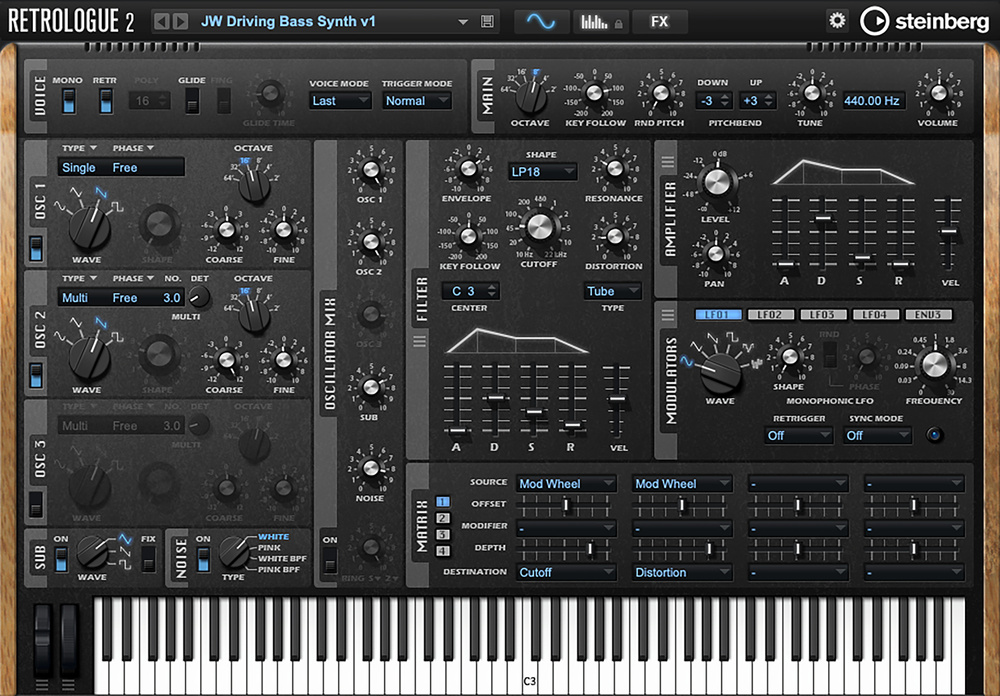
 All the settings required for our Retrologue bass synth sound can be accessed from a single page of the GUI.
Explore the world of bass synth sound design with Cubase’s Retrologue and HALion Sonic.
Whether in electronic music or contemporary film, TV or game scores, powerful pulsing bass synth sounds are often used to drive the music or visual action along. If you want such a sound, you might get lucky searching for the perfect preset — but designing your own is not only satisfying, but will also ensure you get a sound that’s a perfect fit. It’s something that you can easily do in Cubase Artist/Pro’s Retrologue 2 synth plug‑in. And while Elements users could buy that synth separately, they already have access to HALion Sonic, which is more than capable enough for the job. So let’s get rolling some DIY driving bass synth sounds...
Bass‑ics
Bass synth patches come in all sorts of sonic shapes and sizes, so before we start we need a target in mind. We’ll aim for something that can provide a pulse‑like rhythmic element, and that perhaps suggests a fast attack and a short release, allowing short staccato notes to be played without a rapid progression of notes getting in the way of each other. I’d also like it to be dynamic. In this case, I’m thinking it should provide a solid (maybe slightly subdued?) low‑end tone for any low‑intensity sections of our project, but, while retaining that low‑end foundation, it should also be able to get more strident (maybe more aggressive?) when greater intensity is required. Finally, I’d like to be able to gradually transition between these two sonic characters in real time, which means we may need to include some velocity or controller‑based parameter modulation.
Retrologue 2 makes all of this mercifully straightforward. Indeed, all the settings I needed to create this sound can be seen in the first screenshot, and I was able to configure them without leaving the main Synth page of the GUI. So, let’s now break down just how I arrived at this configuration. And if you want to hear how the sound evolves through the stages I describe below, check out the audio examples that we’ve made available on the SOS website at https://sosm.ag/cubase-0925.
Solid Base
When you open a first instance or Retrologue 2, the ‘init’ preset starts you off with a single oscillator enabled and the filter section’s cutoff wide open. The first element of our target sound — that solid low‑end foundation — is easy to configure from here. In this case, I retained the sawtooth waveform for osc 1 (it’s more harmonically complex than a sine wave, but either could work), but turned the Octave control down one notch. I adjusted the amplifier ADSR settings to ensure a fast attack, a longer decay stage, and minimal sustain or release. Within the filter section, the most important thing was to adjust the cutoff to around 50Hz. But I also added a small amount of resonance and tube distortion, and made some adjustments to the filter envelope.
This combination of settings removed the mid/high‑end fizz from the sound, but I then opted to switch on the sub‑oscillator and adjusted its Mix control, just to blend in a little extra low end. I used the triangle waveform for this, as I liked the fairly smooth character this added to the low end.
Character Enhancer
That simple osc1 and sub combination provides the foundation for our ‘low intensity’ bass sound but, at this stage, it will likely be a bit lacking in character. It certainly isn’t going to get us into the ‘high intensity’ territory that we also want to achieve.
To start tackling that, I turned my attention to the second oscillator, osc 2. Again, I used a sawtooth waveform but, in this case, I pitched it an octave above osc 1, and applied a slight detuning (I used a combination of the Coarse and Fine knobs for this). However, I also set the oscillator type to Multi and used three voices, setting the Det (detuning between these voices) at a subtle 10 cents. If you open the filter fully and audition this oscillator on its own (as in the audio example), what it lacks in low end it makes up for with some gritty mid‑frequency drive, while the use of multiple, detuned voices adds some stereo width. Hold that thought for a minute...
That grit becomes much more subtle when the filter cutoff is brought back down to 50Hz. Then, I simply blended osc 2 into the mix with osc 1 and the sub‑oscillator. Without adjusting any other settings, it immediately adds an extra ‘analogue synth’ character: it’s warmer and with a nice touch of saturation, but without (yet) being super aggressive. For any ‘low intensity’ bass synth target, this should do very nicely.
Added Intensity
As noted above, osc 2 provides plenty of additional aggressive character that we can tap into to achieve our ‘high intensity’ bass tone. There are a number of routes we could explore, including changing the blend of osc 1 and 2. However, I opted for a little hands‑on control configured in Retrologue’s Matrix. Here, I set the mod wheel to modulate both the filter cutoff and distortion controls. Therefore, as you move the mod wheel up, the filter opens, adding in more of that osc 2 grit noted earlier, and more of the filter’s distortion.
You can tweak the two Depth sliders to taste but, as demonstrated in the audio example, we can already move from our solid ‘low intensity’ bass sound to a much more aggressive ‘high intensity’ sound, simply by adjusting the mod wheel position. Oh, and as an optional touch, you can also enable the noise oscillator for an additional sense of ‘angry’ that becomes more noticeable the further the filter is opened.
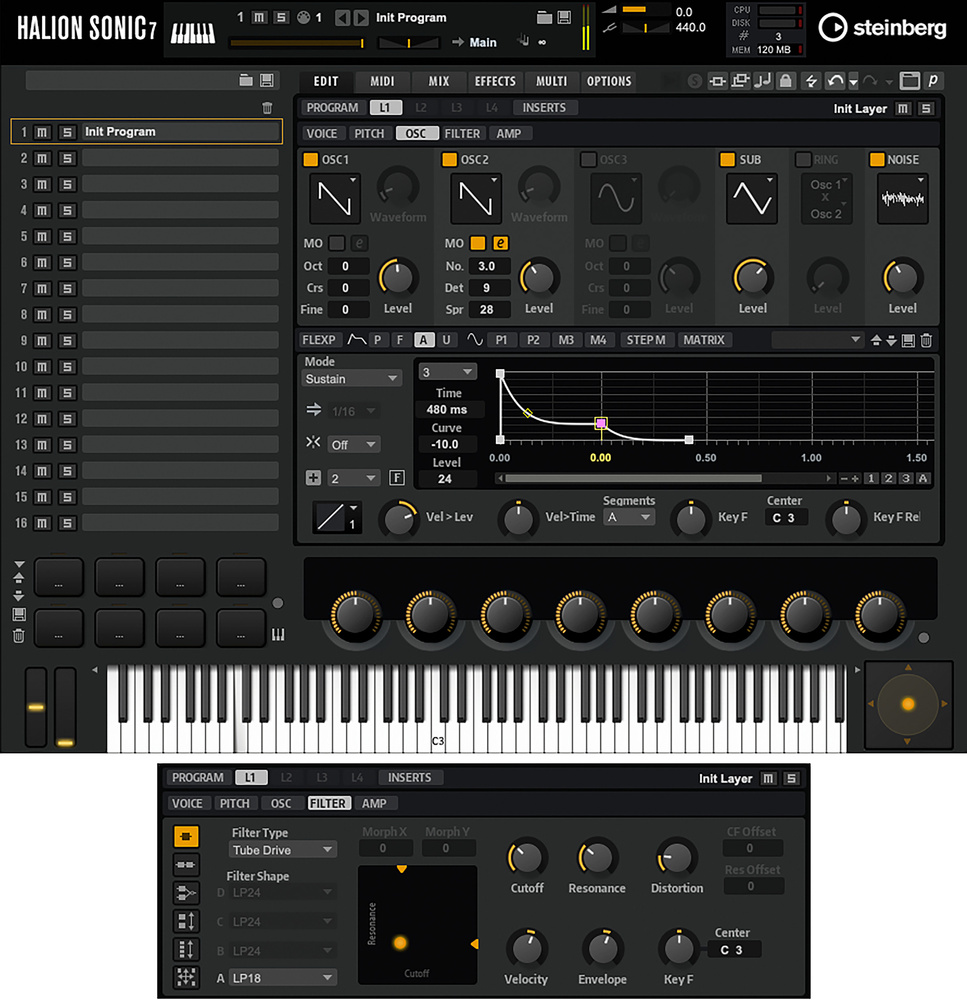 HALion Sonic provides all the options you need, but you have to dip into the oscillator panel, the amplifier envelope and the filter page to access them all.
Elemental Alternatives
Cubase Elements users can achieve something very similar to what I’ve described above in HALion Sonic (HS). However, unlike with Retrologue, which puts all the options you need in a single GUI page, in HS you do have to go digging a little. A useful first step is to initialise your first Program slot (right‑click on the slot and choose Init Program), to ensure you have a ‘blank’ slot to work in. HS Programs can consist of up to four sound layers, and the controls for each are accessed using the L1‑L4 buttons. With a layer selected, you get access to HS’s various synth engine parameters, spread across the Voice, Pitch, Osc, Filter and Amp panels. For our purposes, we need only one layer because (as shown in the composite screenshot) each one offers multiple oscillator options, much like Retrologue.
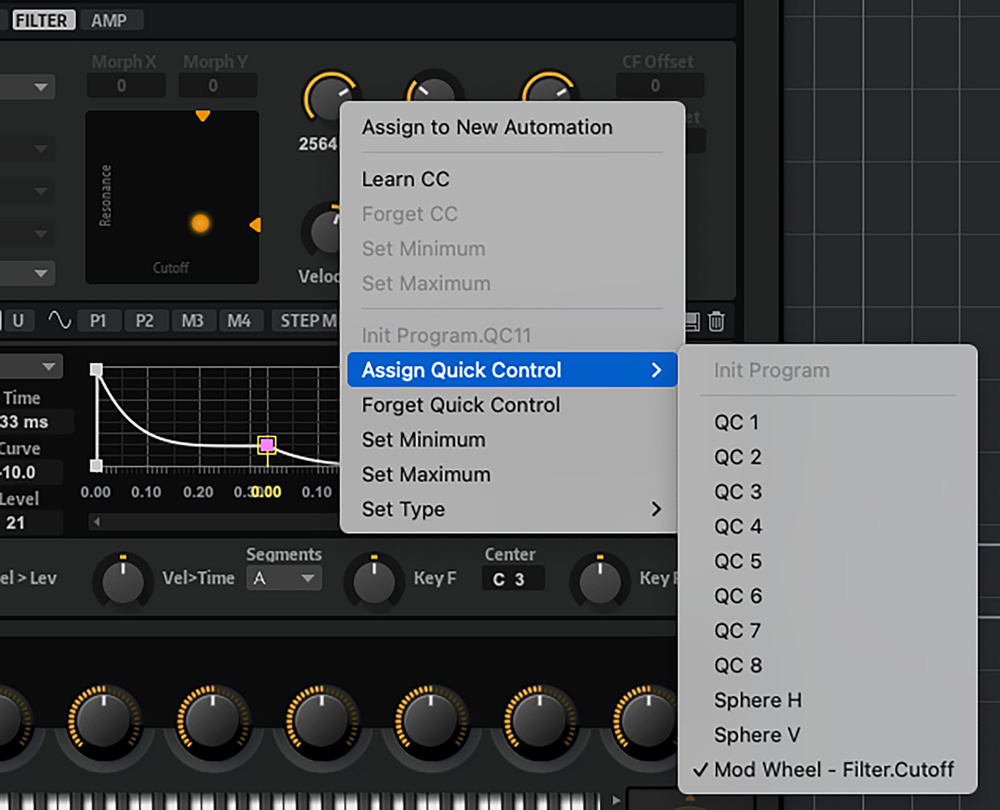 HALion Sonic’s Quick Control options allow you to configure the mod wheel to modulate between the low‑ and high‑intensity elements of our bass sound.To construct the basics of our sound, we must dip into three areas: the oscillator panel; the amplifier envelope (which can be edited below the osc panel); and the filter panel. The screenshot shows a composite of these different views, and across these three different panels you can configure something broadly similar to the Retrologue example, with two sawtooth oscillators (set to different octaves, slightly detuned, and with one using multiple voices), a sub‑oscillator and, optionally, a noise generator and a filter with tube distortion, with the cutoff initially set to roll off much of the mid/high‑frequency content.
Finally, we need to map the filter cutoff and distortion controls to the mod wheel. As shown in the final screen, this can be done by right‑clicking on each control in turn, and selecting the Assign Quick Control option, which includes the mod wheel option. Multiple parameters can be assigned to a single hardware control. Instead of a modulation depth option, from this same pop‑up menu you can also set the minimum and maximum values allowed for the target parameter. It’s also worth experimenting with the Set Type options; I found the Absolute option the most straightforward to use in this case.
Compared with Retrologue, configuring the combination of oscillators, filter settings and hands‑on modulation in HALion Sonic is a little more fiddly, since it requires you to visit multiple parts of the GUI. But it works! So, from a low‑intensity bass pulse to a high‑intensity, more aggressive bass‑driven rhythm, all versions of Cubase have a perfectly good set of tools for your DIY bass synth sound design adventures.

No comments:
Post a Comment